Phone-first social-video beginners
If you make short clips or personal projects, work out whether your phone already covers recording and editing. Add support, a microphone or light to address a specific problem.


For short social clips that your current phone can record and edit, start with a phone-first setup. Consider a dedicated camera when your planned shots call for different lenses or a camera-specific self-recording workflow. Before changing cameras, check whether speech, lighting or the route from recording to editing is the part that actually needs attention.
If you make short clips or personal projects, work out whether your phone already covers recording and editing. Add support, a microphone or light to address a specific problem.
If you film yourself while travelling or demonstrating something, weigh a compact kit against the framing, focus and lens options you need for your usual shots.
When two people speak on camera, check how each voice will be captured and whether the microphone system works with the recording device. Lighting and file storage still matter alongside audio.
Choose the recording route around a video you intend to make repeatedly, then check the sound, location and editing workflow before adding equipment.
Consider it when: your phone can capture the intended format and you want to edit and publish from the same device; YouTube describes YouTube Create as a mobile editing option.
Trade-off: check accessory connections and the phone’s recording modes rather than assuming a microphone or external drive will work with it.
Consider it when: lens choice or a camera designed for self-recording is important to the shots you plan to make; Canon describes both compact and interchangeable-lens creator-camera routes.
Trade-off: allow for the camera’s media, power and file-transfer workflow as well as the body and any lens.
| Priority | What to check | Your needs |
|---|---|---|
| Recording route | Try the intended shot on your current phone. If considering a camera, check its screen position, focus options and lens or bundle for that shot. | I want to record and edit short clips with few transfer steps, or I need camera controls and framing options for repeatable self-recording. |
| Speech | Match the microphone receiver to the exact phone or camera. Check transmitter count for two speakers and wind protection for outdoor recording. | My voice needs to be clear in talking-head clips, or both people need microphones for a conversation. |
| Lighting | Test the usual filming spot at the time you record. Check whether a light can be positioned and mounted where you need it; Adobe notes that poor lighting can cause noise and loss of detail. | Indoor footage looks uneven or dim, and I would rather address the room’s light than assume a new camera body will fix it. |
| Stable framing | Check where the phone or camera will sit, whether you need to move while filming and which mount fits the device. | I film alone and want a repeatable frame, or I need support while recording on the move. |
| Editing and storage | Confirm the recording codec, resolution and frame rate against the editor and device. For a Premiere workflow, Adobe says compatible hardware acceleration can speed playback and export; Apple says iPhone ProRes recording limits depend on the model and storage. | I keep longer takes or move files between devices, so I need a workable route from recording through editing and storage. |
A different camera can add media and transfer steps while leaving hard-to-hear speech or dim indoor footage unchanged.
Record a short clip in your normal location. If sound is the problem, check microphones; if the scene is dim, test the light; if framing is unstable, check support before choosing a camera body.
A connector alone does not establish that a microphone works with the recording app or that a drive meets a particular recording mode’s requirements.
Check the exact phone or camera model, accessory version and intended app. For direct external ProRes recording on a supported iPhone, check Apple’s model-specific drive-speed and power conditions.
Playback and export also depend on codec support and compatible hardware acceleration; active projects need storage that suits the editing workflow.
List the codec, resolution and frame rate you intend to record, then check the editor and computer against them. Adobe recommends fast SSD or NVMe storage for video-editing work.
GOV.UK explains that copyright protects works including music, films and photographs. The UK Intellectual Property Office says most uses of copyright material continue to require permission.
Before publishing, use material you made, obtain an appropriate licence or establish that a relevant exception applies. A social-video upload is not, by itself, permission to reuse a work.
Replacing music or footage after editing can mean reworking the video.
Use these ranges to identify a recording or audio route, then check the features and included accessories of the exact model.
Canon’s UK creator-camera range includes compact cameras and interchangeable-lens options.
Sony’s UK vlogging guidance covers compact and interchangeable-lens camera choices.
RØDE offers wireless microphones for creator recording workflows.
These options cover compact camera-first recording, a single-speaker microphone and portable lighting. Choose among them by the part of your setup you need to address, rather than treating them as interchangeable starter kits.
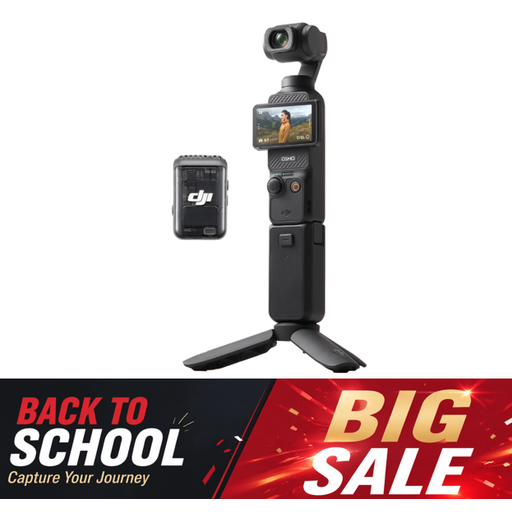 No image available
Consider this camera-first bundle for portable self-recording. Its title specifies a 1-inch CMOS sensor, 4K/120fps video, 3-axis stabilisation and an included microphone; check the recording mode’s media requirements and the exact bundle contents for your plans.
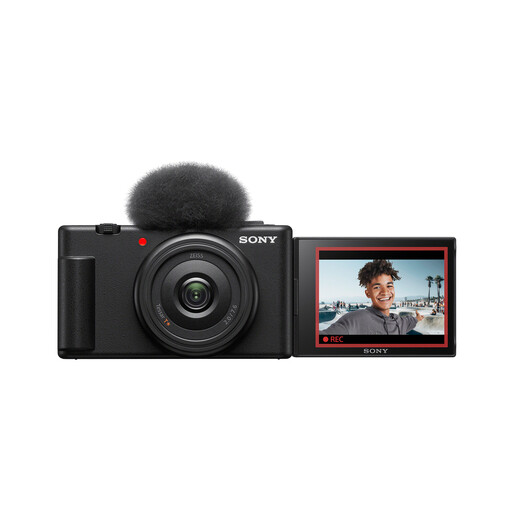 No image available
Consider this compact camera route if an ultra-wide lens fits the way you frame yourself; the title also specifies a 1-inch sensor. Check the intended microphone connection, video battery life and recording limits before planning longer sessions.
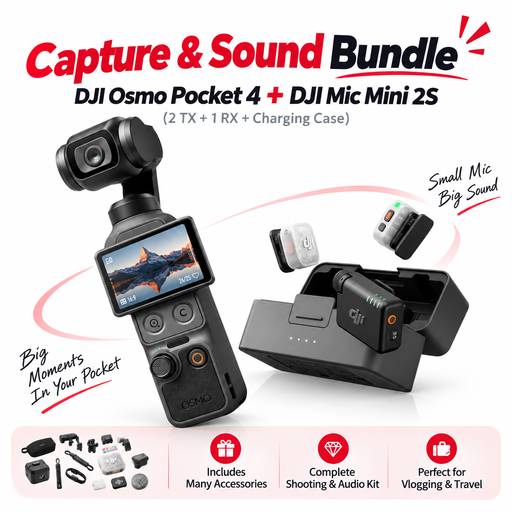 No image available
This camera-and-audio bundle is relevant to a planned two-speaker recording. The title specifies DJI Mic Mini 2S with 2 TX, 1 RX and a charging case; check the exact camera version, recording and storage modes, and how the microphones connect to it.
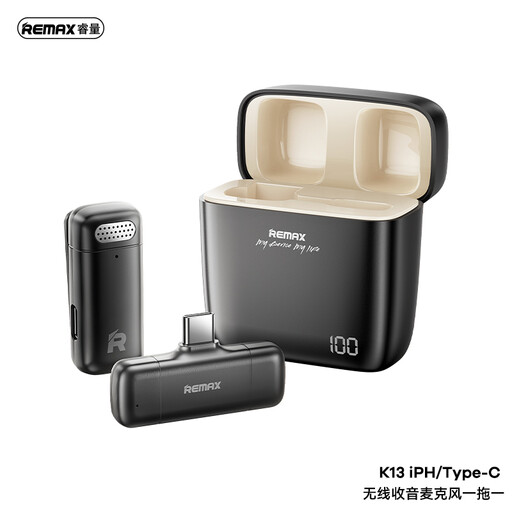 No image available
Consider this audio-first option for one speaker using a compatible USB-C recording device. Confirm that it works with the exact phone or camera and recording app; a 1-to-1 setup may not meet a two-speaker plan.
 No image available
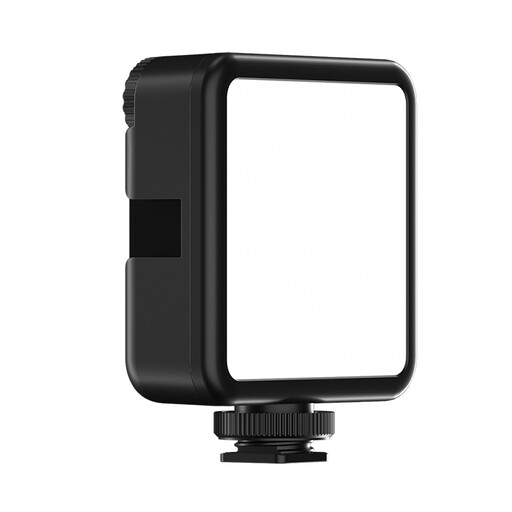
Consider a controllable light if your usual filming position is dim. The title specifies adjustable brightness, a cold-shoe mount and a 3000mAh rechargeable battery; check the mount against your rig and the light’s output and colour-temperature range against the room. Do not point the light directly into anyone’s eyes.
Yes, if your phone can record the format you want and handle your editing and publishing workflow. YouTube presents YouTube Create as a mobile editing option; add support, a microphone or light when a test clip shows which part needs attention.
Check how its receiver connects to the exact recording device and whether it works with your recording app. For two speakers, confirm that the chosen system includes or supports two transmitters; RØDE describes two clip-on transmitters for its Wireless Micro system, but receiver versions still need checking.
Not necessarily: test the room and your filming position first. Adobe notes that poor lighting can cause noise and loss of detail, so try the available light before deciding whether a controllable lamp or video light would address the problem.
Confirm that the exact iPhone supports your intended ProRes resolution and frame rate. Apple says recording limits vary by model and storage; for supported direct-to-external recording, check its stated drive-speed and power requirements for that recording condition.
No: establish permission or an applicable exception before using someone else’s work. GOV.UK explains that copyright protects music and films, while the UK Intellectual Property Office says most uses of copyright material continue to require permission; uploading to a social platform does not itself change that.