When setting up a replacement phone, start with its phone-to-phone transfer if both devices are available and the new one has room for the library; migration moves content but is not a separate archive. For ongoing access across signed-in devices, consider cloud backup and check account capacity and format limits. If you want a local copy without a computer or subscription, an iPhone can export to compatible external storage, but the connector, accessory and export workflow need checking before you buy.
Who needs which backup route?
People switching between iPhone and Android
Check what the transfer method supports for your exact old and new phones, and whether the new phone has space for the library. Apple Support and Google Android Help describe different transfer methods and content limits; a completed move should still be checked before the old copy is erased.
Phone owners without a computer who prefer local storage
Apple Support documents exporting iPhone photos and videos directly to connected storage. Before choosing a drive or flash device, check the phone connector, any adapter and the export workflow; the iPhone must be unlocked to use a storage accessory.
People organising a large local photo library
A computer and an external drive provide a way to organise a separate archive. For a Windows import, Microsoft Support says the phone must be unlocked and the USB cable must transfer files. Check the imported photos and videos before removing them from the phone.
What should you check before choosing?
Choose a transfer route for the copy you need now, then check whether it also gives you the separate or ongoing backup you want afterwards.
| Priority | What to check | Your needs |
|---|
| Moving to a new phone |
Check that both phones are available during setup, the new phone has enough storage, and the chosen method supports your content. Apple Support and Google Android Help note that transfer options and supported data vary by device and method. |
I want my existing photos and videos on the replacement phone before I clear or hand over the old one. |
| A copy without a subscription |
For direct iPhone export, check the connector, any adapter and access to the storage device. Apple Support says edited photos and videos export as unmodified originals through its documented Photos workflow. |
I would rather keep a physical copy, especially if I have no computer available. If my edits matter, I also need to check what the exported files contain. |
| Computer-based archiving |
Check that the cable transfers data and that the unlocked phone appears on the computer. Confirm the external drive works with the computer and inspect the imported files before deleting originals. |
A folder-based archive and a copy separate from my phone would help me manage a growing library. |
| Cloud capacity and formats |
Compare the whole library with free account space and check important file types. Google One Help says a standard Google Account has up to 15 GB shared across Gmail, Drive and Google Photos; Apple Support says an iCloud Photos copy to another service may omit some formats or features. |
I want photos available on signed-in devices, but I need enough account space and must check that important videos and photo formats arrive as expected. |
| Physical connections |
Check the phone port, data-capable cable, adapter and intended storage workflow. Apple Support says iPhone 15 and later use USB-C and that an iPhone must be unlocked before using a storage accessory. |
I need the accessory to work with my actual phone, not merely have a connector that looks suitable. |
What can interrupt a photo transfer?
-
Assuming a charging cable can transfer photos
A phone may charge while a Windows computer still cannot import its files. Microsoft Support specifies a USB cable capable of file transfer and an unlocked phone.
Test the cable and phone together before buying a drive for the computer-based workflow.
A data-capable replacement cable may be needed.
-
Erasing the old library as soon as migration finishes
Google Android Help says supported transfer data varies by device and method. Apple Support also warns that some formats or features may not be available in an iCloud Photos copy to another service.
Open a selection of older photos, long videos and important formats at the destination, and check a separate backup before erasing the old phone.
-
Choosing an external drive by capacity alone
Direct iPhone export also needs a usable connection and storage workflow. Apple Support distinguishes USB-C iPhones from devices that require a Lightning connection.
Check your exact phone, connector, any adapter and intended export method before selecting a drive.
An adapter or different cable may be required for the intended connection.
-
Counting cloud space as photo-only space
Google One Help says Google Account storage is shared across Gmail, Drive and Google Photos. Apple Support says an iCloud Photos transfer to another service needs enough space at the destination.
Check current account usage against the complete library before starting a backup or cloud-to-cloud copy.
Which platform and storage brands are relevant?
These references describe backup routes and product lines, not whether a particular device or service suits every phone.
Apple
Relevant to iPhone setup transfers, iCloud Photos and direct export to external storage.
- Apple Support documents exporting iPhone photos and videos to a connected drive, memory card or other storage device.
- Its documented export of edited items produces unmodified originals; storage accessories also require the iPhone to be unlocked.
Google
Relevant to Android transfers, Google Photos backup and Google Account storage.
- Google's support guidance describes photo and video backup to a Google Account for access on signed-in devices.
- Google One Help says the account's storage is shared across Gmail, Drive and Google Photos; Android transfer support varies by device and method.
Samsung
Its T7 Shield is an example of a portable SSD for a local archive.
- Samsung UK specifies USB 3.2 Gen 2 for the T7 Shield and an IP65 rating based on controlled internal testing.
- Those specifications do not establish direct access from every phone; check the host, cable and intended transfer route.
Seagate
Its Backup Plus documentation illustrates a computer-centred portable hard-drive route.
- Seagate UK describes Backup Plus capacities up to 5 TB and scheduled backup tools.
- That computer-oriented example does not establish direct smartphone compatibility; check the connection and workflow for any drive you consider.
Joybuy options for a local copy
These portable SSDs and a dual-connector flash drive are options for keeping a local photo copy. Some are aimed at particular phone connections; a computer-based archive remains another route. Check the exact device and export workflow before relying on direct phone access.
 No image available
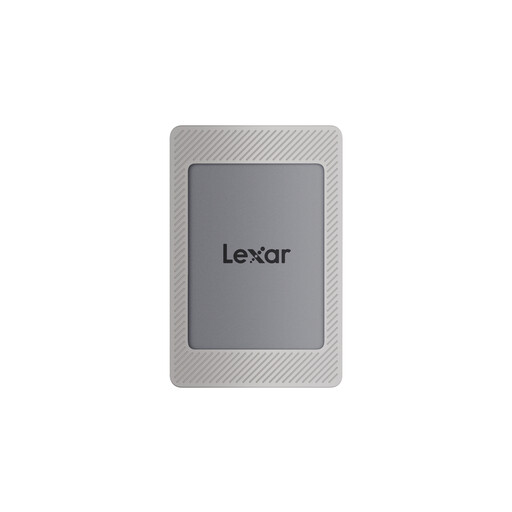
Lexar ES4 2TB Portable SSD with Magnetic Set
Consider this for a local copy of a large library if its connection works with your phone or computer. The title specifies 2TB, USB 3.2 Gen 2 and iPhone 15/16 compatibility; check your exact device and the file system needed for your export workflow.
View on Joybuy
 No image available
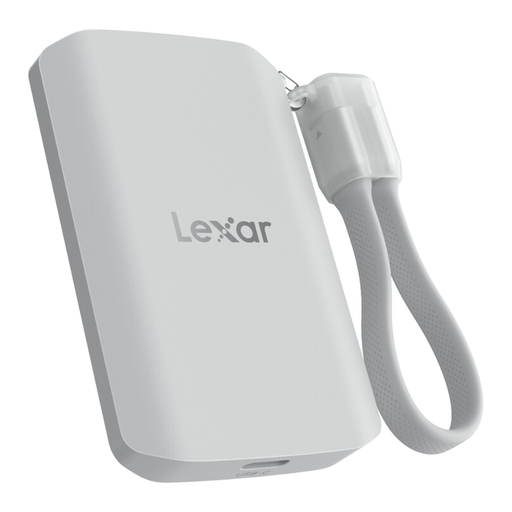
Lexar ES5 1TB Portable SSD
This 1TB USB 3.2 Gen 2x2 SSD is a local-storage option for a compatible phone or computer. The listing describes a Lexar app workflow rather than iCloud backup; check app, phone-model and file-system compatibility for the copy you intend to make.
View on Joybuy
 No image available
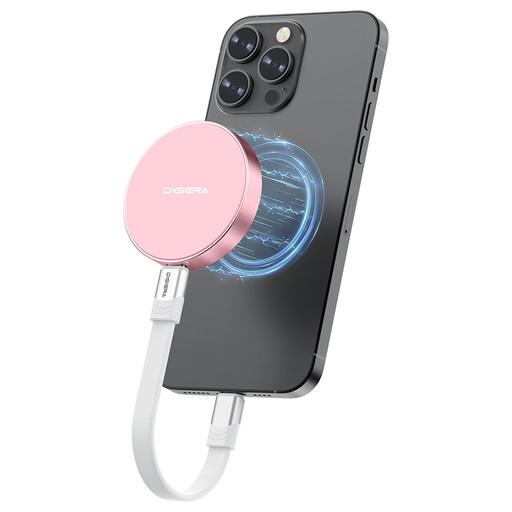
DigiEra LPS2000M-3 1TB Magnetic Portable SSD, Pink
The title identifies a 1TB USB 3.2 Gen 2x2 SSD for iPhone 15/16 series and other USB-C devices. Before using it for an ordinary photo export, check your exact phone, the storage format and the export method; model-specific recording claims do not establish photo-backup compatibility.
View on Joybuy
 No image available
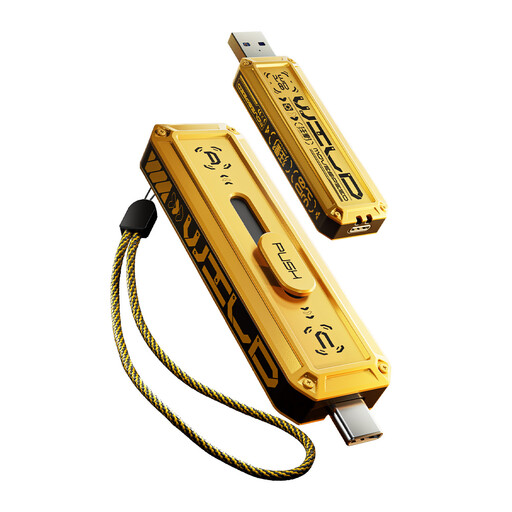
MOVESPEED YSUWD10-1TSY 1TB USB-A and USB-C Flash Drive, Yellow
The dual connectors offer a compact local-storage route for devices with a suitable port. Check the file system and your intended phone workflow before buying; the listing's iPhone compatibility descriptions are not consistent enough to assume it will work with a particular iPhone.
View on Joybuy
 No image available
Samsung T7 Shield 1TB Portable SSD, Blue
This 1TB USB 3.2 Gen 2 SSD is worth considering for a computer-based local archive. For direct phone use, check the exact phone, cable, drive format and power requirements rather than assuming the computer workflow also works on your phone.
View on Joybuy
Photo backup questions
Can I copy iPhone photos to an external drive without a computer?
Yes. Apple Support documents exporting selected photos and videos from an iPhone to connected external storage using Export Unmodified Original. Check the connector and any adapter first, and remember that edited items export as unmodified originals.
Why is my iPhone not detecting a storage accessory?
Unlock the iPhone before using the accessory. Apple Support says an iPhone or iPad must be unlocked for a storage accessory; if it is not recognised, disconnect it, unlock the device and reconnect it. Also check that the connection suits your phone and storage device.
Will a USB-C flash drive work with every iPhone?
No. Apple Support says iPhone 15 and later have USB-C; an earlier Lightning iPhone needs a suitable connection or adapter. A matching plug alone is not enough, so check the drive and intended export workflow for your exact model.
Is Google Photos enough when moving from iPhone to Android?
It can serve as a cloud copy if your library has finished transferring and the Google Account has enough space. Apple Support says its iCloud Photos-to-Google Photos transfer sends a copy, takes three to seven days and may leave out some formats or features. Check important items at the destination and keep another copy if those details matter.
Is phone-to-phone migration a separate backup?
No. Migration moves supported content to the new phone; it does not by itself create an independent archive. Apple Support and Google Android Help note destination-space and transfer-method conditions, so check the moved files and make a separate local or cloud copy before erasing the old phone.


