What matters when choosing?
Start with where the device will be used and what the person wants to do on it, then check the obstacle that makes those tasks difficult. Age UK likewise advises beginning with the activities the person wants to do.
iPhone with Assistive Access
Consider when: A trusted supporter can configure a focused set of apps for a relative who mainly needs straightforward phone communication.
Trade-off: Apple describes larger onscreen items and focused features, but the selected apps and account arrangements must suit the person’s actual tasks.
Android phone or tablet
Consider when: Adjustable access settings and conventional Android apps matter; a tablet is worth trying if a larger touch display is useful.
Trade-off: Google says accessibility feature names and navigation can vary by device and market, so the intended model needs a hands-on check.
Simplified Android smartphone
Consider when: Calls, messages and selected apps are essential, but a conventional home screen is difficult to navigate.
Trade-off: Doro describes a simplified Aurora interface and remote support; check the exact model’s required apps and whether its touchscreen suits the user.
Windows computer setup
Consider when: Longer reading, forms or documents call for a stable workspace, or a physical keyboard and alternative pointing device are easier to use.
Trade-off: Microsoft documents Windows accessibility tools, but the person and their supporter must also be comfortable managing windows, accounts and peripherals.
| Concern | What to check | Who this matters to |
|---|
| Simple navigation |
Try a few essential tasks with the intended apps and settings; check who can change that setup later. |
If crowded screens make calls or messages hard to find, I need to complete those tasks without searching through menus. Around 26% of consumers put straightforward navigation first. |
| Screen visibility |
Try text size, contrast and magnification at the person’s usual reading distance. |
When controls or text are hard to see, I need a display I can read comfortably, even if larger content means more scrolling. Around 21% of consumers make visual access their first concern. |
| Physical input |
Test touch accuracy and comfort with the intended keys, pointing device or voice controls. |
If tapping small targets or typing on glass is difficult, I need an input method I can operate reliably. For around 21% of consumers, physical input is the main priority. |
| Hearing access |
Try calls, alerts and captions in the usual setting; check compatibility with any device the person already uses. |
If I miss calls or cannot follow audio clearly, communication is still difficult even when the screen is easy to navigate. Around 16% of consumers prioritise hearing access. |
| Setup and support |
Agree who handles account recovery and updates, and check support information for the exact model. |
When help will be needed after the first day, I need someone I trust to resolve account and update problems with my consent. Ongoing support comes first for around 16% of consumers. |
Joybuy phone options
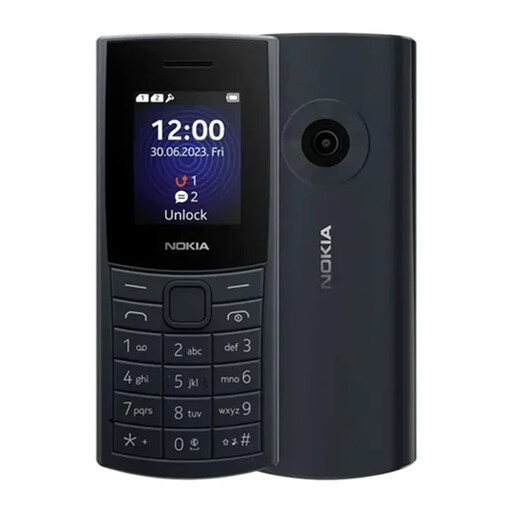
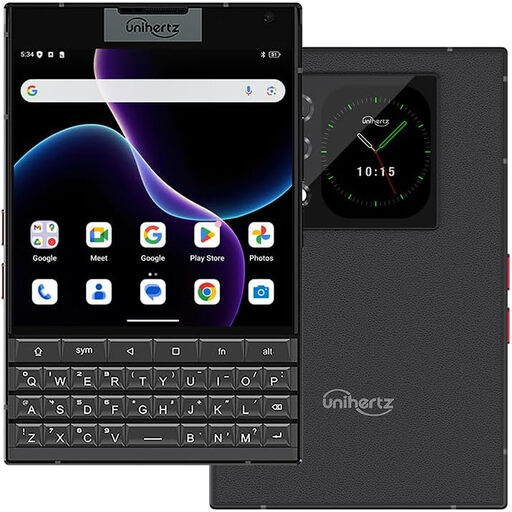
These two phones offer different physical-key approaches: a Nokia handset to consider for calls and texts, and a Unihertz Android smartphone with a QWERTY keyboard for someone who also needs apps. Neither replaces trying the person’s essential tasks and checking the support they will need.
 No image available
Nokia 110 4G TA-1543 DS Midnight Blue
Consider this phone when calls and texts are the priority and the person prefers physical keys. Try its screen and keypad for readability and comfort, and confirm any required online service or app before choosing it.
The product name identifies the TA-1543 DS variant and 4G connectivity; check compatibility with the intended mobile service.
Joybuy
 No image available
Unihertz Titan 2 5G, QWERTY, 12 GB + 512 GB, Black Dual SIM
Consider this Android smartphone if physical typing is preferable but apps are still needed. Try the keyboard and screen with the intended tasks; confirm the required accessibility settings and software-update support for this model.
The named configuration has a physical QWERTY keyboard, 12 GB RAM, 512 GB storage, NFC/OTG support and Dual SIM.
Joybuy
Common questions
Should my relative start with a phone, tablet or computer?
Start with the tasks and where they will be done: a phone suits portable calls and messages, a tablet is worth trying for a larger touch display, and a computer may suit longer tasks or physical keyboard and mouse use. Age UK advises beginning with what the person wants to do; let them try the intended input method before choosing.
Do all Android devices have the same accessibility settings?
No: Google says feature names and navigation may vary by device and market. Check the exact phone or tablet for the settings your relative needs, then try those settings during the device trial.
What should we set up before handing over the device?
Set up the necessary contacts, apps, account access, charging routine and update preferences with the user’s consent. Apple notes that a trusted supporter may help choose apps for iPhone Assistive Access and may need account information, so agree who can access and recover the account.
How can we check whether a device will keep receiving updates?
Look up support for the exact model rather than assuming a brand-wide period. Samsung says update availability depends on the Galaxy model, Google publishes different periods for Pixel model families, and Apple recommends automatic updates for software releases available to the device.
What if a device bought online does not suit my relative?
Check whether the purchase qualifies for a change-of-mind cancellation right and act promptly: GOV.UK says traders must tell customers they can cancel covered online goods orders up to 14 days after delivery. Faulty or misdescribed goods are a separate issue; the Consumer Rights Act 2015 provides a short-term right to reject goods that fail statutory standards, generally subject to a 30-day limit. Keep the order and delivery records and contact the seller about the applicable remedy.


