Someone who wants straightforward family contact
Calls and texts may be enough, or they may also want photos and occasional video calls. Ask which activities appeal to them before deciding how much online access the device needs.


Start with what your relative wants to do, how they prefer to use a device and who can help after setup—not their age alone. A feature phone may suit calls and texts; for video calls and online apps, consider a smartphone or tablet, then check the chosen apps, accessibility settings and account arrangements with the person who will use it.
The starting point is the person's chosen activities and support needs, not an assumption about what someone their age can use. Age UK describes a wide range of digital experiences among people over 65 in England.
Calls and texts may be enough, or they may also want photos and occasional video calls. Ask which activities appeal to them before deciding how much online access the device needs.
Try the display, sound and controls with the person. The useful choice is the one on which they can complete their intended tasks with settings and accessories that work for them.
Agree who will help with setup, practise everyday tasks and assist if access to an account is lost. That arrangement matters especially when a simplified interface or recovery contact is involved.
Decide which activities the person wants first. Then try the controls and make a plan for setup and support.
Consider when: Calls and texts are the goal, without a current need for video calls or online apps.
Trade-off: Check the exact handset before choosing it for any app-based activity.
Consider when: The person wants messaging, photos, video calls or other apps on a device they can carry.
Trade-off: A simplified layout or larger screen still requires practice, updates and account management.
Consider when: A mostly home-based user wants more display space for video calls, photos and online tasks.
Trade-off: Check how it will be carried, charged and connected, particularly if contact away from home matters.
| Priority | What to check | Your needs |
|---|---|---|
| Communication | List the calls, messages and apps the person wants. Check app compatibility and whether the device needs Wi-Fi or mobile connectivity where it will be used. | I mainly want to call and text family—or I want to join their video calls too. Those are different reasons to choose a device. |
| Controls and display | Try unlocking, finding a contact and answering a call. Check text size, contrast, sound and alternative controls on the exact model and software version. | Can I see, hear and operate the tasks I care about without struggling with the controls? A larger screen alone may not answer that. |
| Confidence and practice | Try a short route to each regular task and decide who can practise it with the user. Consider a simpler layout if fewer visible choices help. | I would like to know how to do the things I chose the device for, with someone I can ask if I get stuck. |
| Account and support | Set up an account for the user, agree a consented recovery arrangement and identify who will help with updates or a lockout. | If I forget how to sign in, I want a trusted way to get help without casually sharing my password. |
| Everyday handling | Check grip, carrying, charging and any accessories needed for the intended routine. For a refurbished device, check its condition and software support. | The device needs to fit where I will use and charge it, whether that is mainly at home or while I am out. |
Age UK describes varied levels of digital inclusion among people over 65 in England. A label or screen size cannot tell you whether this person can complete the tasks they want.
Ask them to try unlocking the device, finding a contact, sending a message and joining a video call if that is part of the plan.
Doing so can complicate who controls the apps and how the user regains access later. Apple's guidance for setting up Assistive Access says to check that the signed-in Apple Account belongs to the person using the iPhone.
Use the person's own account where possible, arrange recovery with their consent and keep credentials private.
Samsung UK says accessibility-setting availability can vary by phone model and software version. A setting also needs to work with the apps the person intends to use.
Check the exact model, configure the needed settings and practise the intended tasks together.
The UK Government's digital-inclusion work treats access to a device, skills and trusted help as connected needs. A working device does not settle who will help when an update or account problem arises.
Agree who can provide ongoing help, how charging and updates will be handled, and where the person can seek trusted support if family help is unavailable.
These brand approaches may help narrow what to try; the controls and setup still need checking on the exact device.
An iPhone or iPad may be worth considering when the person or their supporter prefers Apple's devices and account system.
Galaxy smartphones provide a mainstream Android route for someone who wants adjustable accessibility settings.
Doro offers phones aimed at people who prefer clearer controls or a more focused interface.
These options include a feature-phone route for calls and texts, smartphones for people considering apps, and a tablet for a mostly home-based routine. Match the type of device to the person's activities before comparing models.
 No image available
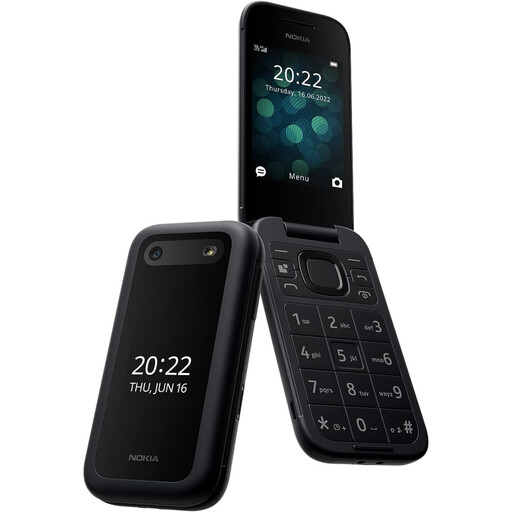
Consider this feature-phone option if calls and texts are the main goal. If video calls or particular online apps matter, check that the handset can run them before choosing it.
 No image available
A smartphone option when the person wants app-based communication. Try the display and touch controls with their chosen apps, and check the accessibility settings on this model and software version.
 No image available
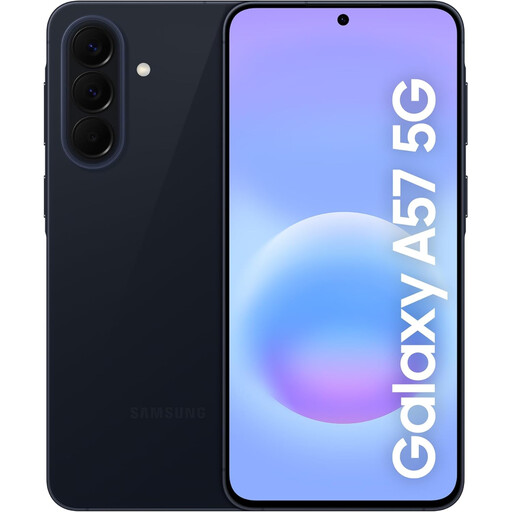
Consider this smartphone if the user wants online communication on a phone. Check the chosen video-call app, the accessibility settings they need and how comfortably they can handle the device.
 No image available
A smartphone option for someone who wants to use online communication apps. Its stated 6.3 inch screen does not establish whether text and controls will suit them; try their intended tasks and check app and mobile-network compatibility.
 No image available
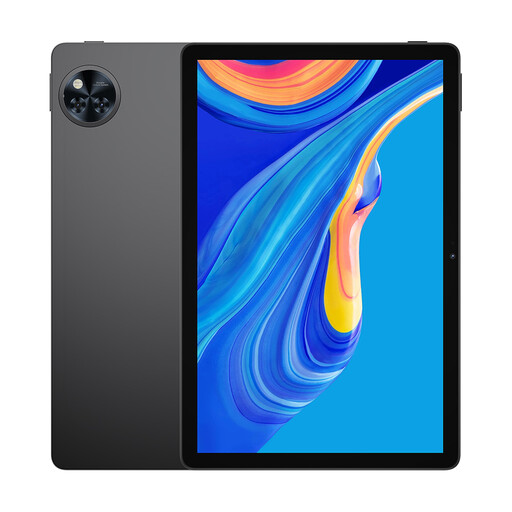
Consider this 11 inch tablet for a mostly home-based user who prefers a larger display. Check their video-call app and accessibility needs on the device, along with how they will connect, carry and charge it.
Not automatically: ask whether they want only calls and texts or also video calls, messaging apps and web access. Age UK's findings for people over 65 in England describe varied digital experiences, so age alone is not a useful shortcut for choosing their device.
Consider one when calls and texts are the person's main goals and they do not currently want app-based communication. If video calls or other online services become important, check whether the exact handset supports them or whether a smartphone or tablet better fits those tasks.
Set up an account for the person using it, add the contacts and apps they want, configure needed controls and practise calling and charging together. Agree who can help afterwards; for iPhone Assistive Access, follow Apple's setup guidance for the user's own Apple Account.
Yes, where the account provider offers a suitable recovery arrangement. Apple says an eligible Apple Account user can designate a recovery contact to help regain access; check Apple's prerequisites with both people. For another account, follow that provider's recovery instructions rather than assuming the Apple process applies.
Not necessarily. The person may also need spoken feedback, contrast changes, hearing support or a different way to use touch controls. Try the selected settings on the exact model while they unlock it, find a contact and complete the activity they want to use it for.