What matters when choosing a device?
Start with the hardest task the person needs to do regularly, then check that they can use the device, connection and account-sign-in method together.
| Priority | What to check | Your needs |
|---|
| Tasks and controls |
Try a real call, service sign-in and form. Compare touch controls with a physical keyboard. Check how to return to a task after switching apps. |
I want to complete the steps that matter, not just open an app. In the Department for Science, Innovation and Technology’s 2025/26 UK survey, only 13% of adults aged 85 or over said they could complete most digital tasks without difficulty; that measures confidence, not device performance. |
| Accessibility |
Test text size, contrast and spoken feedback on the exact device. Check captions or alternative input where needed. Try the required website or app with those settings enabled. |
If reading, hearing or tapping controls is difficult, I need an interface I can actually use; a larger screen alone may not address the barrier. |
| Connection and charging |
Check the intended home internet or mobile connection. Practise charging the device. If considering a dock, confirm compatibility with the exact model. |
Will I be able to get online and keep the device ready for use? The Department for Science, Innovation and Technology’s 2025/26 UK survey found that 78% of adults aged 75–84 and 46% of those aged 85 or over had used the internet in the previous three months; these are internet-use figures, not device-ownership rates. |
| Account access |
Test the device lock and each service’s sign-in steps. Check whether verification uses a text, an app or a passkey. Keep recovery methods current and accessible to the account holder. |
I need to receive and complete sign-in prompts without passing codes or passwords to someone else. The National Cyber Security Centre recommends passkeys where available and advises using two-step verification for important accounts. |
| Ongoing support |
Agree who can help with setup and later changes. Check what any remote-support feature permits. Arrange a way to confirm a request for help independently. |
When something changes on screen, I want to know whom I can ask without accepting an unexpected request for device access. |
Relevant brand and platform features
These examples show features worth testing; a brand’s general accessibility information does not establish how every model or required service will work.
Apple
Apple’s iPhone and iPad offer settings that may be relevant when a relative already uses those devices or their apps.
- Apple describes VoiceOver as providing spoken or braille screen feedback and Magnifier as enlarging physical text and objects through an iPhone or iPad camera.
- Try the intended device and service together; a listed device feature does not establish that every app will be comfortable to use.
Samsung
Galaxy phones and tablets are an Android route for someone considering adjustable display and navigation settings.
- Samsung UK describes TalkBack, enlarged content, contrast options and high-contrast keyboard settings on supported devices.
- Samsung says some features vary by model specification; check the exact device before relying on a setting.
Doro
Doro offers different routes for someone who wants familiar calling controls or a smartphone interface with guided navigation.
- Doro describes Leva feature phones as calls-and-texts devices and Aurora as Android smartphones with apps, internet access and video calls.
- A Leva calls-and-texts phone should not be assumed to run a required app; check the exact Aurora model and any support-feature conditions too.
Microsoft
A Windows computer may suit someone who prefers a desk, larger display and physical keyboard for longer online tasks.
- Microsoft lists Narrator, text-size and contrast controls, Magnifier, captions and voice access among Windows 11 accessibility features.
- Computer settings cannot ensure that a particular banking or public-service website works comfortably; test the tasks the person uses.
Joybuy phone and tablet options
These options cover a tablet for home-based touch use and two Android smartphones for portable access. Compare each with the person’s tasks and sign-in methods; the device-choice discussion above also includes computers.
 No image available
Xiaomi Pad 7 Gray, 8GB RAM, 128GB ROM with Focus Pen
A tablet option for someone who is comfortable with touch controls and wants to use online services at home. The product name specifies 8GB RAM, 128GB ROM and an included Focus Pen. Try the person’s required apps and accessibility settings, and check whether their sign-in or recovery steps still need a phone.
View on Joybuy
 No image available
OUKITEL WP60 5G Yellow, 16GB+512GB
A portable smartphone option where the person prefers a larger stated phone display. Its product name specifies a 7.2-inch HD+ display, Android 15, 5G and Dual SIM. Test unlocking, the required service apps, verification prompts and accessibility controls on this exact handset rather than assuming it has a simplified interface.
View on Joybuy
 No image available
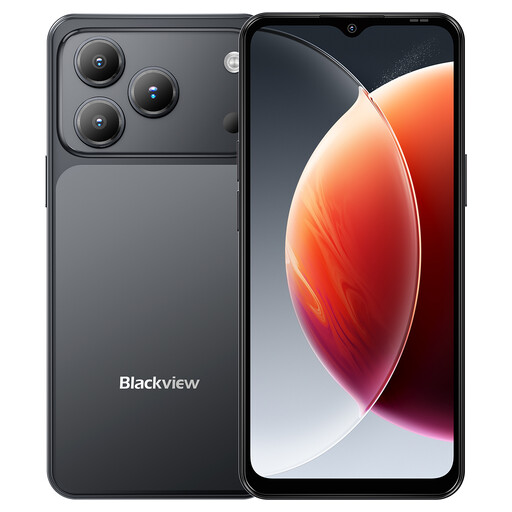
Blackview Wave 7C Black, Android 16, 128GB
An Android smartphone option for calls and online tasks away from a desk. The product name specifies a 6.56-inch display, 4G Dual SIM and 128GB storage. Check the exact banking and public-service apps, sign-in methods and accessibility controls with the intended user before choosing it.
View on Joybuy
Common questions
Should an older relative use a phone, tablet or computer for public services?
Choose the device on which they can complete their most demanding regular task. A phone keeps calls and sign-in prompts portable, a tablet gives touch-led pages more room, and a computer with a keyboard may suit longer forms. The Department for Science, Innovation and Technology’s 2025/26 UK survey found that, among people who had used government digital services, 70% had used a website on a computer, laptop or tablet and 60% had used one on a mobile phone; the figures do not identify a preferred device for an individual.
Can a simplified phone run banking and public-service apps?
Some simplified smartphones can run apps, but a calls-and-texts feature phone should not be treated as equivalent. Doro describes Aurora as an Android smartphone range with apps and Leva as a calls-and-texts range. Check the exact app, operating-system requirements and sign-in method on the model being considered.
What should be set up before handing over the device?
Make sure the person can unlock it, access their main email account and complete the sign-in steps for important services. Check recovery methods together. The National Cyber Security Centre recommends passkeys where available; if a service uses two-step verification, practise receiving and using its text or app-generated code without sharing it.
How can a family member provide remote help safely?
Arrange help in advance with a known, trusted person and agree how to confirm that a request is genuine. Do not disclose passwords, PINs or banking codes in response to an unexpected contact. The National Cyber Security Centre says emails claiming to be from it will not ask for remote access or login details; stop and independently check suspicious requests.


