Choose a smartphone when calls, messages and essential apps need to work while out and about; a mobile-data plan is needed for internet access away from Wi-Fi. A tablet may suit someone who uses residual vision for reading or documents and benefits from a larger display, but check how they will connect outside Wi-Fi coverage. Before choosing either, try the intended screen reader or magnification settings, gestures, essential apps and any assistive accessory on the device.
Who is this for?
People who rely on a screen reader
If calls, messages and everyday apps must be usable without looking at the screen, the interaction matters as much as the device type. Apple Support describes VoiceOver navigation on iPhone, while Google documents spoken feedback and gestures for Android TalkBack.
People who use residual vision
Someone reading text, completing forms or viewing documents may want to compare enlarged content on a phone and a tablet. RNIB notes that a tablet’s larger screen can help when a smaller screen is hard to see; Apple and Google document magnification settings for their respective devices.
People who prefer tactile controls
If locating physical buttons and hearing spoken feedback matter more than using a broad range of apps, an accessible feature phone is another option. RNIB Shop describes phones with speech output and accessible buttons; check the required tasks on the particular model.
What matters when choosing?
Smartphone
Consider it when: Calls, messages and essential apps need to travel with the user.
Trade-off: A smaller display may be harder to use with magnification; screen-reader gestures and essential apps still need testing.
Tablet
Consider it when: A larger view helps with reading, documents or other visual tasks.
Trade-off: RNIB notes that most tablets lack mobile data, so check connectivity if it will be used away from Wi-Fi.
Accessible feature phone
Consider it when: Tactile buttons and spoken feedback take priority for calling and messaging.
Trade-off: BlindShell warns that third-party apps may not be fully accessible or compatible.
| Concern |
What to check |
Who this matters to |
| Screen reader and essential apps |
Try VoiceOver or TalkBack during setup, then navigate, enter text and complete tasks in required apps. Check any braille-display connection. |
If I need spoken access to messages and apps, I need to complete the whole task, not just hear the screen. Around 33% of consumers put non-visual app access first. |
| Magnification and screen space |
Compare phone and tablet screens at the intended text size or magnification level; try reading and moving around a document. |
When I use residual vision, enlarged content must remain manageable while I read or fill in forms. For around 27% of consumers, usable visual space is the primary concern. |
| Tactile and simpler controls |
Try the keypad, spoken prompts, calling and messaging on the exact model; check every essential third-party app. |
I may find physical controls easier to locate than controls on a flat screen, provided the services I rely on still work. Around 20% of consumers prioritise tactile or simpler interaction. |
| Portability and connection |
Decide where internet access is needed; check whether a tablet is Wi-Fi-only or cellular-capable and whether its size is practical to carry. |
If I need information while travelling, a larger screen may not compensate for being unable to connect away from Wi-Fi. Staying connected on the move is the main concern for around 20% of consumers. |
For a braille display, keyboard or switch, check compatibility and the actual pairing and app workflow with the chosen device. Apple Support documents keyboard and switch options, while Google documents braille-display and alternative-control support; the accessory and device still need to work together for the intended tasks.
Common buying mistakes
-
Assuming a screen reader makes every app usable
Operating-system speech support does not establish that a particular banking, transport or work app can be used through every step.
List essential tasks and try login, text entry and confirmation screens with VoiceOver or TalkBack on the intended device.
-
Expecting identical gestures on every Android device
Google says some magnification steps require Android 13 or later, and multi-finger TalkBack gestures are not available on every device.
Check the exact model, installed Android version and gestures the user needs before committing to it.
-
Choosing a tablet by screen size alone
A larger display may help with visual tasks, but RNIB notes that most tablets do not have mobile data.
Map out where the tablet will be used. If internet access is needed away from Wi-Fi, check the chosen model’s cellular capability and the required connection.
-
Treating a tactile phone as a full app replacement
Physical controls may suit core communication tasks, but BlindShell cautions that third-party apps may be inaccessible or incompatible.
Try every essential app on the exact feature phone before replacing a smartphone that already supports those tasks.
Relevant brands to consider
Apple
An iPhone or iPad route for people considering built-in VoiceOver, Zoom and display adjustments.
- Apple Support documents VoiceOver as a gesture-based screen reader and describes accessibility options available during setup.
- VoiceOver changes ordinary touch interaction. Try its gestures and the user’s essential apps rather than relying on the feature list alone.
Google
An Android accessibility route that includes TalkBack, display adjustments and alternative input options across supported devices.
- Google documents TalkBack, magnification, braille-display support, Voice Access and switch or keyboard control.
- Check the exact device and software: Google says some magnification steps require Android 13 or later, and multi-finger TalkBack gestures are not universal.
BlindShell
An accessible feature-phone route for someone prioritising tactile controls and spoken feedback.
- BlindShell describes tactile controls, voice control and synthetic-voice feedback on the Classic 3.
- BlindShell warns that third-party apps may not be fully accessible or compatible; test required services individually.
Tablet choices on Joybuy
These tablets offer different display sizes and connection options for someone considering a larger workspace. Compare them at the magnification level needed, and try essential accessibility tasks on the exact device before choosing; the phone and tactile-control routes discussed above remain separate choices.
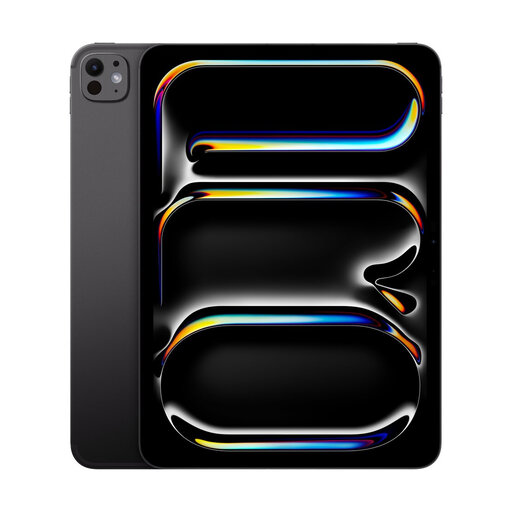 Image unavailable
Apple iPad Pro 11-inch (M5), Wi-Fi, 2TB, Standard Glass, Space Black
Consider its 11-inch tablet display for reading or visual tasks where a larger view than a phone is useful. Apple documents Zoom for iPad; try the required magnification, VoiceOver gestures and apps on this setup.
This is a Wi-Fi model, so check whether the places it will be used have suitable Wi-Fi access.
View on Joybuy
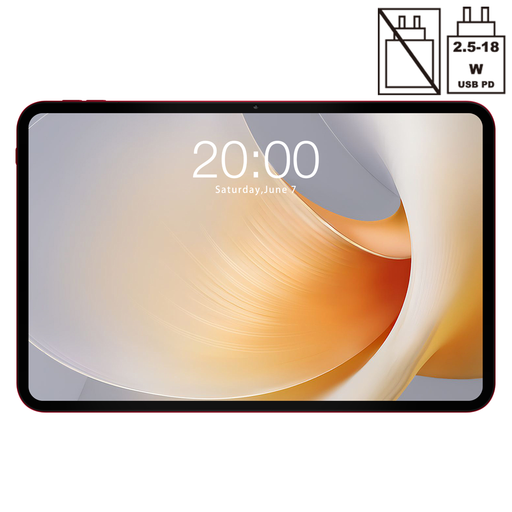 Image unavailable
Teclast T65 Plus, 13.4-inch, Android 15, 128GB
Its 13.4-inch display is worth trying for enlarged text and documents if a phone screen feels too small. The listing states a 120Hz display, Android 15 and dual-SIM 4G; test TalkBack, magnification and essential apps on this model.
If mobile data matters, confirm UK network compatibility and the connection required for this exact device.
View on Joybuy
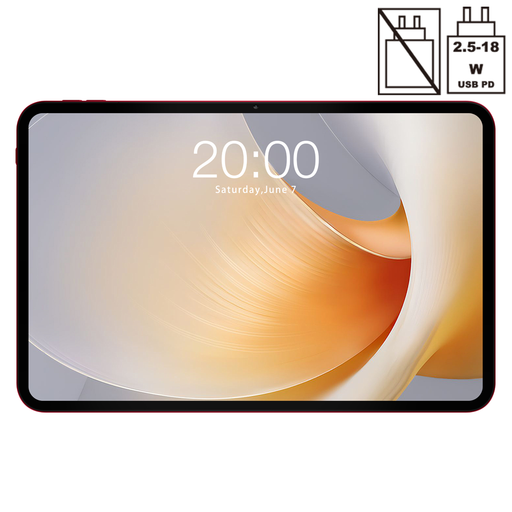 Image unavailable
TECLAST T65 Plus, 13.4-inch, Android 15, 256GB
Consider this 13.4-inch variant when comparing a tablet-sized view for reading and other visual tasks. Its listed configuration includes a 120Hz display, Android 15 and dual-SIM 4G LTE; try the intended TalkBack gestures, magnification and apps on the device.
Check UK network compatibility and mobile-data requirements if it needs to connect away from Wi-Fi.
View on Joybuy
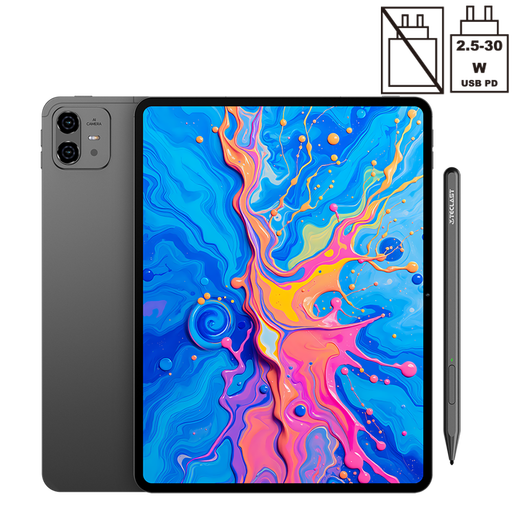 Image unavailable
TECLAST ArtPad Pro, 12.7-inch, Android 15, 256GB, with stylus
Its 12.7-inch display provides another tablet size to try for magnified reading or documents. The listing specifies a 2K display, dual-SIM 4G LTE and an included stylus; test TalkBack, magnification and required apps on this model.
If it will be used away from Wi-Fi, confirm UK network compatibility and mobile-data requirements.
View on Joybuy
Questions and answers
What should I try before buying a phone for someone who is blind?
Try the intended screen reader while navigating, reading a message, entering text and completing tasks in essential apps. Apple Support describes VoiceOver gestures on iPhone; Google notes that multi-finger TalkBack gesture support varies by Android device, so try the exact handset.
When might a tablet suit someone with sight loss better than a phone?
A tablet may suit someone who uses residual vision and finds reading or working with enlarged content easier on a larger screen. RNIB notes that most tablets lack mobile data, so check connectivity if independent internet access while out is also important.
Do TalkBack and magnification work the same way on every Android phone?
No: the exact device and software affect some interactions. Google says multi-finger TalkBack gestures are not supported everywhere and some magnification steps require Android 13 or later; check the installed version and practise the gestures needed.
Can an accessible feature phone replace a smartphone for essential apps?
Only if the particular feature phone supports the services the person needs in a usable way. BlindShell says third-party apps on its Classic 3 may not be fully accessible or compatible, so try each essential app before switching.


