Choose a phone if calls, messages and portable app-based tasks come first; consider a tablet for touch-based tasks on a larger screen, or a laptop or desktop if regular typing, forms and documents matter more. Try the required accessibility controls and check update support on the exact device. If the main barrier is equipment, connectivity or confidence with setup, local support may be a more useful starting point than a purchase alone.
Who is this for?
The useful starting point is the task someone wants to do, followed by the help they may need to set up and practise it.
People getting started online
Email, websites and video calls may be straightforward goals, while passwords, navigation and setup take practice. In the Department for Science, Innovation and Technology’s Public Engagement Survey 2025/2026, 76% of UK adults surveyed said they could complete most digital tasks without difficulty; among respondents aged 85 or over, 13% said so. These are self-reported confidence figures, not a measure of which device either group should use. Good Things Foundation’s Learn My Way covers beginner tasks including email, passwords and video calls.
People who need a different way to interact
Small text, gestures, typing or visual clutter can change which setup is workable. Try the intended tasks with the exact device and any required screen reader, magnification, voice control, keyboard or other input method before deciding.
People without suitable equipment or connectivity
Consider the device and the connection it will use together. Good Things Foundation says its National Device Bank and National Databank distribute devices and mobile data through local organisations, not directly to individuals; a local Digital Inclusion Hub can help establish what support is available.
What should you check before choosing?
Start with the tasks that will happen regularly, then try the screen, controls and setup needed to complete them.
| Priority | What to check | Your needs |
|---|
| Portable communication |
Try calls, messages, video calls and any required apps or sign-in codes. Check whether the phone’s screen and keyboard work for longer tasks too. |
I mainly need to stay in touch and complete short tasks away from home. If forms or documents are frequent, a phone alone may be awkward to use. |
| Touchscreen space |
Compare the actual phone and tablet displays while reading a page, entering a password and joining a call. Check whether a keyboard is needed for longer writing. |
I prefer touch controls but want more room to see what I’m doing than my chosen phone provides. |
| Typing and documents |
Try a regular email, an online form and a document. Compare a portable laptop with a desktop setup that stays in one place, including its separate display and input devices. |
Longer forms and frequent typing are part of my routine. Portability matters only if I will work in more than one place. |
| Accessible controls |
Test the required text settings, spoken feedback or alternative input on the exact device and software version. Confirm compatibility before buying an accessory. |
Reading the screen or using standard touch, keyboard or pointer controls is difficult for me; a larger screen alone may not address that. |
| Guided setup |
Plan who can help with accounts, passwords, updates and initial settings. Practise the first few real tasks rather than judging the device by its home screen. |
I want to repeat familiar steps with help available when I get stuck, not just have a device handed to me. |
| Connection and access |
Check how the device will connect where it will be used. If equipment or mobile data is the obstacle, ask a local Digital Inclusion Hub about available support. |
Buying hardware would not complete the task if I still could not connect or get help using it. |
| Remaining support |
Check manufacturer support for the exact model, especially if it is refurbished. For a Chromebook, look up its model-specific final automatic-update date in Google’s update schedule. |
I need a device I can continue to update. The National Cyber Security Centre advises avoiding devices no longer supported by their manufacturer where possible. |
What commonly goes wrong?
-
Assuming a purchase solves every barrier
A device may still go unused if there is no workable connection or help with accounts, passwords and the first online tasks.
Identify one task to practise, arrange setup help if needed and ask a local Digital Inclusion Hub about device, data or beginner-learning support before buying.
-
Overlooking support on a refurbished device
A manufacturer-unsupported device can miss security updates; an account-locked device may not be ready for its next user. The National Cyber Security Centre advises avoiding unsupported second-hand devices where possible.
Check the exact model’s support status and that it can be reset and activated. Keep the seller’s description and proof of purchase.
-
Choosing by screen size alone
More display space does not resolve difficulty with gestures, typing or pointer control. Conversely, a portable phone can be cumbersome for lengthy forms.
Try the intended tasks: unlock the device, adjust text, type a message, enter a password and use any required accessibility control or accessory.
-
Assuming all Chromebooks have the same update period
Google publishes a final automatic-update date for each Chromebook model. That date matters when judging how long a particular new or refurbished device will meet your needs.
Look up the exact model in Google’s update schedule before choosing it.
Which platforms offer relevant features?
These platform references help identify settings to try; they do not establish that any particular product has the right setup for its user.
Apple
For people considering an iPhone or iPad, Apple documents controls for changing how content is displayed and operated.
- Apple documents iPhone screen reading, larger text, zoom, display adjustments and connections for an external keyboard or assistive device.
- Apple’s Assistive Access provides a simplified interface on supported iPhones, but the intended settings and devices should be checked together; availability can vary by device, software, language and region.
Google
Android accessibility controls and Chromebook update schedules are relevant checks for these two different device routes.
- Google documents Android TalkBack, display-size adjustments, magnification, voice control and switch access.
- Confirm the needed controls on the exact Android device. For a Chromebook, check Google’s model-specific final automatic-update date.
Microsoft
Windows is relevant when a laptop or desktop will be used for typing, forms and a chosen keyboard, pointer or display arrangement.
- Microsoft provides resources for Windows screen readers, magnification, speech recognition and other assistive technologies.
- Try the required features with the exact computer, peripherals and software setup; a platform feature alone does not establish that the complete arrangement will work for someone.
Joybuy phone and laptop options
These options cover a portable smartphone and laptops for typing or web-based tasks. Choose the device type around the tasks and support described above; this list is not a comparison of every route discussed.
 No image available
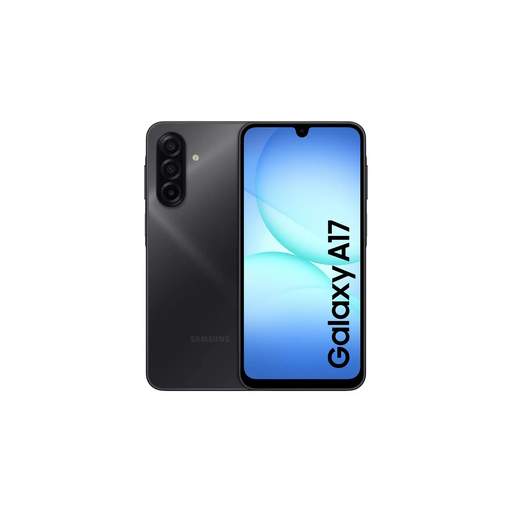
Samsung Galaxy A17 5G A176 Dual Sim 4GB 128GB Grey
A smartphone option when portable calls, messages and app-based tasks are the priority. Check the required accessibility settings on this exact device, its applicable update period and the charging equipment needed for your setup.
View on Joybuy
 No image available
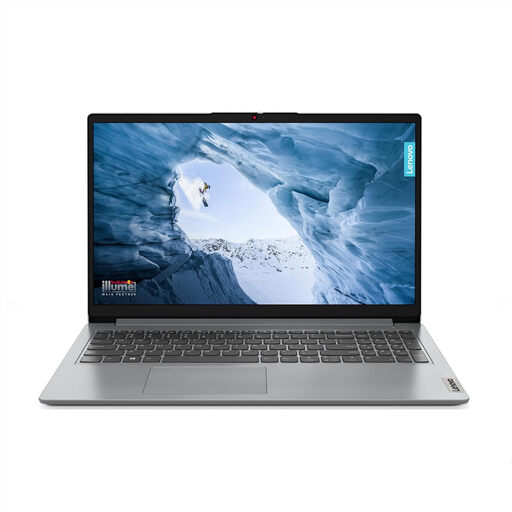
Lenovo IdeaPad 1 15-inch Full HD, Ryzen 3 7320U, 8GB RAM, 128GB SSD
A laptop route for regular typing and online forms. This configuration is listed with Windows 11 Home in S Mode; check that the software and setup you need work in S Mode, along with remaining manufacturer support.
View on Joybuy
 No image available
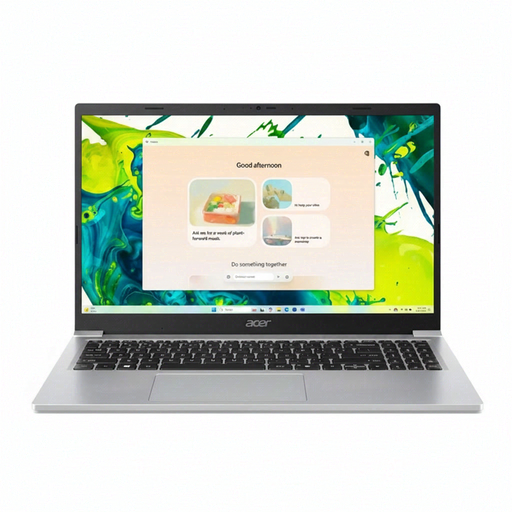
Acer Aspire Lite AL15-36P-C29Z 15.6-inch Full HD, Intel N150, 8GB DDR4 RAM, 128GB SSD
A larger-screen laptop option for browsing and typed tasks. The product information differs on whether its Windows 11 Home configuration is in S Mode, so confirm that before relying on particular software or setup options; also check update support and any required accessibility controls.
View on Joybuy
 No image available
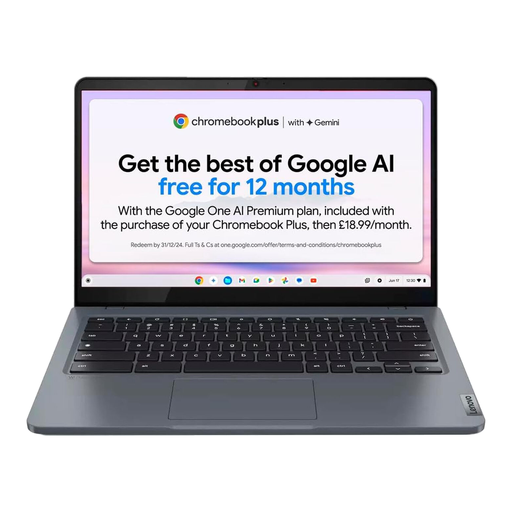
Lenovo IdeaPad Slim 3 Chromebook 14IAN8 83BN001EUK, 14-inch, Core i3 N305, 8GB RAM, 256GB eMMC
A ChromeOS laptop option for web-based tasks and regular typing. Check that required software and accessibility features work on this model, and look up its final automatic-update date in Google’s schedule.
View on Joybuy
 No image available
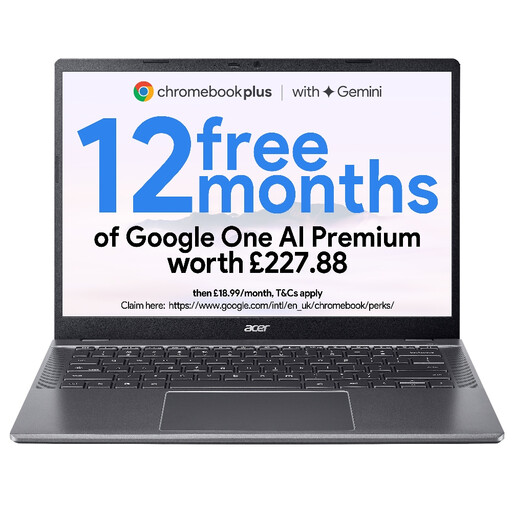
Acer Chromebook Plus 514 CB514-5H, 14-inch WUXGA, Core i3-1315U, 8GB RAM, 256GB SSD
Another ChromeOS laptop option for web-based tasks and typing, with a 1920 × 1200 display stated in its product name. Confirm compatibility with the tasks and accessibility controls you need, and check this model’s final automatic-update date.
View on Joybuy
Frequently asked questions
Should I seek local support before buying a device?
Yes, if the immediate obstacle is access to equipment, mobile data or help getting started. Good Things Foundation says its National Device Bank and National Databank work through local organisations rather than giving devices or data directly to individuals. Ask a local Digital Inclusion Hub what is available; its free Learn My Way platform also covers beginner online tasks.
How can I check whether a device meets an accessibility need?
Try the difficult task on the exact device: reading text, hearing feedback, entering a password, typing or using an alternative control. Confirm that its software version supports the required setting or accessory; general Apple, Google or Microsoft feature documentation does not establish compatibility with every model.
What should I check when choosing a refurbished device?
Check that the exact model still receives manufacturer support and can be reset and activated, then read the seller’s description of its condition. The National Cyber Security Centre advises avoiding manufacturer-unsupported second-hand devices where possible. Keep the description and proof of purchase in case the device does not match what was supplied.
How long will a Chromebook receive updates?
Check the final automatic-update date for the exact model before buying. Google publishes model-specific update schedules, so a general Chromebook update-policy statement is not a substitute for checking the device you intend to use.


