Drivers using a phone for navigation
If your car has no built-in sat nav, the key decisions are where your phone and case will fit, whether that position leaves your view clear, and how you will power the phone during the journey.


A mounted phone is a practical choice for a car without built-in navigation if its position leaves the road view clear and you have a charger and cable compatible with the phone. If a universal mount has no suitable position, check a vehicle-specific one; a dedicated sat nav provides a separate screen, while downloaded phone maps can help when mobile data is unavailable, though Google Maps does not provide live traffic or alternative routes offline. GOV.UK says you must not hold and use a phone or sat nav while driving, and you must remain in full control of the vehicle.
If your car has no built-in sat nav, the key decisions are where your phone and case will fit, whether that position leaves your view clear, and how you will power the phone during the journey.
Vents, displays or dashboard contours may make a universal mount difficult to position. A vehicle-specific base is worth checking against the exact car configuration, followed by a sightline and control check after fitting.
A downloaded phone map can guide a route within its saved area. A dedicated sat nav is another option if you want a separate screen and regional maps, but check whether the live features you want need a phone connection.
Choose a position that preserves your view and control of the car first; then check the phone holder, power connection and navigation functions you need.
Consider it when: A dashboard or windscreen position in your car keeps the road and traffic ahead visible while letting you use your existing phone.
Check the fit: Being hands-free does not make every installed position suitable; the phone must not obstruct your view or interfere with control.
Consider it when: A universal position is difficult to fit around your dashboard, vents or displays.
Check the fit: Brodit’s ProClip illustrates a vehicle-specific base that takes a separate phone holder; its stated fit can depend on model year and vehicle configuration.
Consider it when: You prefer navigation on a separate screen with maps for your usual region.
Check the connection: Some live features can still need a smartphone app, and the device must be positioned without blocking the road view.
| Priority | What to check | Your needs |
|---|---|---|
| Clear placement | Assess the actual installed position against your view of the road and traffic ahead. Check access to essential controls and the holder’s fit around the phone and case. GOV.UK requires the driver to remain in full control. | I need to see the route without holding a device or losing sight of the road ahead. |
| Power | Match the car socket, charger port, cable connector and phone’s charging support. If you use an iPhone, Apple says heat can slow or pause charging, so consider sun exposure at the proposed mount position. | On a longer drive, I want to keep the phone powered without relying on an incompatible cable or a hot mounting spot. |
| Offline guidance | Download the required map area before travel and check that the whole route lies within it. Google Maps says offline driving lacks traffic information and alternative routes. | Mobile data may drop out on my route, but I still want directions within the area I have saved. |
| Separate device | Check a sat nav’s map region, mounting position and how its live features connect. Garmin lists a UK and Ireland map version of the DriveSmart 66; its live-traffic setup can use the Garmin Drive smartphone app. | I would rather keep navigation on a separate screen, while knowing which functions still involve my phone. |
| Route preparation | Set and review the route before moving. Follow road signs and conditions rather than treating prompts as instructions to make an unsafe manoeuvre. | I want guidance I can follow without needing to handle or reset a device in traffic. |
GOV.UK allows hands-free access through holders or mounts only within conditions that include an unobstructed view of the road and traffic ahead and full control of the vehicle.
Identify a proposed position in your own car, then check the view and access to controls while stationary after fitting.
A base may fit only specified model years, steering-side layouts or dashboard configurations. It may also need a separate holder for your phone.
Check the manufacturer’s vehicle fit details and confirm that the holder accommodates your phone with its usual case.
A separate compatible phone holder may be needed with the mounting base.
Belkin says fast charging for compatible Lightning iPhones with its USB-C car charger requires a USB-C-to-Lightning cable that supports that mode; charger output alone does not establish the result.
Check the phone connector, cable capability and charger port together before choosing a charging setup.
Google Maps can guide an offline drive when the entire route is in the downloaded area, but traffic information and alternative routes are unavailable offline.
Save and review the map area before departure; if live traffic or rerouting matters, check the connectivity required for your chosen setup.
These brands illustrate different parts of the navigation decision: mounting, charging and a separate sat-nav device.
Brodit’s ProClip is a vehicle-specific dashboard base designed to take a separate device holder.
Belkin makes USB-C Power Delivery car chargers relevant to powering a phone used for navigation.
Garmin’s DriveSmart 66 is an example of a dedicated sat nav with a separate screen.
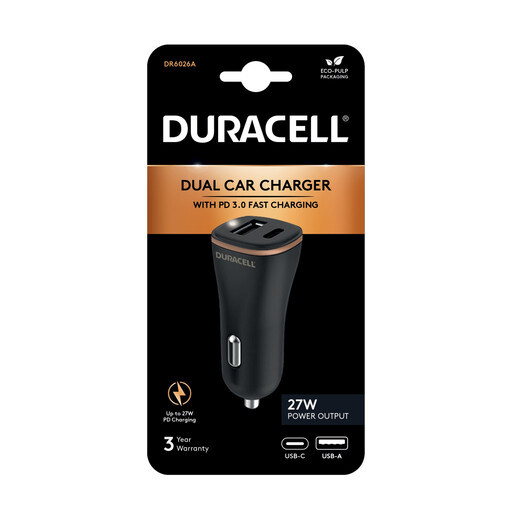
These car chargers address the power part of using a phone for navigation. You will need to choose and check a suitable, non-obstructive position for the phone separately.
 No image available
For charging a phone used for navigation from a car socket. Check the phone connector and cable against the charging mode you intend to use; this charger does not hold or position the phone.
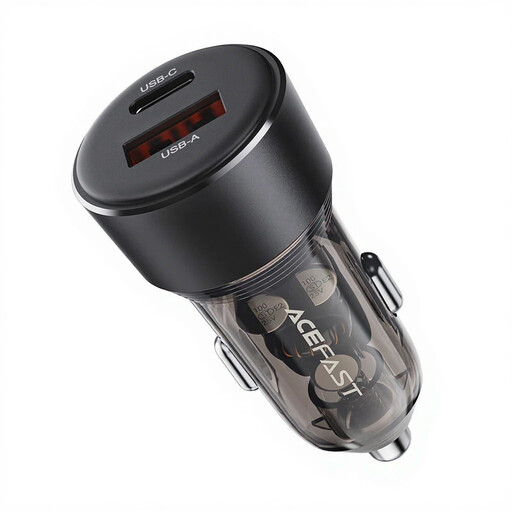 No image available
The USB-C and USB-A port combination is relevant if you want to connect a navigation phone and another device. Check which port and cable match each device’s connector and charging requirements.
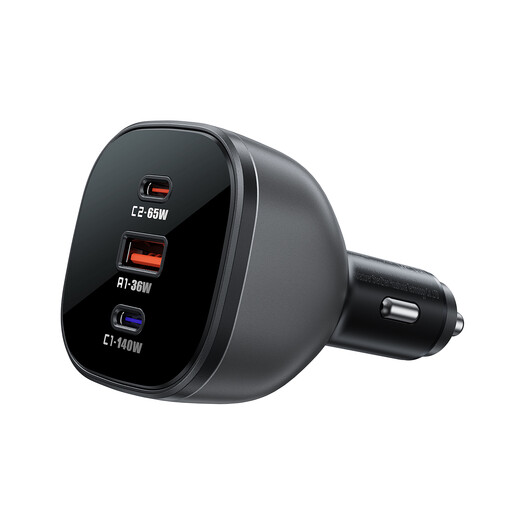 No image available
Its two USB-C ports and one USB-A port offer connections to consider when powering a navigation phone alongside other devices. The stated 100W maximum for the USB-C1 port requires a 100W-rated E-marker cable; check your device and cable before relying on that output.
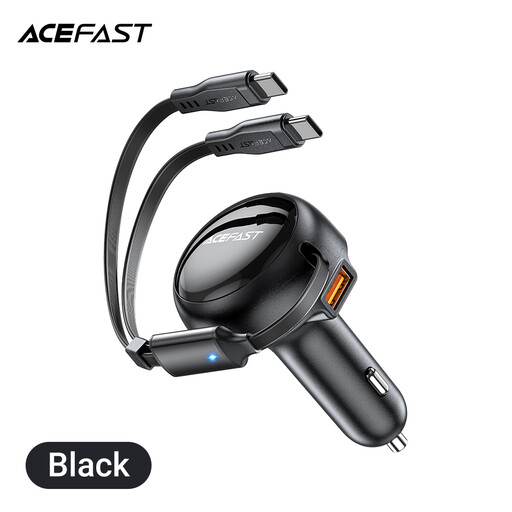 No image available
Consider the two USB-C connections if they match the devices you plan to power during a journey. Confirm the vehicle socket requirements and the phone-and-cable charging arrangement before buying.
No. GOV.UK says the prohibition on holding and using a phone or sat nav while driving also applies when stopped at traffic lights or queuing in traffic. Set the route before leaving; if you need to handle the device, stop and park safely first.
Yes, provided the installed device does not block your view of the road and traffic ahead and you remain in full control, as GOV.UK requires. Check the position in your own car rather than relying on the mount type alone.
Consider one if you cannot find a suitable position for a universal mount around your car’s vents, dashboard or windscreen. Check the exact make, model, year, steering side and dashboard configuration, then check the road view after fitting.
Yes, if the entire route is inside the area you downloaded before travel. Google Maps says traffic information and alternative routes are unavailable during offline driving.
Check that the charger, cable and phone support the intended charging mode. Apple also says iPhone charging can slow or pause in very hot or cold conditions, so consider whether the mounting position puts it in direct sun.