Who is the device for?
The right starting point depends on the tasks your relative wants to do and the help available when something changes.
Someone getting online for the first time or returning to it
Start with the tasks they want to manage, such as staying in touch, shopping or banking. Let them try turning on the device, signing in and finding an app rather than judging ease of use from the home screen alone.
A family member helping from a distance
Choose a routine you can explain again later. Agree how your relative will get help with account recovery, unfamiliar prompts and updates before setting up important accounts.
Someone who will mainly use it at home
Compare a portable smartphone with a larger tablet in the place it will normally be used. A Wi-Fi tablet also calls for a dependable home connection.
What should you check before buying?
Choose the type of device around the intended tasks, then try its controls, connection and sign-in routine with the person who will use it.
Simple mobile phone
Consider it when: Calls and texts are the realistic first step, without an immediate need for service apps.
Trade-off: Physical controls may suit that routine, but confirm that the phone can run any essential app before expecting it to handle online services.
Smartphone
Consider it when: Your relative wants app-based communication or services and can practise a small set of repeatable actions.
Trade-off: App access brings account, password and update tasks that need an ongoing support plan.
Tablet
Consider it when: Most use will be seated at home and more screen area is useful.
Trade-off: A Wi-Fi-only tablet needs a working Wi-Fi connection and will not replace a mobile phone away from home.
| Priority |
What to check |
Your needs |
| Everyday tasks |
List the calling, messaging and service apps that matter. Try the required apps and their sign-in steps on the proposed device. |
I want to know that the device can handle the things we are buying it for, not just calls or browsing. |
| Controls and display |
Try unlocking, finding an app and returning home. Adjust text and display size, then check the actual apps; Google notes that Android font-size changes do not apply to every app. |
A short routine and readable screens matter more to me than a long list of features. |
| Connection |
Check home broadband for mainly Wi-Fi use and provider coverage for mobile use. Ofcom says in-home coverage results are guidance, not a guarantee. |
The connection needs to work where my relative will normally use the device, including at home if that is the main setting. |
| Device lifespan |
For a mobile phone, confirm current-network calling with the intended provider. Check the exact model’s operating system, required-app compatibility and stated security-update period, particularly for older or refurbished devices. |
I do not want to start using important accounts on a device that soon needs replacing because an app or network no longer works with it. |
| Handling and charging |
Try holding or positioning the device, using its power button and connecting its charger. Check which charging items come with the exact product. |
My relative should be able to use and charge the device in their normal setting. |
| Help after setup |
Agree who will help with updates and unfamiliar prompts. Set up a secure account-recovery method with the account holder’s knowledge and consent. |
We need a plan for getting back into accounts and solving problems after the first day. |
Brand features worth checking
A brand’s settings or support materials are a starting point; try the exact model with the apps and tasks your relative needs.
Doro
Doro offers simple mobile phones and Aurora Android smartphones aimed at different calling and app-use routines.
- Doro describes its Aurora smartphones as having a simplified interface and remote-support capability.
- Those features do not establish that the intended user will find charging, required apps or everyday navigation manageable; try the exact device.
Apple
An iPhone or iPad may be worth considering when the person or their helper already knows Apple devices.
- Apple documents adjustable larger text on its devices.
- Check readability and sign-in within each required third-party app, not only in the device settings.
Samsung
Samsung’s Galaxy phone and tablet ranges provide models to consider for different screen and carrying preferences.
- Samsung UK provides mobile-device support materials; Android also documents display-size controls.
- Check update support, app compatibility, charging items and network compatibility for the exact Galaxy model and version.
Joybuy phones and tablets to consider
These smartphones and tablets are options for app-based access or mainly home-based use. If calls and texts are the immediate goal, compare a simple mobile phone separately before choosing one of these devices.
 No image available
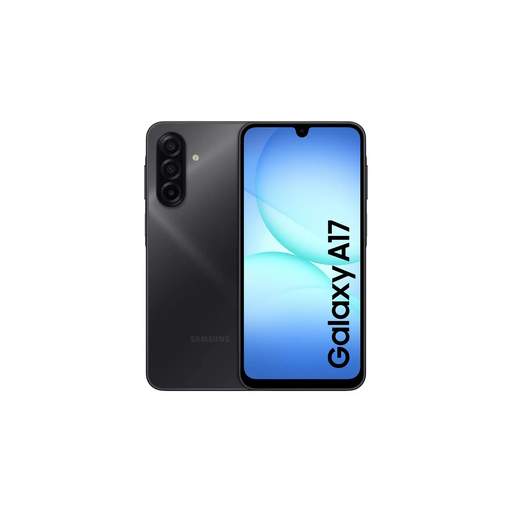
Samsung Galaxy A17 5G A176 Dual SIM, 4GB/128GB, Grey
A smartphone option if your relative needs apps as well as calls; try the required apps and sign-in routine before choosing it. The named variant has 5G, dual SIM, 4GB RAM and 128GB storage. Check that a suitable charging adaptor is available, as one is not included.
View on Joybuy
 No image available
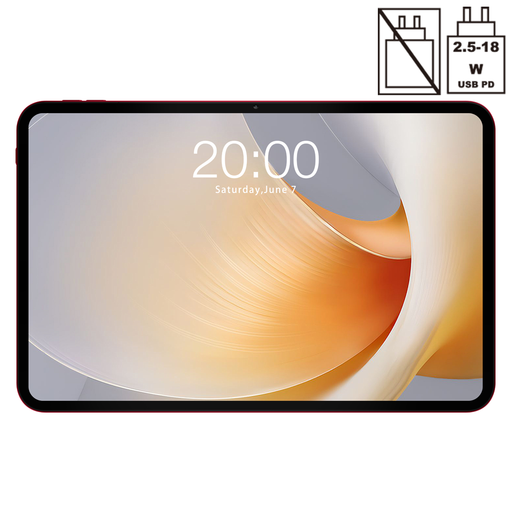
TECLAST T65 Plus 13.4-inch tablet, Android 15, 256GB
Consider the 13.4-inch tablet format for mainly home-based use if your relative prefers more screen area. The title states a 120Hz display, Android 15, Wi-Fi and dual-SIM 4G LTE; check handling, essential apps, security-update support and compatibility with the intended UK mobile provider before relying on its cellular connection.
View on Joybuy
 No image available
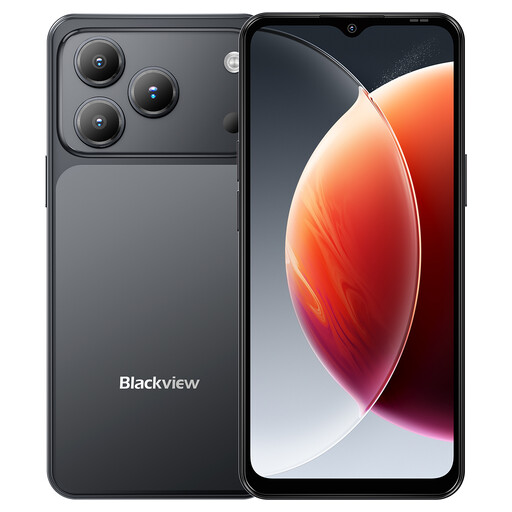
Blackview Wave 7C Android 16, 128GB, Black
This phone offers an app-based route to getting online rather than a calls-and-texts-only setup. Its title lists a 6.56-inch display, 4G dual SIM and 128GB storage. Check the required apps, the stated security-update period and compatibility with the intended UK provider.
View on Joybuy
 No image available
ZTE Blade A36, 4GB/128GB, Black
A smartphone to assess if a phone is more practical for your relative than a tablet. Confirm whether the device is the Android V or V go variant before relying on particular features or apps. Check the intended provider, security-update period and suitable charging items too.
View on Joybuy
 No image available
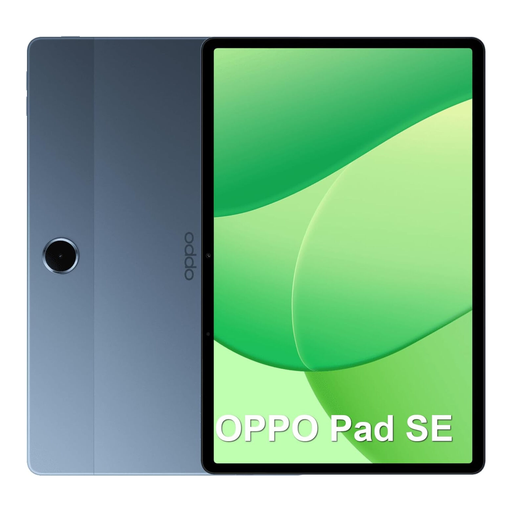
OPPO Pad SE Wi-Fi, OPD2419 EUN, 4GB/128GB, Twilight Blue
Consider this Wi-Fi tablet for home-based tasks where a working home connection is available. The named variant has 4GB RAM and 128GB storage. Confirm the required apps, operating-system version and security-update period; if use away from Wi-Fi matters, check its connection options before buying.
View on Joybuy
Questions about setup and connectivity
Is a simple phone enough for banking, shopping and video calls?
Choose a simple phone for calls and texts, but check the exact service requirements before expecting it to handle app-based tasks. If banking, shopping or video calls are the main goal, try the required apps and sign-in steps on a suitable smartphone or tablet before purchase.
Should I buy a 2G-only or 3G-only phone for use in the UK?
Not as a long-term choice for getting online. Ofcom says UK 3G networks have switched off and 2G networks are gradually being retired. Check that the exact handset can use the intended provider’s current mobile network and calling service.
How do we choose between Wi-Fi and mobile data?
Start with where the device will be used. Check home broadband and Wi-Fi for mainly home-based tablet use; for use away from home, check mobile coverage by provider at the relevant postcode. Ofcom cautions that in-home coverage results are guidance rather than a guarantee.
What should I check on a refurbished smartphone or tablet?
Confirm the exact model, operating-system version, battery condition and charging arrangement with the seller, then check your relative’s essential apps. Check the manufacturer-stated security-update period as well, so you can assess the support remaining for that device.
Can I help my relative set up passwords and accounts?
Yes, with their understanding and consent. Agree how recovery will work, use a screen lock and avoid leaving credentials openly beside the device. UK Stop! Think Fraud guidance describes password managers as tools that can generate, store and protect passwords; choose an arrangement your relative can use with the help available.


