Choose a laptop around the software, storage and connections your photo archive actually needs, and plan a separate backup rather than relying on its internal drive. A compact laptop can suit sorting and light edits at a shared table; a larger creator model is worth considering when frequent camera imports, substantial RAW editing or more screen space matter enough to justify its footprint.
Who is this for?
Growing home-archive organisers
If you are bringing family photos together from phones, cameras and older drives, folders, dates, keywords and a separate backup may matter more to you than creator-level hardware. Adobe publishes application requirements for photo workflows, while the National Cyber Security Centre advises keeping a separate backup.
Camera-card importers
If you regularly transfer photos from an SD card or connect existing drives, check the exact laptop’s card reader and ports before deciding whether you can work without an adapter.
RAW-editing archive keepers
If organising also involves larger RAW collections or batches of edits, check your application’s current requirements alongside the exact memory, storage and display configuration. Those needs differ from straightforward file sorting.
What matters when choosing?
Start with your photo software and working archive, then check how you will import files and use the laptop at the table. Whichever size you choose, keep a separate backup.
| Concern |
What to check |
Who this matters to |
| Archive capacity and backup |
Compare the space your originals and catalogue use with the SSD configuration. Plan a separate online or external-device backup, as advised by the National Cyber Security Centre. |
If my family photos are on the laptop, I need another copy in case it is lost or fails. Around 36% of consumers would put archive capacity and protection first. |
| Software and editing fit |
Check your chosen application’s current operating-system and hardware requirements, including support for your camera files. Adobe publishes separate Lightroom Classic requirements for macOS and Windows. |
When I organise photos in a particular app or edit RAW batches, I need that workflow to fit the laptop without choosing hardware for tasks I do not do. Roughly 29% of consumers would make software and editing fit their main concern. |
| Imports and connections |
List the camera cards, drives and monitor you use; check the exact model’s reader and ports, or allow for a compatible adapter. |
I move photos from camera cards and existing drives regularly, so connecting them easily matters each time I sit down. About 21% of consumers would prioritise import and connection fit. |
| Table space and viewing |
Compare the exact screen configuration with the available table space and how often you will put the laptop away. |
At a shared table, I want enough room to view and organise photos but still need to clear the space afterwards. Around 14% of consumers would put screen space and footprint first. |
Buying pitfalls
-
Using a larger SSD as the only backup
More internal space does not protect the sole copy of an archive if the laptop is lost or fails. The National Cyber Security Centre advises keeping a separate backup and notes that a connected external device can also be affected by malware.
Decide where a separate copy will live before choosing SSD capacity; consider an online copy or an external device that can be disconnected when not in use.
An external drive or cloud-storage capacity may be needed alongside the laptop.
-
Assuming camera cards and older drives connect directly
Port layouts vary by model. Apple lists two Thunderbolt 4/USB-C ports for the MacBook Air, while ASUS lists an SD Express 7.0 reader, USB-A, USB-C/USB4 and HDMI for the specified ProArt P16 H7606 configuration.
Write down the card, drive, charger and monitor connections you use, then compare them with the exact model you intend to order.
A separate card reader, hub or compatible cable may add equipment to your table setup.
-
Assuming every variant has the same display
A display specification attached to a laptop family may not describe the configuration you are buying. ASUS notes that ProArt display specifications vary by model and configuration.
Check the full model number and its listed screen, memory and SSD before ordering, particularly if colour-sensitive editing affects your choice.
-
Choosing macOS or Windows before checking photo software
Your preferred application and camera-file workflow may determine which operating system and configuration make sense. Adobe maintains separate Lightroom Classic requirements for macOS and Windows.
Name the applications and devices you will use, then check their current compatibility before settling on a laptop.
Changing an established workflow may also take time if you need to move an archive to different software.
Brands to consider for this workflow
Apple
MacBook Air is a compact macOS option for organising photos when your software and storage devices work with that platform.
- Apple’s UK specifications include a 13.6-inch MacBook Air configuration with 16GB unified memory and a 512GB SSD.
- The listed two Thunderbolt 4/USB-C ports do not include a built-in SD reader or USB-A port; check what your cards and older drives will require.
Lenovo
The Yoga Pro 7i Gen 11 offers a larger-screen Windows route for people who want more room for archive work and occasional editing.
- Lenovo’s cited 15-inch configuration lists 32GB memory, a 1TB SSD and a 15.3-inch 2560 × 1600 OLED display specified at 100% DCI-P3.
- Those specifications describe the cited configuration, not every Yoga Pro laptop. Check the exact variant and its ports.
ASUS
The ProArt P16 H7606 is a Windows creator-laptop route to consider if frequent camera imports and demanding image work are part of the archive routine.
- ASUS lists USB-A, USB-C/USB4, HDMI and an SD Express 7.0 reader in the cited P16 H7606 specification.
- It is a larger laptop, and ASUS says specifications vary by configuration. Confirm the exact reader, display and storage before choosing it for your workflow.
Joybuy laptops for this workflow
These laptops offer different ways to organise photos at a kitchen table, from compact machines for a smaller setup to a larger creator configuration. Compare the named variant with your software, cards and drives, and keep a separate archive backup.
 No image available
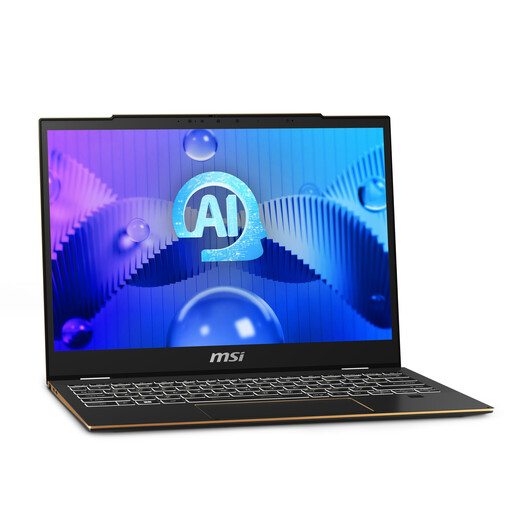
MSI Summit E13 AI Evo, 32GB RAM, 1TB SSD
Consider this 13-inch-class option if you want a smaller table setup and local working space for your archive.
The product name specifies an Intel Core Ultra 7 155H, a 13-inch FHD+ 60 Hz touch display, 32GB LPDDR5 RAM and a 1TB SSD. Confirm the exact screen size and the connections needed for your cards and drives.
Joybuy
 No image available
ASUS ProArt P16 H7606WW-SE006W, 64GB RAM, 2TB SSD
Consider this larger Windows configuration if organising the archive also involves substantial photo editing and you have room for a 16-inch laptop.
The product name specifies a 4K OLED touchscreen, AMD Ryzen AI 9 HX 370, NVIDIA GeForce RTX 5080 16GB, 64GB RAM, a 2TB SSD and Windows 11 Home. If camera-card imports are important, confirm the reader format on this exact variant against your cards.
Joybuy
 No image available
Apple 13-inch MacBook Air M5, 24GB, 1TB SSD, Midnight
This compact macOS option makes sense if your photo software works on Mac and you are comfortable connecting your archive storage through its available ports.
The product name specifies an M5 chip with a 10-core CPU and 10-core GPU, 24GB memory and a 1TB SSD. Check whether your camera cards or older drives need a reader or adapter.
Joybuy
 No image available
HP OmniBook Ultra Flip 14-fh0006na, 16GB RAM, 1TB SSD
Consider this 2-in-1 Windows model if you want a laptop you can set up and put away at a shared table.
The product name specifies 16GB RAM, a 1TB SSD and Windows 11 Home. Check the exact ports before relying on a direct connection to a card reader, drive or monitor.
Joybuy
 No image available
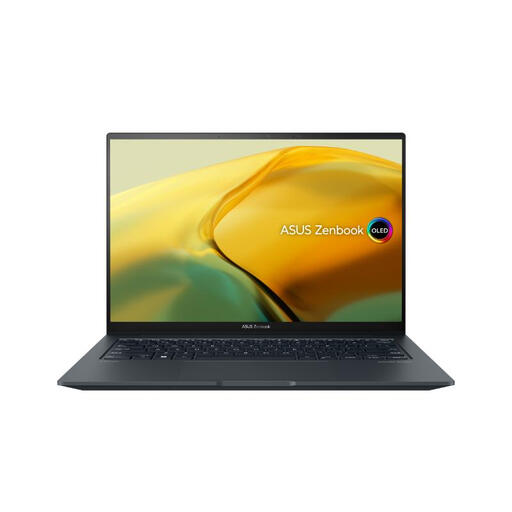
ASUS ZenBook UX3404VC-M3130W, 16GB RAM, 1TB SSD
Consider this Windows configuration if you want a 14.5-inch screen for organising and viewing photos without moving to a 16-inch model.
The product name specifies an OLED touchscreen, Intel Core i9, RTX 3050, 16GB RAM, a 1TB SSD and Windows 11 Home. Check its exact connections if camera-card imports or older drives are part of your routine.
Joybuy
Questions about photo archives
Should the whole photo archive live only on the laptop?
No: use the laptop as a working location, not the archive’s only copy. The National Cyber Security Centre advises keeping a separate backup online or on removable storage and notes that a connected external device can also be affected by malware.
Do I need a dedicated graphics card just to organise photos?
A dedicated graphics card is not a universal requirement for sorting files, adding tags and viewing photos. If you also do demanding RAW edits or other intensive work, check the current requirements of your chosen application and the laptop’s exact configuration before deciding whether creator hardware is useful.
Is a built-in SD card reader necessary?
A built-in reader is most relevant if you import from SD cards regularly and want fewer separate devices on the table. An external reader is another option if it works with your card and available ports; ASUS lists an SD Express 7.0 reader for the cited ProArt P16 H7606 specification, while Apple’s cited MacBook Air port list does not include an SD reader.
What should I do with my old laptop after moving the archive?
Check that the transferred photos and their backups are accessible, then remove personal data before passing the old laptop on for reuse or recycling. UK government guidance on waste electrical and electronic equipment describes rules intended to reduce electrical waste sent to landfill; check the collection or retailer arrangements available in your area.


