Choose an all-in-one if integrating the computer and display matters most; choose a mini PC or Mac mini if you already have a suitable monitor and want a smaller computer on the desk. None is a complete photo-archive setup by itself: check storage, backup connections, supplied components and the power needs of everything you will use.
Who each setup suits
Home archivists short of sockets
If you want a permanent place to sort and back up photos, an all-in-one lets you avoid a separately housed monitor. It does not settle the power requirements of your backup drive and other accessories; Electrical Safety First advises against connecting extension leads to one another.
People who already own a monitor
A Mac mini or mini PC lets you reuse a suitable display while keeping the computer compact. Check the monitor connection and plan where the working archive and its backup will be stored.
People managing a growing photo library
Prioritise working capacity and a way to recover the archive over computer size alone. The National Cyber Security Centre recommends keeping copies on separate devices, including one off-site; a storage arrangement also needs to fit the space and power available at your desk.
What matters when choosing
All-in-one desktop
Choose when: You need a screen and want it integrated with the computer rather than choosing a separate monitor.
Allow for: The built-in screen fixes that display choice, while archive and backup storage still need separate planning.
Mac mini
Choose when: You have a suitable monitor and want a compact macOS desktop.
Allow for: A separate display and backup arrangement; Apple says a Windows-formatted disk must be erased and reformatted before Time Machine can use it.
Configurable Windows mini PC
Choose when: You have a monitor and want to select internal storage and memory for a Windows-based workflow.
Allow for: A barebone model may need parts and an operating system before use; ASUS lists its ExpertCenter PN64 barebone without memory, storage or a preinstalled operating system.
For a photo archive at a desk with limited sockets, assess the finished setup—not just the computer—then check how the library will be stored, backed up and reviewed.
| Concern | What to check | Who this matters to |
|---|
| Power and sockets |
List the computer, display and powered accessories; check their combined load against any extension device’s marked rating. Do not connect extension leads to one another. |
I have few free sockets and need the whole desk setup to fit them safely. Around 29% of consumers put power and socket planning first. |
| Archive and backup |
Check working storage capacity and where separate backup copies will go, including whether a backup device needs mains power. |
My photo library may grow, and losing the only copy would be difficult to recover from. Roughly 29% of consumers prioritise archive capacity and backup. |
| Workflow compatibility |
Confirm the supplied operating system, required software and whether existing backup media can be reused without erasing it. |
I need my photo software and existing files to remain usable after changing computers. Around 24% of consumers make workflow compatibility their primary concern. |
| Display choice |
Compare screen size and resolution; with a separate-monitor desktop, check the monitor input against the computer’s video output. |
I spend time reviewing and sorting images, so the screen needs to suit that work. About 18% of consumers put their display setup first. |
Buying pitfalls
-
Connecting extension leads to gain more sockets
Electrical Safety First says not to plug one extension lead into another and to keep connected appliances within the extension device’s maximum current rating.
Work out the requirements of the complete desk setup. If extension leads would become a permanent solution, consider additional fixed wall sockets installed by a registered electrician.
-
Keeping the only photo copy on the internal SSD
Internal capacity determines how much you can keep on the computer, not whether the archive can be recovered. The National Cyber Security Centre describes a backup approach with at least three copies on two devices and one copy off-site.
Decide where the working library, local backup and off-site copy will live before choosing the desktop and its storage connections.
-
Assuming a barebone mini PC is ready to use
ASUS lists the ExpertCenter PN64 barebone without a preinstalled operating system, memory or storage.
Check the exact configuration for those essentials and confirm that the parts you plan to use are compatible before comparing it with a configured desktop.
Relevant brands to consider
Apple
The Mac mini is a compact macOS route if you already have, or intend to choose, a separate monitor.
- Apple lists a 12.7 cm × 12.7 cm Mac mini with USB-C, Thunderbolt and HDMI connections.
- The display and archive backup need separate planning. For Time Machine, Apple recommends a backup device with at least twice the Mac’s storage capacity.
ASUS
The ExpertCenter PN mini-PC line is relevant if you want a compact desktop and are willing to check its configuration.
- ASUS lists M.2 NVMe and 2.5-inch SATA storage support for the PN64 barebone.
- That barebone ships without an operating system, memory or storage; it also needs a separate display.
Lenovo
The cited IdeaCentre all-in-one is relevant if you want the screen and computer in one desktop unit.
- Lenovo lists a 23.8-inch FHD IPS screen, 16GB memory and a 256GB SSD for the cited IdeaCentre AIO Gen 10 configuration.
- Assess that SSD against your library and backup plan. Lenovo notes that the keyboard and mouse are optional and sold separately on the cited product page.
Joybuy product choices
These choices cover all-in-one, mini and tower desktops for organising photos. An all-in-one integrates the display; the mini and tower options call for a separate monitor. Whichever format you choose, plan a backup and check the power needs of the finished setup.
 No image available
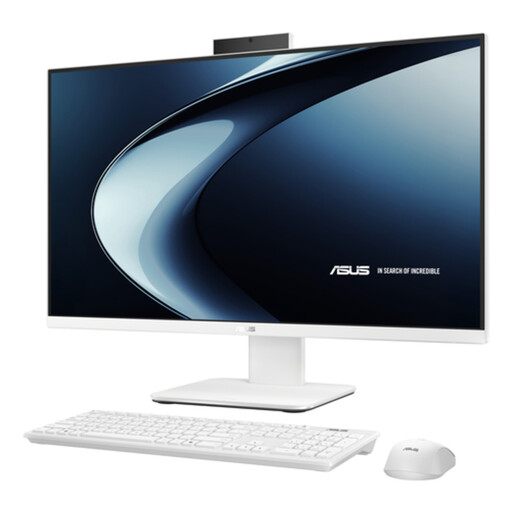
ASUS V400 AiO V470VAK-WPE032W, 27-inch
Consider this all-in-one if you need an integrated display rather than a separate monitor.
Its listed configuration has a 27-inch Full HD display, Intel Core i7-13620H, 16GB DDR5 RAM, a 512GB SSD and Windows 11 Home.
Check whether the SSD fits your working library, and arrange a separate backup.
View on Joybuy
 No image available
Lenovo IdeaCentre Mini PC 01IRH10R, 91B2000XUK
This mini desktop is a route to consider if you already have a suitable monitor.
The listed variant has an Intel Core 5 processor, 16GB RAM and a 512GB SSD.
Allow for a separate monitor and backup storage; check the power requirements of the complete setup.
View on Joybuy
 No image available
Apple Mac mini (2026), M6, 16GB, 256GB SSD
Consider this compact macOS desktop if you have a suitable separate monitor.
The listed M6 variant has a 12-core CPU, 12-core GPU, 16GB unified memory and a 256GB SSD.
Plan working and backup storage separately. Before reusing a Windows-formatted disk for Time Machine, account for Apple’s warning that reformatting it erases its data.
View on Joybuy
 No image available
FIREBAT R3 Mini PC, Ryzen 5 7430U, 16GB, 512GB SSD
This compact mini PC is worth assessing if you already have a monitor and want a separate desktop computer.
Its listed configuration has an AMD Ryzen 5 7430U, 16GB LPDDR4 RAM and a 512GB SSD.
Before buying, confirm the supplied operating system, connections for your backup storage and the power requirements of the finished setup.
View on Joybuy
 No image available
HP M02-0005na OmniDesk, Ryzen 5 8500, 8GB, 1TB SSD
Consider this tower if you want the listed 1TB internal drive and can accommodate a separate monitor.
The configuration lists an AMD Ryzen 5 8500, 8GB RAM, a 1TB SSD and Windows 11 Home.
Check whether 8GB RAM suits your workflow, and keep a separate backup rather than relying on the internal SSD alone.
View on Joybuy
Common questions
Does having few sockets mean I should choose an all-in-one?
Not automatically. An all-in-one integrates the computer and display, but the socket needs of the finished photo-archive setup depend on its power equipment and any backup drives or other accessories. Count those components before deciding.
Can the desktop’s internal SSD be my only photo archive?
An internal SSD alone leaves you without a separate recovery copy. The National Cyber Security Centre describes keeping at least three copies on two devices, with one off-site; plan where each copy will live and keep a backup offline when it is not in use.
Can I reuse the same backup disk when moving from Windows to a Mac?
Check its format before using it with Time Machine. Apple says a Windows-formatted disk must be reformatted for Time Machine, permanently erasing its existing data. Secure another copy of anything you need to keep before changing the disk.


