What matters when choosing
Desktop external HDD
Choose when: A growing archive will stay beside a home workstation with mains power available.
Trade-off: The power adapter makes this route less convenient for a backup you regularly take elsewhere.
Portable external HDD
Choose when: You want a multi-terabyte backup you can move away from the desk.
Trade-off: Check the capacity of the exact model against the archive and the backup versions you intend to retain.
Portable SSD
Choose when: Frequent large imports or restores make transfer time an important part of your routine.
Trade-off: The workstation, cable and drive must support the specified connection to achieve a model's quoted maximum speed.
For a home-workstation photo backup, consider which need would determine your choice first. Whatever the drive format, the National Cyber Security Centre advises keeping a backup separate from the original data and an offline copy when it is not in use.
| Concern |
What to check |
Who this matters to |
| Recovery after a loss |
Plan another independent copy; test that you can restore a small folder. |
I need to recover photographs even if the workstation and a connected drive are affected. Around 33% of consumers put recoverability first. |
| Capacity headroom |
Measure the library and allow for growth and retained versions. For Time Machine, Apple advises a disk with at least twice the Mac's storage capacity. |
As my photo library grows, I need room for new files and older backups; roughly 27% of consumers make capacity headroom their primary concern. |
| Transfer speed |
Check the workstation's USB port and the cable against the exact drive's speed requirements. |
If I import large batches or restore folders regularly, transfer time affects my routine. Around 20% of consumers prioritise speed. |
| Portability and device fit |
Check the connector and intended file format; Apple says Time Machine cannot back up to a Windows-formatted disk. |
I need to move a backup away from the desk and may use more than one type of computer; for roughly 20% of consumers, portability and device compatibility come first. |
Joybuy drive options
These drives cover the desktop HDD, portable HDD and portable SSD choices discussed above. Match the capacity and connection of an individual model to your photo library and workstation, then plan a separate backup copy.
 No image available
Samsung T7 Portable SSD, 4 TB, Grey
Consider this portable SSD if you move photo files regularly and need to assess a 4 TB drive for the library and backup versions.
The product name specifies USB Type-C and USB 3.2 Gen 2; check the workstation's port and cable before relying on the connection you expect.
View on Joybuy
 No image available
Samsung T7 Shield Portable SSD, 1 TB, Blue
This portable SSD is an option if you move the backup, provided 1 TB covers the files and backup history you intend to keep.
Its product name specifies USB 3.2 Gen 2. Check the connection on your workstation, and keep another backup rather than relying on one portable drive.
View on Joybuy
 No image available
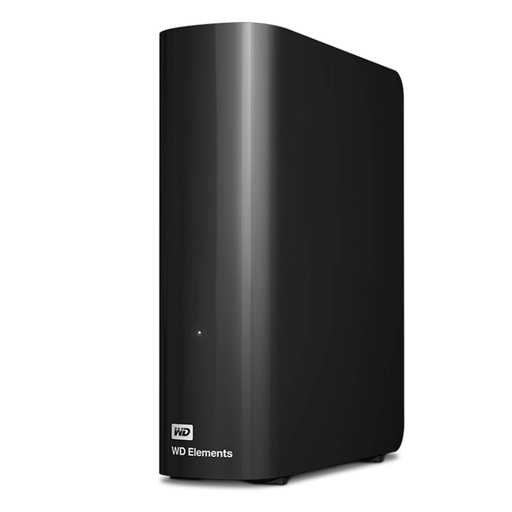
Western Digital Elements Desktop External Hard Drive, 10 TB
This 10 TB desktop hard drive suits consideration for an archive kept mainly beside one workstation.
It requires mains power. If you intend to use it with a Mac, confirm the required format before putting existing files on the drive.
View on Joybuy
 No image available
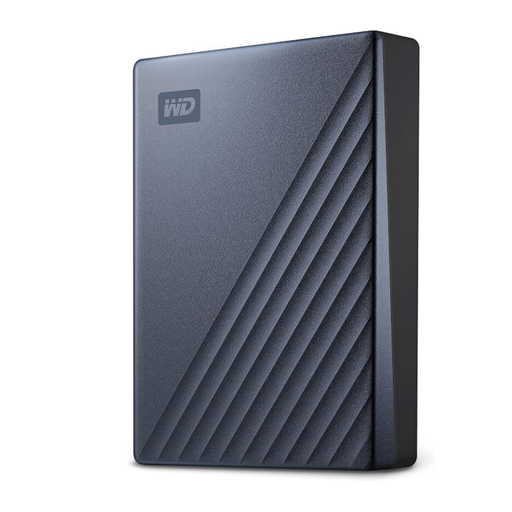
Western Digital My Passport Ultra Portable External Hard Drive, 5 TB, Blue
Consider this 5 TB portable hard drive if the backup needs to move away from the workstation and that capacity fits your plans.
For Mac use, confirm the exact file-system and driver workflow before buying; the product descriptions give conflicting setup information.
View on Joybuy
 No image available
Western Digital My Passport Portable External Hard Drive, 2 TB, Black
This 2 TB portable hard drive is an option for a removable photo backup if the library and retained versions fit.
If a Mac is part of the household workflow, confirm the file-system and driver requirements before relying on it for backups.
View on Joybuy
Frequently asked questions
Is one external drive enough to protect family photographs?
No: one external drive can be a backup copy, but it should not be the only protection for irreplaceable photographs. The National Cyber Security Centre recommends keeping copies on separate devices, including one off-site, and keeping a backup offline when it is not in use.
How much capacity should I allow for photo backups?
Measure the files you intend to protect, including photographs, exports and video, then leave room for growth and retained backup versions. For Time Machine specifically, Apple recommends a backup disk with at least twice the Mac's storage capacity; measure a Windows photo library for its own backup needs rather than applying that figure automatically.
Can Windows File History and Mac Time Machine use the same drive?
Do not assume a drive set up for one will work unchanged for the other. Microsoft says File History can back up to an external drive, while Apple says Time Machine cannot back up to a Windows-formatted disk. Check formats and available space before planning separate volumes, or use separate drives.
Do family-photo backups need a portable SSD?
Not necessarily: a portable SSD is worth considering when frequent large imports or restores make transfer speed important to you. Samsung's quoted maximum speed for the cited T7 Shield model requires a compatible USB 3.2 Gen 2 host and cable with UASP support; for an unattended backup at one workstation, capacity and a separate copy may be more important to your choice.
Does a rugged-drive rating mean damage is covered by warranty?
No: a physical-protection rating does not establish warranty cover. Samsung states that liquid and dust damage are not covered under the warranty for its cited T7 Shield model. Check the terms for the exact drive and keep another backup copy in case the drive is damaged.


