Buying priorities
Start with the backup routine: decide whether you need high-capacity local storage, frequent fast transfers, an off-site copy, or a combination of these.
| Priority |
What to check |
Your needs |
| Recoverable copies |
Keep the backup separate from the computer; consider a local drive plus an off-site or cloud copy; test that important files can be restored. |
I need photos and documents to remain recoverable after loss, theft, hardware failure, accidental deletion or malware. |
| Capacity headroom |
Measure current storage use; allow room for future photos and laptop files; check cloud allowance if it will hold a full library. |
My archive needs space for today’s files as well as the photos and documents I will add later. |
| Transfer speed |
Check the drive interface, computer port mode, cable and supported USB features; compare the speed you need for regular large-folder transfers. |
I move large photo folders often enough that waiting for copies to finish would disrupt my routine. |
| Portable protection |
Consider the drive format, stated IP or drop-test conditions and how it will be carried; retain another copy even when a drive has protective ratings. |
I carry files while travelling, commuting or working away from home, so size and physical handling matter. |
| Device compatibility |
Confirm connector and cable fit, operating-system support and the intended file system; copy files elsewhere before formatting or reformatting. |
I want one drive to read and write files across my Mac and Windows devices without an avoidable compatibility problem. |
Joybuy product options
These Joybuy options cover portable SSDs for regular large-file movement and portable HDDs for capacity-led local backup of photos and files.
 No image available
Samsung MU-PE1T0S 1 TB USB 3.2 Gen 2 SSD
Suited to frequent large photo-folder transfers and carrying files between locations.
1 TB capacity; USB Type-C and USB 3.2 Gen 2; stated sequential speeds of 1,050 MB/s read and 1,000 MB/s write; stated IP65 protection and 3 m drop resistance.
Its maximum stated speed requires a compatible USB 3.2 Gen 2 host, cable and UASP. Check whether 1 TB is enough for a full laptop or growing photo library, and keep a separate backup copy.
Joybuy
 No image available
Samsung Portable SSD T7 4 TB USB 3.2 Gen 2
Consider this route when a larger local photo library needs SSD-style access and regular transfers.
4 TB capacity; USB 3.2 Gen 2; stated speeds up to 1,050 MB/s read and 1,000 MB/s write; AES-256 hardware encryption; USB-C-to-C and USB-C-to-A cables included.
Check that the host port and cable can support USB 3.2 Gen 2 performance. This listing states that the T7 is not IP-rated for water or dust resistance.
Joybuy
 No image available
Western Digital My Passport Ultra 5 TB Portable HDD
A capacity-led option for a growing photo archive or a local copy of a full laptop.
5 TB capacity; USB 3.2 Gen 1 Type-C; USB-C-to-A adapter; AES-256 hardware encryption; 3-year limited warranty.
As a mechanical HDD, it is less suited to repeated high-speed transfers than an SSD. The listing states that macOS use requires reformatting, which erases existing data.
Joybuy
 No image available
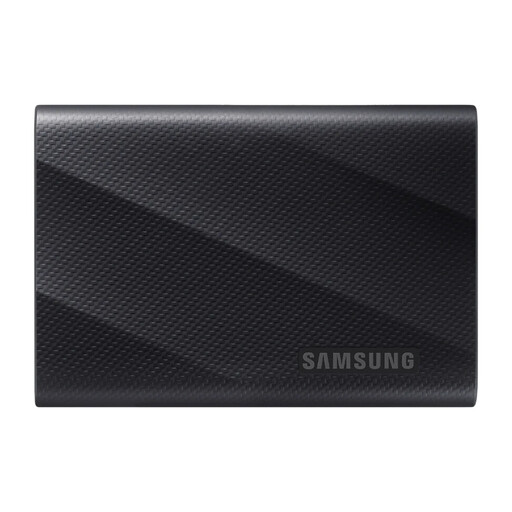
Samsung MU-PG1T0B 1 TB USB 3.2 Gen 2x2 SSD
Designed for time-sensitive movement of large photo or project folders across compatible modern devices.
1 TB capacity; USB 3.2 Gen 2x2; stated speeds up to 2,000 MB/s read and 1,950 MB/s write; AES-256 hardware encryption; stated 3 m drop resistance.
Check whether your computer supports USB 3.2 Gen 2x2, as lower-capability ports can limit transfer speed. Confirm that 1 TB leaves sufficient backup headroom.
Joybuy
 No image available
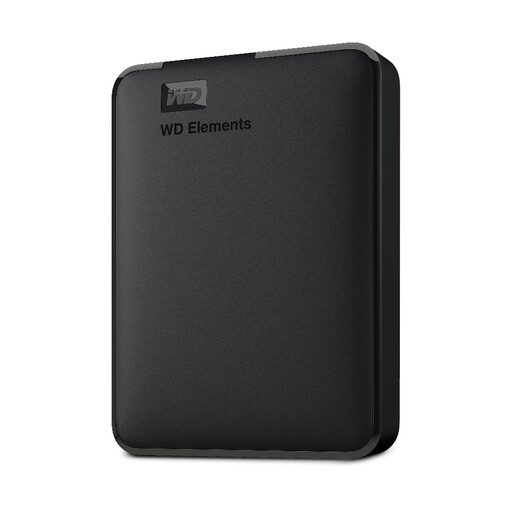
WD Elements 2 TB Portable External HDD
A straightforward local-backup option for routine copies of photos and documents.
2 TB capacity; SuperSpeed USB 3.2 Gen 1 at 5 Gb/s; USB 2.0 backward compatibility; stated PC and Mac readiness.
This mechanical HDD is less suited than an SSD to repeated large-folder transfers where speed is a routine priority. Confirm the supplied file system for your exact cross-platform workflow.
Joybuy
Frequently asked questions
Should I use an HDD or SSD for backing up family photos?
Use an HDD when the main job is storing a large local backup and slower copying is acceptable. Choose an SSD when you repeatedly move large folders, need quicker access or carry the drive often. Keep another separate copy for photos you cannot replace.
What file system should I use for a drive shared between a Mac and Windows PC?
Apple Support identifies ExFAT as the Windows-compatible choice for a disk over 32 GB. Back up the contents before making a change, because formatting or reformatting erases the files on the drive.
Will a USB-C external SSD always reach its advertised speed?
No. Samsung states that the T7 Shield’s maximum 1,050 MB/s read and 1,000 MB/s write figures require a host and cable supporting USB 3.2 Gen 2 with UASP enabled. Check the computer’s USB specification, not only whether its connector is USB-C.
How should I maintain a local backup drive?
Use a regular or automatic backup routine where possible, keep at least one copy separate from the main computer and test that important files can be restored. The DfE Cyber Security Hub also advises disconnecting at least one backup when it is not in use.
What should I check before paying for cloud storage in the UK?
GOV.UK advises checking renewal notices, changes to service or price, restrictions on use, inactivity rules and the time needed to transfer or back up data before leaving. Its consumer guidance states that users can cancel and obtain a refund within 14 days of signing up and at each renewal.


