What matters when choosing?
Decide which files must stay on the computer, then choose a separate recovery destination and check how each copy is updated. A local drive, cloud computer-backup service, synchronisation service and NAS can play different roles; combining them does not remove the need to check what can actually be restored.
| Concern |
What to check |
Who this matters to |
| Recovery after loss or deletion |
Check how to restore files and folders, how long deleted or earlier versions remain available, and whether a copy can be kept separately protected. |
If a damaged computer or an overwritten photo could leave me with nothing usable, recovery is my primary concern; around 29% of consumers put recoverability first. |
| Local and offline access |
Check whether essential folders remain downloaded or mirrored, and open a representative file while offline. |
When I need documents without broadband or cloud-account access, the files must already be on my computer. Around 29% of consumers make local access their main priority. |
| Automatic offsite backup |
Confirm which folders and connected drives are included, when backups run, and what happens to retained data after a drive is disconnected. |
If I am likely to forget manual copies, I want an offsite backup that runs without that step; around 24% of consumers put automation and offsite protection first. |
| Capacity and storage commitments |
Measure the data to protect, allow room for future files and versions, and check what each local device or subscription retains. |
As my photo library grows, I need each destination to hold its assigned copy without using more computer space than I can spare; around 18% of consumers prioritise capacity and storage management. |
Joybuy products for local storage
These drives provide local storage choices for photos and files, while the NAS offers a central household-storage route. Choose capacity for the files you intend to protect, and arrange a separate recovery copy where losing the local device would otherwise leave you without one.
 No image available
Western Digital My Passport 2TB portable external hard drive, black
Consider this 2TB drive for a local copy of photos and files. Check the backup software's scheduling and restore options, and confirm the required setup for your Mac if applicable. Keep another copy for recovery from an incident affecting the drive and computer.
Joybuy
 No image available
Western Digital My Passport Ultra for Mac 5TB portable external hard drive, silver
The 5TB capacity makes this a local destination to assess for a larger photo and file library. Confirm compatibility with your Mac and the backup utility's scheduling, retention and restore options; a second recovery destination remains important for irreplaceable files.
Joybuy
 No image available
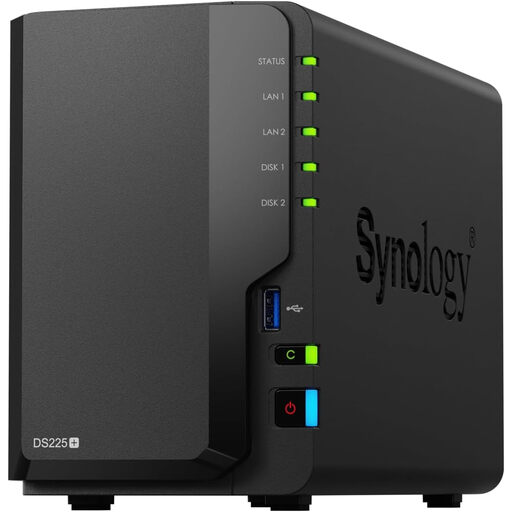
Synology DS225+ two-bay diskless NAS
Consider this NAS when several household devices need central storage and you are prepared to manage its backups. It is identified as a two-bay diskless model: check drive inclusion, compatible drives and resulting usable capacity before choosing it. Synology warns that a NAS and RAID do not replace a separate backup destination.
Joybuy
 No image available
Samsung MU-PE1T0S 1TB USB Type-C 3.2 Gen 2, black
This 1TB USB Type-C drive is a local-storage option if the files you intend to copy fit within its capacity. If you need scheduled backups or earlier file versions rather than manual copying, check the software and restore workflow before relying on it.
Joybuy
 No image available
Western Digital Elements Port. 4TB USB 3.0, black
The 4TB capacity offers a local destination for a photo and file library that fits within it. Check compatibility before use, particularly if you have a Mac, and choose and test a backup workflow rather than assuming that copying files provides version history or an offsite copy.
Joybuy
Backup questions answered
Is cloud synchronisation the same as backup?
No: synchronisation keeps current files accessible across devices, but it does not by itself establish that you can restore the version you need or open a file offline. Microsoft Support and Google Drive Help describe different local-file settings; check version history and keep an additional recoverable copy of important files.
How do I keep cloud files available offline?
Download the essential files and test that they open while the computer is offline. Microsoft Support describes OneDrive's Always keep on this device setting; Google Drive Help describes mirroring or making selected streamed files available offline; Apple Support explains how to keep iCloud Drive files downloaded on a Windows computer. Locally held files use computer storage.
How much backup capacity do I need?
Start with the size of the folders and photo library you intend to protect, then allow room for future files and any versions the destination will retain. Check capacity separately for each local or cloud destination: a copy held elsewhere does not increase the space available on a smaller drive.
What should I test before relying on a new backup?
Confirm that the intended folders are included, let a backup complete, then restore a non-sensitive test file to a different location. Test an essential file offline as well if local access matters. For work involving personal data, the Information Commissioner's Office also emphasises timely restoration and testing the effectiveness of security measures.
Does a self-employed user need a particular backup product for client personal data?
No particular cloud service, drive or NAS is prescribed by the Information Commissioner's Office guidance cited here. If you process personal data for work, its guidance calls for technical and organisational measures appropriate to the circumstances and risk, including the ability to restore access and availability in a timely manner after an incident.


