What should you check?
Choose where recoverable copies will live, then check capacity, device access and who controls each account or drive.
Cloud storage
Consider it when: Household members need current files on their own devices or access away from home.
Trade-off: Access depends on the service and account, so plan how to retain another recoverable copy of important files.
Portable drive
Consider it when: You want a physical copy or need to transfer a large library locally.
Trade-off: A drive kept beside the original device remains exposed to the same household incident.
NAS
Consider it when: Several devices need one central local library and you can manage its storage and backups.
Trade-off: Synology warns that RAID and drive failures can still cause data loss; the NAS needs a separate backup destination.
Cloud and local copies
Consider it when: Files would be difficult to replace and you want both access away from home and a copy under your physical control.
Trade-off: You must maintain both copies and check that files can be restored from them.
| Priority |
What to check |
Your needs |
| Recovery |
Keep a copy separate from the original device. Check where each copy is stored and practise restoring a few files. |
If my phone or computer is lost, I need to know which copy I can recover and how to open it. An off-site copy also matters if the home is affected. |
| Access and sharing |
Check each device’s access method, individual accounts and the permissions on shared folders or albums. Apple and Google describe family storage without automatic access to one another’s files. |
We use different devices, but I only want selected photos or documents to be visible to other household members. |
| Capacity |
Compare the current library with the cloud quota or drive capacity, allowing for planned video growth and other household users. |
Our photo and video collection is growing, so the space available to each person matters more than the capacity shown in isolation. |
| Account and drive access |
Check account-recovery options and whether every intended device can read an encrypted drive. Store passwords or recovery keys separately; Microsoft says a BitLocker recovery key may be needed to unlock a drive. |
I want to restrict access to a portable copy without losing the ability to recover family files after a device change or forgotten password. |
Relevant brand references
These brands illustrate different storage routes; their inclusion does not mean every service or product line works the same way.
Apple
iCloud and iCloud+ are cloud options for households centred on Apple devices.
- Apple says up to five family members can share an iCloud+ subscription while retaining their own Apple Accounts and private information.
- Apple also advises making an archive or another copy of iCloud content, rather than relying on it as the only copy of important files.
Google
Google Photos provides cloud photo and video backup for access on devices signed into the receiving Google Account.
- Google says backed-up photos and videos remain private unless shared.
- Check which account receives the backup and the permissions on anything you deliberately share.
Synology
Synology NAS products provide a central local-storage route for households willing to manage a networked device.
- Synology describes backing up a NAS to another destination, including external storage or cloud storage.
- Synology warns that RAID crashes and drive failures can still cause data loss; a NAS alone is not an off-site backup.
Samsung
Samsung’s portable SSD range is a local-copy option for households moving files between compatible devices.
- The T7 Shield line includes portable storage for transferring a local photo or video library.
- For the 1TB T7 Shield MU-PE1T0S/EU, Samsung conditions its quoted maximum transfer speeds on USB 3.2 Gen 2, UASP and compatible host hardware.
Joybuy storage options
These options cover portable local drives and a NAS for household files. If you choose one, plan where its separate backup copy will live; a local device by itself does not provide a copy outside the home.
 No image available
Samsung Portable SSD T7 2 TB, grey
A portable local-copy option for a photo and video library. The title specifies 2 TB and USB Type-C 3.2 Gen 2; check the connection on each device you intend to use and arrange a separate recovery copy.
View on Joybuy
 No image available
Samsung Portable SSD T7 1 TB, blue
A portable local-copy option if 1 TB accommodates your current files and expected growth. The title specifies USB Type-C 3.2 Gen 2; check device connections and how you will keep this copy apart from the originals.
View on Joybuy
 No image available
Samsung T7 Shield Portable SSD 1 TB, blue
A 1 TB portable local-copy option with USB 3.2 Gen 2 stated in the title. Check whether your library fits, whether your devices have suitable connections and where another recoverable copy will be kept.
View on Joybuy
 No image available
Western Digital My Passport Ultra 5 TB, blue
A portable hard drive to consider when a growing household library calls for the stated 5 TB capacity. Check its file format against every computer that must read it, and store the backup separately from the original files.
View on Joybuy
 No image available
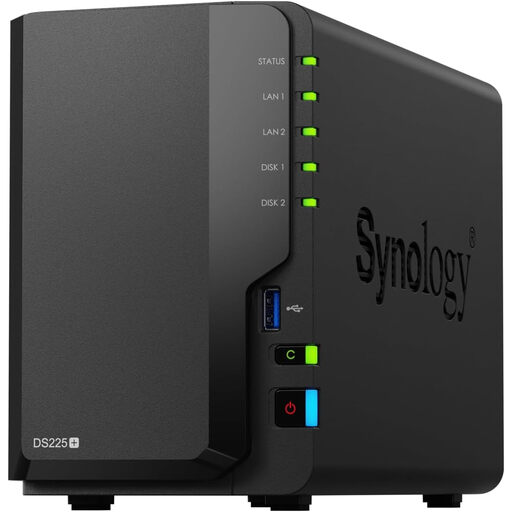
Synology DS225+ two-bay diskless NAS
A central local-storage option for a household prepared to manage a NAS. It is specified as two-bay and diskless, so check compatible drives and the capacity you need. Plan a backup to another destination: Synology warns that NAS redundancy alone does not prevent data loss.
View on Joybuy
Common questions
Is cloud storage enough to back up family photos?
Cloud storage can keep a copy outside the home, but do not assume the current synchronised library is your only recovery route. Check account access and how deleted files are handled, and keep another copy of irreplaceable files where practical. Apple advises making an archive or additional copy of iCloud content.
Can family members share cloud capacity without sharing every file?
Yes, in the family arrangements described by Apple and Google, members can retain separate accounts or files rather than automatically seeing one another’s content. Check the permissions on each album, folder or library you choose to share.
Does RAID make a household NAS a complete backup?
No. Synology warns that RAID crashes and drive failures can still cause data loss. Back up the NAS to a different destination and keep an off-site copy of files that would be difficult to replace.
What should I do before encrypting an external backup drive?
Check that the computers that need the backup can unlock the drive, and keep its password or recovery key separately. Apple says encrypting an external device through Disk Utility requires erasing it first, so copy existing files elsewhere before using that workflow. Microsoft says a BitLocker recovery key may be needed to regain access.
What should I check before moving photos between phones and computers?
Check which account receives a cloud backup and whether each device can use the chosen service or read the drive’s file format. For a portable drive, check the ports and cable as well; quoted transfer speeds may depend on compatible host hardware and connections.


