Home archive builders
If family photos and documents are accumulating on a computer, start with the space your files and future backups will need. A routine for making a separate copy matters more here than frequent large-file transfers.


Choose a portable HDD for a large home archive that you update occasionally, or a portable SSD if you regularly move large photo and video folders or carry the drive. Keep another copy in a separate safe location, such as cloud storage, rather than relying on one drive; before buying, check that the drive, cable, file system and backup method work with your devices.
If family photos and documents are accumulating on a computer, start with the space your files and future backups will need. A routine for making a separate copy matters more here than frequent large-file transfers.
If you repeatedly move large photo or video folders between a computer and a portable drive, consider an SSD. Check the computer port and cable as well as the drive: Seagate notes that transfers are limited by the slowest part of the connection.
If the same storage plan must work with an iPhone or iPad and a computer, check each device's connector, the drive's power needs and the supported file system. Apple's guidance describes phone and tablet file transfers, but a suitable connector alone does not establish that your intended workflow will work.
Choose the backup routine first, then check the capacity and connections needed to carry it out.
Choose it when: You mainly need a sizeable local archive for computer files; Which? identifies HDDs as suited to long-term computer-file backup.
Trade-off: Expect slower transfers than the SSD route, particularly if you regularly copy large folders.
Choose it when: You frequently transfer large files or carry your storage between locations.
Trade-off: Advertised peak speeds depend on a compatible host and cable; protection ratings apply only to the models and test conditions stated by their makers.
Use it when: You want another copy away from the device holding your local files. The National Cyber Security Centre describes cloud storage and removable media as places for separate backups.
Trade-off: Check that your chosen service backs up the folders you value and that you can restore them when needed.
| Concern | Buying checks | Who this matters to |
|---|---|---|
| Archive capacity | Allow space for the files and backup history you intend to keep. For Time Machine, Apple recommends a device with at least twice your Mac's storage capacity. | If my family photos and documents keep growing, I need room for a separate copy without running out of space too soon. Around 40% of consumers would put archive capacity first. |
| Frequent transfers | Check the drive's interface against your computer port and cable; assess any ruggedness claim for the exact model. | When I move large photo or video folders regularly, transfer time and carrying the drive matter to me. For around 30% of consumers, that would be the primary concern. |
| Backup workflow | Confirm device ports, power and file-system requirements. Check which folders your local and off-device backups include. | I want files from my phone and computer to reach the backups I actually use, without discovering a format or connection problem later. That workflow would come first for around 30% of consumers. |
A drive can hold a backup of your computer, but moving the sole copy of a photo archive onto it still leaves that archive dependent on one device. The National Cyber Security Centre advises keeping important data copied in a separate safe location.
Keep another copy elsewhere, such as in cloud storage or on another removable device, and periodically check that the files you value are present.
USB-C identifies a connector, not the speed of the whole connection. Samsung's stated T7 maximum speeds require a USB 3.2 Gen 2 and UASP-capable host and connection; Seagate notes that the slowest device or bus limits transfer speed.
Check your computer and phone ports, the supplied cable ends and any hub before choosing a drive for frequent transfers.
A different cable, adapter or powered hub may be needed for a particular device or drive.
Formatting can erase files already on the drive. Apple prefers APFS or APFS Encrypted for Time Machine and says a Windows-formatted disk must be reformatted for that use.
Copy existing files elsewhere first. If you also need ordinary file storage, plan a separate APFS volume or another drive for that purpose.
Samsung describes the T7 Shield's IP65 and drop claims as subject to controlled test conditions; it says damage from liquid, dust and drops is excluded from its warranty.
Check the exact model's conditions, avoid unnecessary exposure and keep a separate copy of important files.
Its My Passport portable HDD range is relevant to capacity-focused local backups; Western Digital lists selected models with capacities up to 6TB.
Its One Touch HDD line is relevant to computer backups across Windows, Mac and Chromebook, according to Seagate's compatibility description.
Its portable T7 SSD line is relevant when repeated large-file transfers matter; the T7 Shield adds model-specific protection claims.
Its Extreme Portable SSD line is relevant to compact storage, including phone-oriented file transfers on specified devices.
These portable HDDs and SSDs cover home photo archives and drives you may carry for file transfers. Match the capacity and connection to your own backup routine, and keep a separate copy of important files.
 No image available
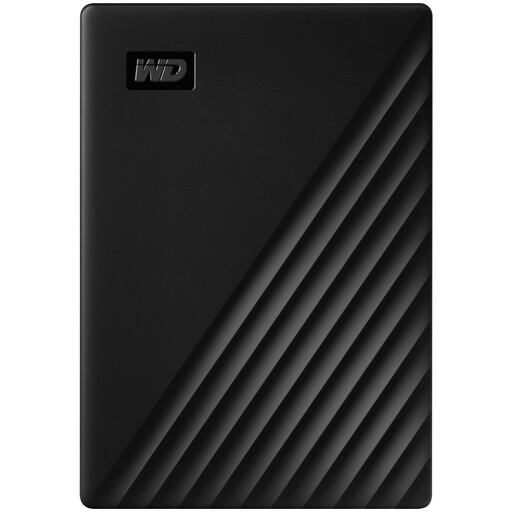
Consider this 4TB HDD for a home photo and document archive that you update from a computer. Check the cable against your computer's ports and confirm the required format and setup if you intend to use it for a Mac backup.
 No image available
The 5TB capacity makes this a candidate for a sizeable local archive. If you plan to use Time Machine, confirm the drive's supplied format and the setup you need before moving files onto it; reformatting can erase existing data.
 No image available
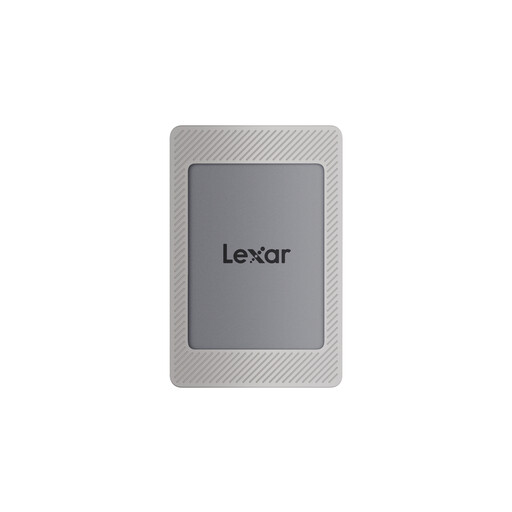
Consider this SSD if you frequently move files and want to assess a direct-phone workflow. Its title specifies USB 3.2 Gen 2, advertised speeds of up to 1,050MB/s read and 1,000MB/s write, and compatibility with iPhone 15/16; check your exact phone, case, cable and required file system before relying on that workflow.
 No image available
This 2TB SSD is a local-storage option if you want to carry photo and household files. Confirm its connector, cable and file-system requirements for the computer or phone you intend to use.
 No image available
Consider this 1TB USB 3.2 Gen 2 SSD if you carry a drive between locations. Compare its capacity with your intended archive, and check the host and cable requirements before relying on stated maximum speeds. Samsung's T7 Shield protection claims are subject to test conditions; keep another copy of important files.
Apple recommends a backup device with at least twice your Mac's storage capacity. It advises using the Time Machine disk for backups; if you also need ordinary file storage on the same physical device, create an additional APFS volume.
Apple documents file transfers through a supported app such as Files, provided the drive and connection suit the device. An iPhone may need an adapter; for an iPad, check the supported format and single-partition requirement, and bear in mind that external hard drives often need an external power source.
No. Samsung says the cited T7 maximum speeds require USB 3.2 Gen 2 and UASP support from the host and connection. As Seagate explains, a slower port, cable, hub or device can limit the transfer.