Choose a portable hard drive for a sizeable copy you can move between locations, an SSD for frequent large transfers, a desktop drive for storage that stays at one desk, or network storage when several household devices need a shared backup destination. Whichever route you choose, check its connection and backup workflow, then keep a copy separate from the device holding the originals.
Who needs which setup?
Families with phones full of photos and videos
If several camera rolls need a home copy, decide whether you want to transfer files yourself or set up automatic uploads. Apple Support says iPhone access to external storage depends on the connector, storage format and, for some drives, power; Synology documents automatic phone-photo uploads through BeePhotos.
Laptop owners setting up regular backups
Choose a destination that works with the files and backup tool you intend to use. Apple Support describes Time Machine backups to external storage, while Microsoft Support says File History can make regular backups to an external drive or network location.
Households with growing media libraries
Compare the space your files need now with the space a continuing backup routine will need. A portable drive can be moved away from the computer; a desktop drive stays in a fixed location, while network storage can serve multiple devices if you are prepared to set it up and maintain it.
What should you check before choosing?
Portable hard drive
Choose it when: You want a sizeable local copy that can be moved between your computer and another storage location.
Bear in mind: The drive must be connected when a scheduled computer backup runs, and direct phone use needs separate compatibility checks.
Portable SSD
Choose it when: You frequently move large photo or video folders or carry the drive between devices.
Bear in mind: Advertised transfer speeds depend on the host connection and cable; a fast drive is still only one copy.
Desktop drive
Choose it when: A large photo and file archive can remain beside one computer.
Bear in mind: Check its power requirements and plan another location for a separate copy.
Network storage
Choose it when: Several household phones or computers need a shared destination, particularly for automatic photo uploads.
Bear in mind: Accounts, network access and maintenance need attention, and the network device itself needs a separate backup.
| Priority |
What to check |
Your needs |
| Backup routine |
Decide which folders or devices to copy, whether transfers will be automatic, and how you will restore a file. Apple Support documents Time Machine; Microsoft Support documents File History for external or network destinations. |
I want recent photos and documents included without having to remember every transfer. |
| Capacity |
Count the files you intend to protect and allow for future backups. For a Time Machine disk, Apple Support recommends at least twice the Mac’s storage capacity. |
My photo library is growing, so the destination needs room beyond one immediate copy. |
| Compatibility |
Check the exact port, cable, operating system and backup app. Apple Support says iPhone external storage needs a supported format and a single data partition; some drives also need additional power. |
I need a way to move files from my actual phone or laptop, not just a drive with a familiar-looking connector. |
| Copy separation |
Plan where a separate copy will be kept and whether sensitive files need encryption. The National Cyber Security Centre warns that incidents can affect originals and connected backup drives. |
If my computer or a connected drive is affected, I do not want every copy exposed at once. |
What can undermine a backup plan?
-
Buying a drive but never setting up backups
Occasional manual copies can leave recent photos or folders behind. Time Machine, File History and supported phone-photo apps offer ways to make backups regularly.
Before buying, choose the workflow you will use and check that the destination works with it.
-
Assuming USB-C means an iPhone can use the drive
Apple Support says the connector, storage format, partition arrangement and available power all matter for iPhone access to external storage.
Check your phone’s port, the drive’s format and power needs, and whether your chosen app can perform the transfer you want.
A compatible adapter or powered hub may be needed for some connections.
-
Choosing an SSD for speeds the laptop cannot use
Samsung says its stated maximum T7 Shield speeds require a USB 3.2 Gen 2 host, a compatible cable and UASP support.
Check the computer’s USB specification and the cable before making speed the reason for your choice.
-
Leaving every backup connected
The National Cyber Security Centre describes incidents in which ransomware affected original files and connected USB or network backup storage.
Keep at least one copy separate when it is not in use, and check that you can restore a file from it.
Relevant brand references
Western Digital
Western Digital’s My Passport USB-C range is a reference point for portable hard-drive storage.
- Its data sheet lists USB-C connectivity, exFAT formatting and capacities up to 6TB for that range.
- Western Digital says compatibility varies with the hardware configuration and operating system; check the exact variant and intended backup tool.
Samsung
Samsung’s T7 Shield is a portable SSD reference for frequent file transfers.
- Samsung states maximum sequential speeds of up to 1,050MB/s read and 1,000MB/s write for the T7 Shield under compatible USB 3.2 Gen 2 and UASP conditions.
- Those are conditional maximum figures, not a speed to expect from every computer and cable.
Seagate
Seagate’s Expansion desktop range illustrates a fixed-location archive route.
- Seagate UK lists Expansion desktop capacities from 4TB to 30TB and compatibility with most Windows and macOS systems.
- Confirm the exact model, its power accessories and its suitability for your computer before choosing a desktop setup.
Synology
Synology documents shared network-storage workflows for household photos and computer files.
- Synology describes automatic phone-photo uploads through BeePhotos and Time Machine destinations on compatible Synology systems.
- These workflows need a compatible device, network and configured destination; the network storage also needs its own separate backup.
Joybuy storage options
These options cover portable hard drives and SSDs for local copies, plus a desktop drive for a fixed-location archive. Match the drive to your devices and backup routine before relying on it for photos or files.
 No image available
Western Digital My Passport Ultra 5TB, Blue
A portable hard drive to consider when a large photo and file copy needs to move between locations. Check the connection, file format and backup software against the computer you will use.
View on Joybuy
 No image available
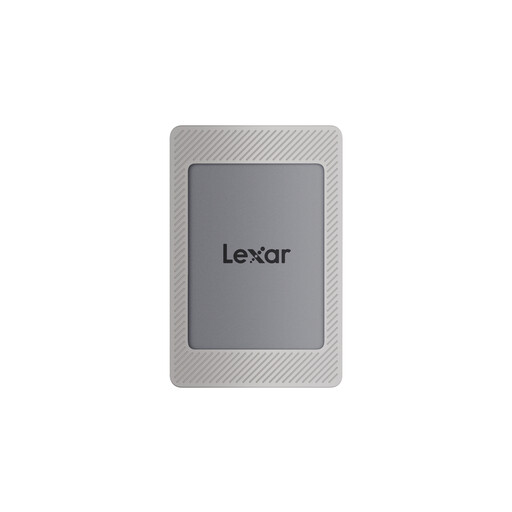
Lexar ES4 Portable SSD with Magnetic Set, 2TB
A portable SSD option for moving photo and video files between compatible devices. The title lists USB 3.2 Gen 2, up to 1,050MB/s read and 1,000MB/s write, and iPhone 15/16 compatibility; check the phone connection, app and file-transfer workflow you intend to use.
View on Joybuy
 No image available
Samsung MU-PE1T0S 1TB, Black
A 1TB USB Type-C portable SSD to consider for regular file transfers. Its title specifies USB 3.2 Gen 2; check the host port, cable and backup app before choosing it for a particular speed or phone workflow.
View on Joybuy
 No image available
Western Digital Elements Portable 4TB, Black
A portable 4TB hard drive for keeping a computer file copy that can be moved elsewhere. The title lists USB 3.0; check the connector, required file format and backup workflow for your computer.
View on Joybuy
 No image available
Western Digital Elements Desktop 10TB
A 10TB desktop hard drive to consider for an archive kept beside a computer rather than carried between devices. Check its power arrangement, computer compatibility and the location of a separate backup copy.
View on Joybuy
Frequently asked questions
Is one external drive enough for my photo backups?
Do not rely on one drive as the only copy of important photos. The National Cyber Security Centre advises keeping a backup in a separate safe location and reports incidents that affected connected backup storage; plan another separate copy and check that you can restore a file.
How large should a Time Machine drive be?
Apple Support recommends a backup disk with at least twice the storage capacity of your Mac. Check the Mac’s capacity and the files you intend to retain before selecting a drive.
Can an iPhone copy photos directly to an external drive?
An iPhone can access supported external storage through Files and compatible apps, but access alone does not establish an automatic photo-backup routine. Apple Support says the drive needs a supported format and a single data partition; also check the connector, power requirements and your chosen app.
Can Windows make regular backups to an external drive?
Yes. Microsoft Support says File History can make regular backups to an external drive or network location. Check that the folders containing your photos are included, particularly if they sit outside the usual Windows libraries.
Should I encrypt a portable drive holding personal files?
Consider encryption if the drive could be lost or stolen. The Information Commissioner’s Office identifies encryption of USB and backup media as protection against unauthorised access; keep any password or recovery information secure so you can still restore your files.


