For a growing household photo library, choose a portable HDD when capacity is the priority, or an SSD if you regularly carry the drive or transfer large folders. Which? notes that HDDs are typically cheaper but slower and more susceptible to knocks than SSDs. A USB flash drive is more suited to moving selected files than holding the sole archive; whichever local device you choose, keep another copy separate or disconnected, as the National Cyber Security Centre advises.
Who is this for?
Growing home-library keepers
If years of photos, videos and documents are accumulating, the drive needs room for the files you intend to protect and for a backup routine you can repeat. Which? advises checking capacity against the backup task, particularly if a computer backup is included.
Mobile photo organisers
Carrying a drive between places makes transfer time and resistance to knocks more relevant. Which? identifies the moving parts in HDDs as a reason they are more susceptible to bumps than SSDs; neither type removes the need for another copy.
Phone-and-laptop file movers
If the task is moving selected files between devices rather than storing a whole library, check the ports at both ends. Kingston lists USB-A and USB-C connectors on its DataTraveler Duo flash drive, though its stated capacities call for a separate check before using it for an archive.
What matters when choosing storage?
Start with the files you need to protect, then consider how often the device will travel and where a separate backup copy will live.
| Concern |
What to check |
Who this matters to |
| Room for a growing library |
Measure the folders to protect and allow for growth. If you also plan a computer backup, Which? advises a drive at least as large as the system drive, with more room for system backups. |
If my photos, videos and documents keep growing, I need space beyond what they occupy today. About 40% of consumers put capacity first. |
| Transfers and carrying |
Check the drive's capacity, USB interface and your computer's port. Read the conditions attached to any drop or resistance claim. |
When I carry a drive and move large folders regularly, transfer time and knocks affect which device I choose. For about 30% of consumers, speed and resilience are the primary concern. |
| Connections between devices |
List the ports on each device and check the drive's connector or supplied cable. Make sure its capacity fits the files being moved. |
I mainly move selected files between USB-A and USB-C devices, so a straightforward connection matters more to me than archive size. About 20% of consumers prioritise cross-device transfers. |
| A separate backup copy |
Choose where another copy will be kept and test that files open from it. The National Cyber Security Centre advises keeping a backup separate from the live system, including an offline copy. |
If one incident could affect my computer and a drive left connected to it, I need a copy kept apart from both. Keeping backups separate is the main concern for about 10% of consumers. |
Backup mistakes to avoid
-
Treating one external drive as the whole backup plan
A drive kept with the computer, or connected throughout an incident, may not provide the separation a backup needs. The National Cyber Security Centre recommends a copy in a separate safe location and explains the value of an offline backup.
Keep another copy elsewhere or use cloud storage alongside the local drive. When practical, disconnect the drive outside backup sessions and check that you can open files from the copy.
-
Matching capacity only to today's photo folder
New photos, videos and other files can fill a drive intended for repeated backups. A computer backup may need substantially more room than a photo-only copy.
Measure everything you plan to protect and leave room for growth. Which? advises a backup drive at least as large as the system drive, and more capacity if it will also hold system backups.
-
Relying on a rugged rating instead of another copy
A protection rating applies under its stated test conditions, not to every accident or to accidental deletion. Samsung says its T7 Shield 2TB IP65 rating is based on controlled internal testing and that liquid and dust damage are not covered by its warranty.
Read the conditions for the exact model you are considering, and keep a separate backup regardless of the drive's resistance claims.
-
Using a transfer drive without checking archive size
Two connector types can make moving selected files convenient, but do not establish that a flash drive will hold a growing household library. Kingston lists its DataTraveler Duo at 128GB to 256GB.
Compare the capacity of the particular flash drive with all the files you intend to store. For a larger archive, assess an HDD or SSD with room to grow.
Relevant brands to consider
Western Digital
The WD Elements Portable HDD line is relevant when local capacity is the main consideration. Western Digital lists variants from 1TB to 6TB.
- Western Digital specifies USB 3.2 Gen 1/USB 3.0, USB 2.0 compatibility and a supplied USB-A cable for the line.
- The line is initially compatible with Windows 10 and later; Western Digital says other operating systems may require reformatting and compatibility varies by hardware and operating system.
Samsung
Samsung's T7 Shield 2TB, model MU-PE2T0S/EU, is a portable SSD to consider when the drive will be carried and transfer time matters.
- Samsung specifies USB 3.2 Gen 2 for this 2TB model.
- According to Samsung's own controlled testing, the model has IP65 dust and water resistance and up to 3 m drop resistance. Samsung says protection can vary and liquid or dust damage is not covered by its warranty.
Seagate
Seagate's Expansion Portable HDD line offers named capacity variants for shoppers comparing portable archive drives.
- Seagate's UK support information lists variants from 1TB through 5TB, including the 4TB STKM4000400, making the model number useful when checking a listing.
- Check the exact variant's connections and suitability for your files rather than assuming every Expansion Portable model has the same capacity.
Kingston
Kingston's DataTraveler Duo is relevant to moving selected files between compatible USB-A and USB-C devices.
- Kingston specifies both connector types for the DataTraveler Duo.
- Its stated 128GB to 256GB range makes checking the size of a full photo library particularly important before choosing it as an archive destination.
Joybuy storage selections
These portable SSDs and HDD, plus a dual-connector flash drive, cover different local-storage tasks: keeping a household file copy, carrying larger folders and moving selected files between devices. Match the stated capacity and connections to your own files and ports.
 Image unavailable
Samsung Portable SSD T7 4 TB, grey
Consider this portable SSD if you need a local copy of a sizeable photo library and regularly move files. Its title specifies 4 TB and USB Type-C 3.2 Gen 2; check your computer's port and measure the files you intend to protect before relying on that capacity.
View on Joybuy
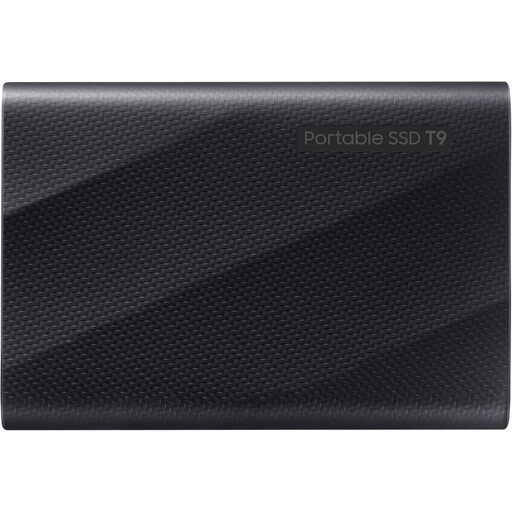 Image unavailable
Samsung MU-PG4T0B 4 TB, black
This portable SSD is an option for a substantial local library that is also moved between locations. Its title specifies USB Type-C and USB 3.2 Gen 2x2; check the host port if transfer performance matters, and keep another backup copy separate.
View on Joybuy
 Image unavailable
SanDisk Portable SSD 2TB
This portable SSD suits a local photo copy if the files you plan to protect fit within 2TB with room to grow. Confirm its connector and the cable supplied against your devices before ordering.
View on Joybuy
 Image unavailable
Western Digital Elements Portable 4TB, black
This portable HDD fits a capacity-first local-backup plan if 4TB leaves enough room for your files and future additions. Its title specifies USB 3.0; Western Digital says its Elements Portable line uses a USB-A cable and may need reformatting for operating systems other than Windows 10 and later. Handle the drive carefully and keep another copy separate.
View on Joybuy
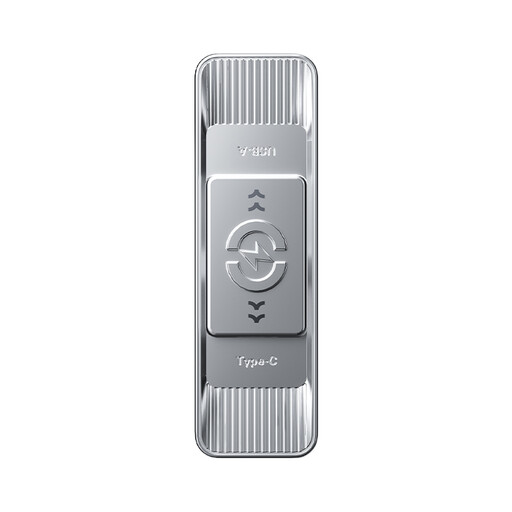 Image unavailable
MOVESPEED YSUSP05-512GSR 512GB, silver
Use this flash-drive option for selected-file transfers between devices with compatible USB-A and Type-C ports. The title specifies USB 3.2 Gen 1 and a stated read speed of 570MB/s; measure your complete library before treating 512GB as enough for a full backup.
View on Joybuy
Questions about photo backups
How much capacity do I need for photos and documents?
Measure the folders and devices you intend to protect, then leave room for new files. If you are backing up a computer, Which? advises choosing a backup drive at least as large as the system drive, and larger if it will also hold system backups. A photo-only copy still needs headroom as the library grows.
Should I leave an external backup drive plugged in?
Disconnecting it outside backup sessions can help keep a copy apart from an incident affecting the live computer. The National Cyber Security Centre advises storing backups in a separate safe location and explains why an offline copy matters. Connect the drive for your backup routine, check the files, then disconnect it if that fits your plan.
Can one USB drive connect to both USB-A and USB-C devices?
Yes, if that particular drive has both connectors and they match your devices; otherwise you may need a suitable adapter. Kingston specifies USB-A and USB-C connectors for its DataTraveler Duo, while Western Digital specifies a supplied USB-A cable for its Elements Portable line. Check the exact variant and every device port before ordering.


