What should you check before choosing?
Start with the devices and files you must be able to restore. Then decide whether a cloud account, a directly connected drive or a managed shared destination fits the way your household will make and maintain copies.
Cloud backup
Choose when: Compatible devices need automatic backup or access through an account away from home.
Accept: Coverage depends on service settings, available storage, internet access and your ability to recover the account.
External drive
Choose when: You want a directly controlled local copy of a large library or need to back up without an internet connection.
Accept: The drive must be connected when copies are made, and it needs protection from the risks affecting the original device.
Network-attached storage
Choose when: Several household members need a shared local destination that someone can administer.
Accept: A NAS requires compatible drives, account permissions, updates and its own separate backup plan.
| Concern |
What to check |
Who this matters to |
| Coverage across devices |
Check supported devices and operating systems, then identify which photos, folders and app data each backup setting includes. A USB stick used for selected transfers does not establish wider coverage. |
If my photos are on a phone and my documents are on a computer, I need a recoverable copy of both rather than assuming one setting covers them. Around 31% of consumers put cross-device coverage first. |
| Capacity and offline use |
Compare the library and room for growth with usable capacity; check the connection and backup app for each intended device. |
With a large photo or video library, I need enough local space when uploading everything is impractical. For around 31% of consumers, local capacity and offline practicality are the primary concern. |
| Shared access |
Check compatible computer and phone clients, individual permissions and file-version options. Plan a separate backup for a NAS. |
If several people contribute files, I need a shared destination without giving everyone the same level of access. Shared-household control comes first for around 23% of consumers. |
| Security and recovery |
Check encryption and account-recovery settings, where recovery information will be kept, update support and whether a sample restore works. |
I need to know that the household can still open its files after a device is lost or an account becomes inaccessible. Around 15% of consumers place recovery and security assurance first. |
Joybuy products for local backups
These external drives provide directly connected local storage, while the NAS is a shared-storage option for a household prepared to set it up. Choose by the devices and files you need to cover, and arrange a separate copy where one local destination would not be enough.
 No image available
Samsung Portable SSD T7 2 TB, grey
Consider this portable SSD for a directly connected copy of selected household files. The named variant has 2 TB of labelled storage and a USB Type-C 3.2 Gen 2 connection.
Check usable space, ports and the backup workflow for every intended computer or phone; a portable copy still needs a plan for separation from the original files.
Joybuy
 No image available
Western Digital My Passport 2 TB, black
Consider this portable hard drive for a computer-based local backup. Its named variant has 2 TB of labelled storage.
Check which folders the intended backup software covers and whether your phones need another route. If you use password protection, establish how you will retain the recovery information.
Joybuy
 No image available
Western Digital My Passport Ultra for Mac 5 TB, silver
Consider this Mac-oriented portable hard drive for a larger local library. Its named variant has 5 TB of labelled storage.
For a household also using Windows, check the stated HFS+ driver requirement and compatibility before choosing it. Confirm phone coverage, the backup method and the applicable warranty terms.
Joybuy
 No image available
Western Digital Elements portable 4 TB, black
Consider this portable hard drive when a computer-based local library needs more labelled storage space. The named variant is 4 TB and uses a USB 3.0 connection.
Check file-system compatibility before using it with a Mac or another non-Windows device, as reformatting may be needed. Confirm how backups will be scheduled and whether any phones need coverage.
Joybuy
 No image available
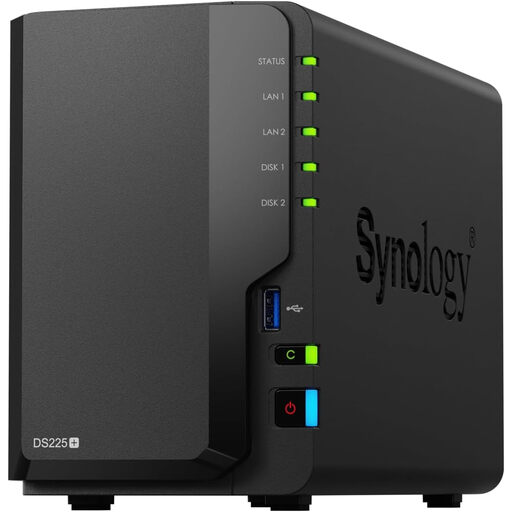
Synology DS225+ two-bay diskless NAS
Consider this NAS if several household members need a shared local destination and someone can manage its setup. The named configuration has two bays and is diskless, so storage drives must be selected separately.
Check compatible drives, usable capacity, clients for your computers and phones, and user permissions. Plan a backup destination separate from the NAS itself.
Joybuy
Household backup questions
Does cloud photo sync give me a separate backup?
Not necessarily: check what the service synchronises, what it backs up and how you would recover a deleted file. Apple Support says that photos and videos in enabled iCloud Photos are synchronised to iCloud rather than included in daily iCloud Backup; consider whether you need another independent copy.
Which devices belong in a household backup plan?
Include every device or account holding unique photos, videos or documents, including phones, computers, removable media and shared folders. Check coverage separately for each platform: Windows File History, Android backup and iCloud use different settings and destinations.
When does an external drive make more sense than cloud storage?
An external drive is worth considering when internet access is unavailable or a large collection would be impractical to upload. Microsoft Support identifies external and network storage for those circumstances; check capacity and compatibility, then keep the copy separate from the primary computer where practical.
What recovery information should I keep?
Keep the recovery information required by the protection you enable, securely and separately from the sole backed-up device. Microsoft Support advises retaining a BitLocker recovery key; Apple says Advanced Data Protection recovery depends on a device passcode or password, recovery contact or recovery key, while Google advises maintaining account recovery information.
How can I tell whether my backup will restore?
After setup, restore a small selection of photos and documents to a different location, then repeat the check after significant device, account or storage changes. A completed copy alone does not show that the files you need can be recovered.


