What should you check before choosing?
Start with what you would need to recover after losing a device. Then decide how you want to access files and where a separate copy will live.
Device-native cloud backup
Choose when: Restoring a compatible iPhone or Android phone is the main task.
Accept: Apple and Google back up different data, and available storage and restore behaviour need checking for your device.
External drive
Choose when: You want capacity for a local computer-file copy that can be disconnected after backup.
Accept: A drive can fail or be lost too, so it should not hold the only copy.
Phone storage drive
Choose when: You need to transfer photos or make an extra file copy between compatible devices.
Accept: Connector and app compatibility matter; file transfer alone does not establish full-device restoration.
| Concern | What to check | Who this matters to |
|---|
| Recovery scope |
List the photos, app data, settings and computer folders you need back. Check the restore steps for each device and try restoring a small file. |
If my phone fails, getting photos and important settings back matters more than simply opening files elsewhere. Around 25% of consumers put recovery first. |
| Access across devices |
Check supported devices and which folders or libraries sync. Microsoft says OneDrive edits and deletions synchronise in both directions. |
I need selected work files and photos on both a phone and a computer without moving a drive each time. For around 25% of consumers, access is the primary need. |
| Capacity and a separate copy |
Compare your library size with drive capacity and cloud allowance. Plan where to keep a disconnected copy. |
My growing photo library needs room, but I also want a copy apart from the computer. Around 31% of consumers place local capacity and separation first. |
| Ongoing commitment |
Check shared account usage and subscription renewal terms, or the capacity and connectors of a physical accessory. |
I do not want to commit to cloud storage that is too small for our files, or buy an accessory that cannot connect to our devices. Keeping that commitment manageable comes first for around 19% of consumers. |
External storage options on Joybuy
These external drives and SSDs are options for keeping a local copy of household files. Choose one against your library size and devices, then check the backup and restore process you intend to use; a storage drive alone does not establish a restorable phone or computer backup.
 No image available
Western Digital My Passport 2TB portable hard drive, black
Consider this 2TB portable hard drive for a local copy of computer files and photos.
Check how your computer will create and restore backups before relying on the drive.
View on Joybuy
 No image available
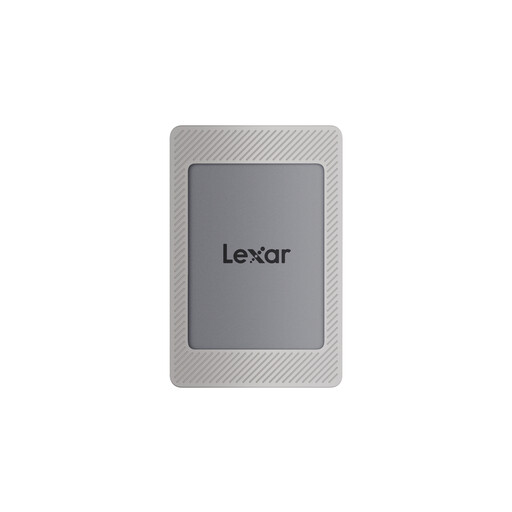
Lexar ES4 portable SSD with magnetic set, 2TB
Consider this 2TB SSD if you want portable file storage and intend to use its stated iPhone 15/16, PC or Mac compatibility.
The title specifies USB 3.2 Gen 2 and read and write speeds up to 1050MB/s and 1000MB/s respectively. Check formatting, the connection accessories and your restore steps for the intended device.
View on Joybuy
 No image available
Samsung MU-PE1T0S 1TB portable SSD, black
Consider this 1TB drive when a portable local file copy fits the size of your library.
The title specifies USB Type-C and USB 3.2 Gen 2. Confirm the connection and the backup software you will use for recovery.
View on Joybuy
 No image available
Western Digital Elements portable 4TB hard drive, black
Consider this 4TB drive for a local copy of a larger household photo or video library.
The title specifies USB 3.0. Check the file format needed by your computer and how you will back up and restore files.
View on Joybuy
 No image available
SanDisk Portable SSD 2TB
Consider this 2TB portable SSD for a separate file copy that you can disconnect after use.
Confirm the connector, file format and restore process for your intended computer or other device.
View on Joybuy
Backup questions answered
Is syncing photos the same as backing up a device?
No. Apple Support distinguishes iCloud syncing from iCloud Backup, which can include on-device information not already synced for restoration. Microsoft says OneDrive changes synchronise in both directions, so keep a separate copy if an accidental edit or deletion must not reach it.
How do I know whether automatic iCloud Backup has run?
Check the date and time of the last successful backup on the device. Apple says automatic iCloud Backup requires the feature to be enabled and the device to be connected to power and Wi-Fi with its screen locked.
Will an Android backup restore every app exactly as it was?
Not necessarily. Google says restoration varies by phone and Android version, and not all apps can back up or restore every setting and data type. Check the apps that matter to you before relying on a phone backup alone.
Can a phone storage drive replace cloud backup?
Do not assume so. Apple's listing for the cited SanDisk Phone Drive describes compatible file transfers and app-based backup, not confirmed restoration of a complete phone. Check what the exact drive and app copy, and retain a device backup if settings or app data must be restored.
How can I protect both a computer and its local backup?
Keep another copy apart from the computer and disconnect an external backup drive when it is not in use. The NI Cyber Security Centre recommends copies on different devices, including one offline in a different location, and practising restoration.


