What should you check before choosing?
Start with where the family’s files live, then check what each backup route can restore and where its copy will be kept.
| Priority | What to check | Your needs |
|---|
| Separate copy |
Confirm that the backup is stored apart from the original device. For a local drive, plan when to disconnect and store it; for a NAS, plan another independent destination. |
I want photos and documents to remain recoverable if the main computer or phone is lost or damaged. The National Cyber Security Centre defines a backup as a copy in a separate safe location. |
| File coverage |
List the phone data, photo services, computer folders and connected drives to protect. Check each service’s inclusion rules and the device or system needed for restoration. |
Our photos are on phones, but important documents may be on a computer. Apple says iCloud Photos is synchronised rather than included in daily iCloud Backup, so one setting cannot be assumed to cover both. |
| Older versions |
Check how to recover overwritten or deleted files, how long versions remain available and whether the required restore feature is included in the chosen plan. |
If someone notices a deletion late, I need to know whether an earlier copy is still available. Microsoft limits OneDrive’s full point-in-time restore to Microsoft 365 subscribers and actions within the last 30 days. |
| Family access |
Check account separation, pooled capacity and who can see or restore each person’s files. Review cloud-account recovery methods and enable two-step verification. |
We may share storage without sharing private files or a single login. Apple describes separate accounts for iCloud+ family members, and Google says Google One members share a quota without automatically sharing their files. |
| Capacity and routine |
Measure the files to protect, allow room for new media and check how backups are scheduled. For a drive, confirm the intended computer setup; for a NAS, check its usable storage and second backup destination. |
A growing video library needs room beyond today’s file total. If I choose a local copy, I also need a routine for completing it and testing that I can restore a file. |
Joybuy storage options
These external drives and one diskless NAS offer local-storage routes for household files. Choose a backup routine and an independent place for a copy rather than treating storage hardware alone as a complete backup.
 No image available
Western Digital My Passport 2TB portable hard drive, black
A portable local-copy option for photos and documents held on a computer. Measure the files you intend to protect against its 2TB capacity, and check the macOS setup and your chosen backup method’s restore settings.
View on Joybuy
 No image available
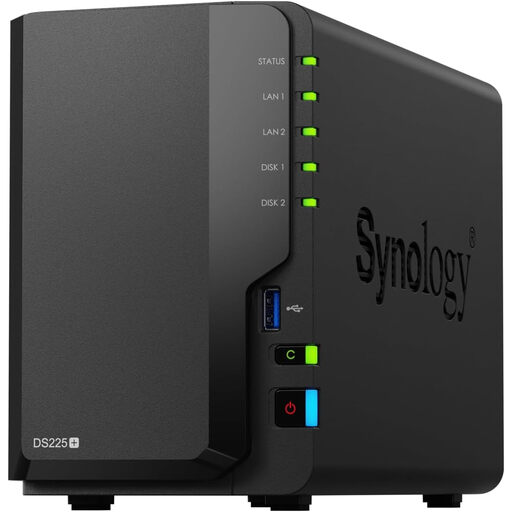
Synology DS225+ two-bay diskless NAS
A central local-storage route to consider for files from several household devices. This unit is diskless: check compatible drives, resulting usable capacity and the restore setup, and arrange an independent backup of the NAS.
View on Joybuy
 No image available
Western Digital Elements Desktop 10TB external hard drive
A desktop local-copy option for a large computer file library, with 10TB stated in the product name. Plan for its separate power connection; check reformatting before macOS use and confirm the backup software’s restore and version settings.
View on Joybuy
 No image available
Samsung Portable SSD T7 4 TB USB Type-C 3.2 Gen 2, grey
A portable local-copy option when the backup drive needs to move between locations. Compare its 4 TB capacity with your files, check the intended device’s connection and choose a backup method that provides the restore routine you need.
View on Joybuy
 No image available
Western Digital Elements portable 4TB USB 3.0 hard drive, black
A portable drive for keeping a separate local copy of household files. Check whether 4TB leaves room for growth and confirm its actual format before Mac use, as the supplied compatibility descriptions conflict; also choose a backup and restore routine.
View on Joybuy
Backup questions answered
How can I tell whether cloud storage is a backup or just synchronisation?
Check what files are covered, whether you can recover a deleted or older version, and how to perform a restore. Synchronisation alone need not provide the recovery window you want: Microsoft limits OneDrive’s full point-in-time restore to Microsoft 365 subscribers and actions within the last 30 days. Restore a sample file before relying on the service.
Should we use cloud backup, an external drive or both?
Cloud backup can provide an off-site copy, while a disconnected external drive provides a separate local copy. Using both can cover different loss scenarios if each actually includes the files you need. The National Cyber Security Centre says backups should be kept in a separate safe location; test restoration from each route you intend to rely on.
Can a family share cloud storage without sharing private files?
Yes, under the provider’s family-sharing conditions. Apple says iCloud+ can be shared with up to five other family members using separate Apple Accounts; Google says Google One members share storage capacity without automatically gaining access to each other’s files. Check account roles and total capacity before setting up the group.
Does phone backup automatically include our photos?
Do not assume the phone-backup setting covers the photo library. Apple says iCloud Photos is synchronised to iCloud rather than included in daily iCloud Backup. Check the photo service, device backup, account and available storage separately, then try restoring a sample photo.
How should we use an external drive for backups?
Choose a regular copying or backup schedule, let it complete, and test restoring a file. Then disconnect the drive and store it apart from the computer. The National Cyber Security Centre identifies removable media kept in a separate safe location as a backup route; leaving the drive beside or connected to the original device reduces that separation.


