What should you check before choosing?
Start with how the family will add and access photos, then check whether the arrangement can recover them when a device, location or account becomes unavailable.
External drive
Choose it when: you want a local copy that you can store separately from the original device.
Allow for: regular copying and a safe storage location; a drive left beside the computer remains exposed to the same home incident.
Home NAS
Choose it when: several people need an accessible home library and someone can manage the device.
Allow for: setup, drives and a separate backup destination. Synology documents local and remote backup options for its NAS software.
Cloud storage
Choose it when: automatic phone uploads and access on signed-in devices matter most.
Allow for: account recovery, storage capacity and deletion behaviour; a synchronised collection may not preserve an accidentally deleted item.
| Priority | What to check | Your needs |
|---|
| Recoverable copy |
Check that important files reach a separate safe location, as the National Cyber Security Centre advises. Try restoring a file; check whether earlier versions are available if deletion is a concern. |
I want to get photos back even if a phone, computer or original drive fails. I also need a way to recover from an accidental deletion, not just replace a lost device. |
| Capacity and quality |
Measure the files across devices and allow for new media. Check accepted file types, video limits and upload quality: Google says its Storage saver mode can resize photos above 16 MP and videos above 1080p. |
Our videos and older photo folders need room alongside new uploads. If I intend to retain original resolution, I want to choose the storage mode deliberately. |
| Family access |
Check private and invited-sharing settings, then find out who can edit or delete items. The Information Commissioner's Office distinguishes private, public and shared cloud settings. |
Relatives should be able to see or contribute photos without everyone needing the same account password or unrestricted control over the archive. |
| Access and security |
Set up account-recovery methods before relying on cloud storage. For a portable drive, check encryption and how its recovery information will be stored separately. |
If I lose a phone used to sign in, or misplace a backup drive, I still need an authorised way to reach the files without exposing them unnecessarily. |
| Device compatibility |
Check connectors, operating systems and file format before buying a drive. Samsung notes that compatibility varies and some systems may require reformatting its T7 portable SSD. |
I want to know that the devices used to make and restore the copy can both read it. |
Joybuy options for a local copy
These products cover a home NAS and portable drives for keeping local copies of family photos and videos. Check the capacity, device compatibility and backup process you need; a local device alone does not settle how you will protect the collection from a home incident.
 No image available
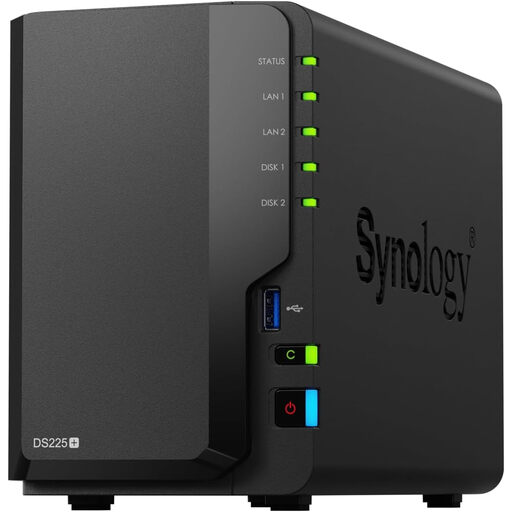
Synology DS225+ 2-bay diskless NAS
Consider this for a shared home photo library if someone can manage the NAS. It is a 2-bay diskless unit, so check compatible drives and plan a separate backup destination.
View on Joybuy
 No image available
Western Digital My Passport Ultra 5 TB portable hard drive, blue
A portable local-copy option for a photo and video library. Compare the library size with its stated 5 TB capacity, check the format for the computers you use, and decide how copies will be made and restored.
View on Joybuy
 No image available
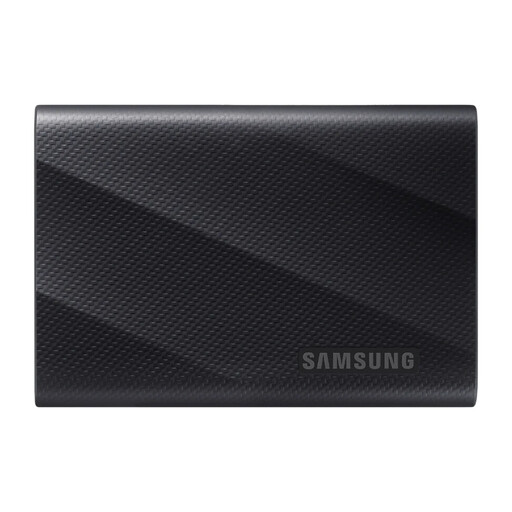
Samsung MU-PG1T0B 1 TB USB Type-C drive, black
For a portable local copy, this model lists 1 TB and USB 3.2 Gen 2x2. Check your library size and device connection, then confirm how your chosen software will make and restore backups.
View on Joybuy
 No image available
Samsung Portable SSD T7 2 TB USB Type-C, grey
This 2 TB portable SSD can hold a separate local copy if its capacity fits your library. It lists USB 3.2 Gen 2; check device formatting and the backup and restore workflow you intend to use.
View on Joybuy
 No image available
Samsung T7 Shield 1 TB portable SSD, blue
For a portable local copy, this model lists 1 TB and USB 3.2 Gen 2. Check that its capacity and device format suit your library, and arrange another copy in case the drive becomes unavailable.
View on Joybuy
Questions about family photo backups
Is cloud photo synchronisation a separate backup?
Not always. A cloud copy can help when it is separately stored and recoverable, but synchronisation may carry a deletion across devices. Apple says deleting an item in iCloud Photos deletes it from all devices, so keep an independent copy or a suitable versioned backup for irreplaceable photos.
How much capacity should a family photo backup have?
Measure the photos and videos across phones, computers and existing exports, then allow room for new files and any versions you intend to keep. Check the service's file limits and quality settings or, for a drive, its format and compatibility with the devices used to restore files.
Can everyone contribute to one iCloud Shared Photo Library?
Apple says a Shared Photo Library can include up to five other people, who can add, edit and delete shared items. Use it when joint curation is appropriate, but keep a separate preservation copy if a collaborator's deletion would matter.
What should I check before relying on Google Photos?
Confirm which Google Account receives uploads, set up account recovery and choose the upload quality deliberately. Google says backup uses one account at a time; its Storage saver mode can resize photos above 16 MP and videos above 1080p.
Does encrypting an external drive replace a second backup?
No. Encryption can protect the files from unauthorised access if a drive is lost or stolen, but it does not make another recoverable copy. Keep the recovery information safely and maintain a separate backup destination.


