Who needs a backup before changing devices?
Make a recoverable copy before the phone or computer holding your files is erased or handed over, rather than relying on access to it afterwards.
Households replacing or repairing a device
If a phone or computer is about to be handed in or erased, check that the copy you intend to restore is complete and accessible. Apple Support says an iPhone or iPad backup can be used when replacing a device.
Families with files on several devices
Consider who needs access to which photos and documents, and whether storage is shared or allocated per person. Apple, Google and Microsoft offer different household cloud arrangements; sharing capacity does not necessarily mean sharing private files.
People protecting important photos and documents
Keep copies separate enough that losing a device or access to one account does not remove every route back to your files. The National Cyber Security Centre advises maintaining multiple, logically separate backups.
What matters when choosing a backup route?
Decide how you would restore your files, then check that the storage route works with your devices and holds what you need to keep.
| Priority | What to check | Your needs |
|---|
| Restoring files |
Confirm what the backup contains and how to restore it without the original device. If you need device settings as well as files, check the relevant device-backup method. |
When I replace or repair a device, I want to open my photos and documents on the replacement. Apple Support says an iPhone or iPad backup can be used when replacing a device. |
| Separate copies |
Keep a copy away from the original device and avoid leaving the only removable copy routinely connected. Check any cloud service’s version-history and deleted-file rules. |
I want another way to recover important files if a device, synchronised copy or connected account is affected. The National Cyber Security Centre advises keeping multiple backups logically separate. |
| Device compatibility |
Check USB-A or USB-C ports, any required reader, and the exact device’s supported card format and capacity. For an external SSD, check the host, cable and USB standard before relying on a stated speed. |
My phone, camera and computer may need different connections. I need a way to move files that works with the devices I actually use. |
| Capacity and sharing |
Compare the space your files use with the available allowance. For a household cloud plan, check the member limit and whether capacity is pooled or allocated per person. |
There needs to be room for each person’s files. Microsoft says Microsoft 365 Family provides up to 1 TB per person for one to six people; Apple says iCloud+ can be shared with up to five other family members. |
| Account access |
Check that recovery contact details are current before the old device is unavailable. Find out which recovery contacts or codes your provider offers and keep those details separately. |
If my cloud copy is tied to an account, I need a way back in without depending solely on the phone I am replacing. |
Which brands and services are relevant?
These references cover cloud arrangements and removable-storage product lines; a brand’s range does not establish compatibility with your particular device.
Apple
iCloud and computer backups are options for iPhone and iPad users; Apple also describes backing up to a Mac.
- Apple says iCloud+ can be shared with up to five other family members while personal files remain separate.
- If the household also uses non-Apple devices, check how each device’s files will be copied and restored.
Google
Google Account storage and Google One are options for files kept in Google services across household devices.
- Google says accounts include up to 15 GB of storage and that family members’ files remain private when using Google One sharing.
- Check the current shared allowance against the household’s combined use rather than assuming a separate allowance for each person.
Microsoft
OneDrive and Microsoft 365 plans offer cloud-storage routes for households using Microsoft accounts.
- Microsoft describes Microsoft 365 Family as up to 6 TB in total, allocated as 1 TB per person for one to six people.
- Do not treat that total as one person’s unrestricted allowance; check the plan structure against each member’s files.
Samsung
The T7 Shield is a portable external SSD line for making a removable local copy.
- Samsung lists compatible computer and other host categories for the T7 Shield range.
- Samsung says its stated top transfer speed requires a compatible USB 3.2 Gen 2 host and cable, with UASP enabled.
Seagate
External hard-drive lines offer a route to keeping a computer-based local copy.
- Seagate offers external drives in a range of capacities for different file collections.
- Check the specific model’s power and port requirements: Seagate’s Expansion Desktop drive requires external power, and its portable-drive guidance notes the effect of the USB connection on performance.
SanDisk
USB flash drives and memory cards offer removable storage for selected files and compatible devices.
- SanDisk offers USB-C and dual-connector flash-drive designs for relevant hosts.
- Check the exact device’s connector or supported SD or microSD format and capacity before choosing a drive or card.
Joybuy removable-storage options
These portable drives, a USB flash drive and a microSD card are options for making a removable copy of photos and documents. Keep device compatibility and the need for a separate recoverable copy in mind when comparing them.
 Image unavailable
SanDisk Portable SSD 2 TB
A portable SSD for a removable copy of household files, with 2 TB stated in the product name. Check its connector and the devices you intend to use before choosing it.
 Image unavailable
Samsung T7 Shield Portable SSD 1 TB, blue
A 1 TB portable SSD for keeping a local copy when the host device is compatible. The product name specifies USB 3.2 Gen 2; Samsung says the T7 Shield’s stated top speeds require a compatible host and cable with UASP enabled.
 Image unavailable
Western Digital My Passport Ultra portable hard drive 5 TB, blue
A portable external hard drive with 5 TB stated in its name, for a computer-based copy of a larger file collection. Confirm the format and host-device support you need before relying on it for a phone, tablet or computer.
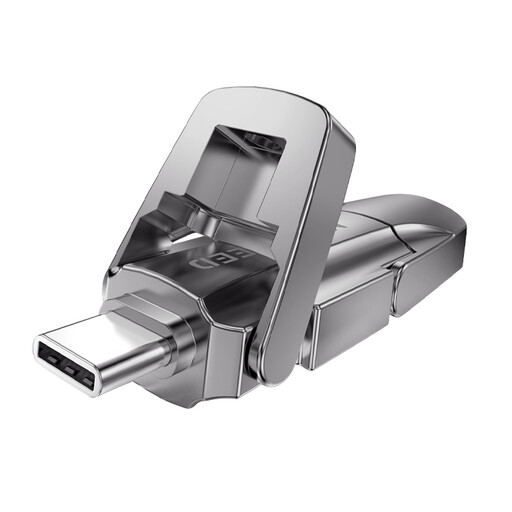 Image unavailable
MOVESPEED YSUYVP10-256GSR USB flash drive 256 GB
A 256 GB flash drive named with USB-A and Type-C connectors, for moving a selected set of files between compatible devices. Confirm host support and practical transfer performance if speed matters to your workflow.
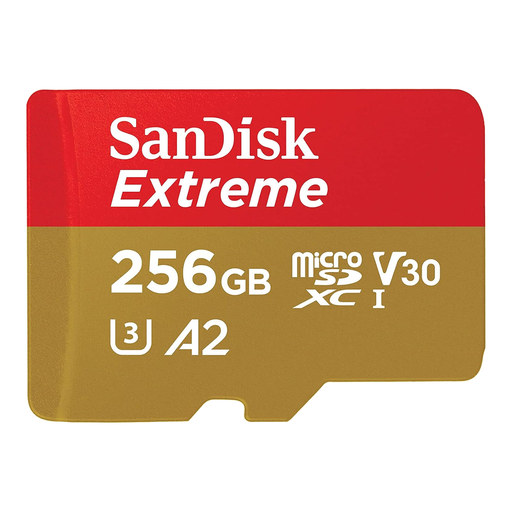 Image unavailable
SanDisk Extreme microSDXC 256 GB with SD adapter
A 256 GB microSDXC card with an SD adapter for a device that supports the relevant format and capacity. Check the exact phone, tablet or camera before choosing a card as a removable copy.
Backup storage questions
Is cloud synchronisation enough to protect my files?
Do not assume synchronisation is your only recoverable copy. The National Cyber Security Centre defines a backup as a copy kept in a separate safe location and advises keeping multiple backups logically separate; check your cloud provider’s version-history and deleted-file rules too.
Can I back up an iPhone or iPad before replacing it?
Yes. Apple Support says you can back up an iPhone or iPad to iCloud or a computer and use a backup when replacing the device. Before erasing or handing over the old device, check that your intended backup is available; if you separately copy photos or documents, confirm that those files open.
What should I check before buying removable storage?
Check the exact devices that must read it, including their USB ports or supported card format and capacity, and whether you need an adapter or reader. For an external SSD, also check the host and cable requirements before relying on a stated transfer speed.
Does a family cloud plan give everyone the same storage?
Not necessarily. Google One describes shared family storage with private files, Apple says iCloud+ can be shared with up to five other family members, and Microsoft describes Microsoft 365 Family as up to 1 TB per person for one to six people. Check the current plan’s allowance and member rules against your household’s use.
How can I prepare for losing access to my cloud account?
Update recovery details before the device you normally use to sign in is unavailable. Google describes recovery information, Apple offers recovery contacts and Microsoft offers an account recovery code; check the options for your account and keep recovery information separately.


