Choose a portable hard disk drive (HDD) for periodic backups of a large family archive that you can store carefully between uses. A portable solid-state drive (SSD) makes more sense for frequent large transfers or a drive you carry regularly; use a USB stick for smaller transfers, not as your only family archive. Whichever you choose, check your devices’ connections and file formats, keep another copy of important files separately, and disconnect the local backup when it is not in use.
Who needs which kind of storage?
Households starting a local photo backup
If photos, videos and documents are spread across computers, start by finding out how much space those folders use. An external drive can hold a local copy, but the National Cyber Security Centre advises keeping backups apart from live systems when they are not needed.
Families moving large media folders often
Frequent transfers make drive speed and the computer’s connection more important. If the drive also travels regularly, consider how you will protect it from knocks rather than choosing by capacity alone.
Households using both Mac and Windows
Check that each computer has a suitable port and can write to the drive’s file format. Apple identifies ExFAT as a format option for disks over 32 GB used with Windows; confirm the format before moving your archive.
What should you check before choosing?
Which?’s February 2026 UK guidance describes HDDs as suited to long-term file backups and SSDs as generally faster. Size the archive first, then consider how often you will transfer files, carry the drive and connect it to different devices.
| Priority |
What to check |
Your needs |
| Archive capacity |
Add up the folders you intend to back up. Compare their size, with room for future photos and videos, against the drive’s stated capacity. |
I want one local copy with room for the household files I plan to keep adding. A carefully stored portable HDD suits a capacity-led, periodic backup routine. |
| Transfer speed |
Check whether the drive is an HDD or SSD, then match its USB connection and cable to the computer. Treat advertised maximum speeds as conditional specifications. |
Large photo or video folders move between my devices often, so transfer time matters. Which? describes SSDs as generally faster than HDDs, but the connection can limit the speed available. |
| Handling |
Consider how often the drive will travel. Check any model-specific protection rating and its test conditions; do not treat a ruggedness claim as accidental-damage cover. |
If I carry the drive between homes or workspaces, I need to account for knocks and exposure while it is in my bag. A drive stored at home faces a different handling routine. |
| Device compatibility |
Check ports, cables and whether each device can write to the supplied file format. Before reformatting a drive, copy files already on it elsewhere. |
The same files need to be accessible from our Mac and Windows computers. Apple identifies ExFAT as an option for disks over 32 GB used with Windows, but I still need to check the intended workflow. |
| Backup routine |
Decide when copies will be made, check that important folders copied, and disconnect the local drive afterwards. Keep another copy separately. |
I want family photos and documents to remain recoverable if the computer or its nearby drive is affected. The National Cyber Security Centre advises against leaving backup devices connected when they are not in use. |
What can go wrong with a backup plan?
-
Choosing by capacity alone
A roomy HDD can suit periodic backup, but frequent large-file transfers make speed and the computer connection more relevant. Which?’s UK guidance describes SSDs as generally faster than HDDs.
Check the computer port and cable before choosing a faster drive. A stated maximum transfer speed is not a promise of the same result on every device.
-
Leaving the backup connected all the time
The National Cyber Security Centre warns that a connected backup device can be affected alongside an infected computer.
After backing up, check the important folders, safely disconnect the drive and store it. Keep another copy of irreplaceable files in a separate location or service.
-
Reformatting before protecting existing files
Changing a drive’s format for shared Mac and Windows use can erase files already stored on it.
Copy those files to another location and check the copy before formatting. Then confirm that the new format works with the devices that need to write to the drive.
-
Confusing a ruggedness rating with damage cover
Samsung describes the T7 Shield’s IP65 and drop-resistance claims under controlled test conditions; it says liquid, dust and drop damage are excluded from its stated warranty. Those claims apply to that model, not every portable SSD.
Check the exact model’s test conditions and warranty terms, handle it with care and retain a separate backup.
Brand references for these storage routes
Western Digital
Western Digital’s UK WD Elements Portable range includes a 5 TB HDD model with USB 3.2 Gen 1/USB 3.0 connectivity.
- The company presents WD Elements Portable as storage for photos, videos and other files when capacity is a priority.
- That description does not establish transfer speed, drop resistance or whether one drive is enough for a backup plan.
Samsung
Samsung’s UK T7 Shield 1 TB portable SSD listing specifies USB 3.2 Gen 2 and sequential speeds up to 1,050 MB/s read and 1,000 MB/s write.
- Samsung also states IP65 protection and 3 m drop resistance for the T7 Shield under controlled tests.
- Transfer performance depends on the host and connection. The Shield’s protection claims should not be applied to other T7 models or treated as accidental-damage cover.
SanDisk
SanDisk lists portable SSDs in its UK range, including Extreme Portable SSD models.
- The range gives households another portable SSD line to consider for file transfers.
- Check capacity, connection, protection claims and warranty for the exact model; they should not be assumed across the range.
Joybuy HDD and SSD options
These portable SSDs and HDDs cover frequent transfers and local photo backups. Compare each capacity with your archive, and plan a separate copy of important files; this selection does not include a USB stick or backup service.
 No image available
Samsung MU-PE1T0S 1 TB USB-C SSD
Consider this portable SSD if you regularly move photo or video folders and 1 TB covers the files you intend to store. Its name specifies USB Type-C and USB 3.2 Gen 2; check your device’s connection and the drive’s file format before relying on it across devices.
View on Joybuy
 No image available
Samsung Portable SSD T7 4 TB USB-C, grey
The 4 TB capacity is worth comparing with a larger household archive if you also transfer files regularly. This T7 is specified as USB 3.2 Gen 2; confirm your computer’s port, cable and the drive’s file format. Do not assume the T7 Shield’s protection claims apply to this model.
View on Joybuy
 No image available
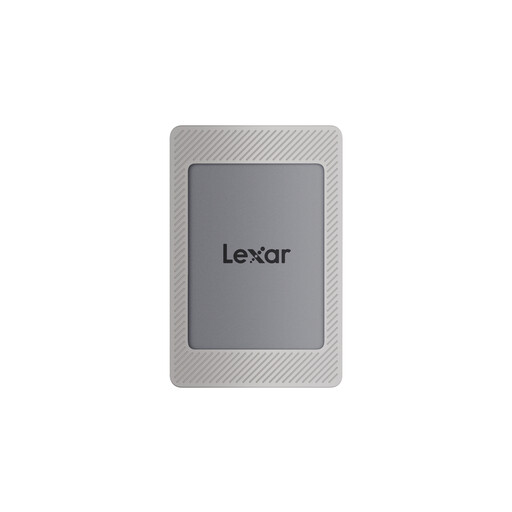
Lexar ES4 Magnetic Set 2 TB portable SSD
This 2 TB USB 3.2 Gen 2 SSD is an option for a local copy and transfers between compatible devices. Its name states speeds up to 1,050 MB/s read and 1,000 MB/s write; actual use depends on the connection. If magnetic attachment matters, check compatibility with your iPhone 15 or 16 and its case, as well as the drive’s file format.
View on Joybuy
 No image available
Western Digital Elements Portable 4 TB HDD
For periodic backups kept safely at home, compare this 4 TB HDD with the size of your photo, video and document folders. Its name specifies USB 3.0. Check your computer connection and the supplied file format, particularly for Mac use, and protect the drive from knocks.
View on Joybuy
 No image available
Western Digital My Passport 2 TB HDD, black
This portable HDD provides a 2 TB option for a local photo and document backup; compare that capacity with your folders before choosing it. For a Mac, confirm the supplied file format and whether any required driver supports your macOS version before moving files onto the drive.
View on Joybuy
Common questions
Can one external drive be my only family-photo backup?
No. Keep another copy of irreplaceable photos and documents separately, such as in another location or an online backup service. The National Cyber Security Centre advises disconnecting a local backup device when it is not in use so it is not continuously exposed alongside the computer.
Is an HDD or SSD more suitable for a monthly photo backup?
A carefully stored portable HDD suits a periodic backup when capacity is the main consideration; an SSD is more relevant if you frequently move large folders or carry the drive. Which?’s February 2026 UK guidance describes HDDs as suited to long-term file backup and SSDs as generally faster. Check your archive size and computer connection before choosing.
Can I use the same external drive with Mac and Windows?
Yes, if both computers can connect to and write to its file format. Apple identifies ExFAT as an option for disks over 32 GB used with Windows and notes that a Mac may read an NTFS drive without being able to write to it. Check the supplied format, and copy existing files elsewhere before reformatting.
Is a USB stick enough for the family archive?
Use a USB stick primarily to move smaller sets of files, not as the only copy of family photos. Which?’s September 2026 UK USB-stick testing considers performance, durability and capacity, which vary between products. Keep important files in a separate backup as well.


