Who needs which setup?
The useful distinction is whether you need a fixed local copy, access across devices, or a copy kept away from home.
Households with a growing media library
If photos and videos are spread across phones and computers, measure the whole library before choosing local storage. A drive can hold a separate copy; an additional off-site destination protects against an incident affecting both the everyday device and storage kept at home.
Phone-first Apple or Google Photos users
If a photo service is where you normally view your library, check its quality settings, storage allowance and deletion behaviour. Apple says iCloud Photos reflects deletions across devices and advises keeping backup copies; a synchronised view is not a substitute for a separately recoverable copy.
Households sharing files across devices
A NAS can provide a shared location for household files and, on supported models, mobile uploads. Synology describes automatic phone uploads for its DS223j, but also warns that RAID and drive failures can cause data loss. Plan another backup destination for the NAS.
What should you check before choosing?
Choose the destination for the way you will use the library, then check whether it can hold a separate copy that you can actually restore.
| Priority |
What to check |
Your needs |
| Recoverable copies |
Identify which device holds each copy, whether any copy is off-site, and how to restore files to another device. Check whether the backup retains earlier versions if accidental deletion is a concern. |
I want to retrieve photos even if my everyday device fails or an unwanted change reaches the main library. |
| Capacity |
Measure the entire library, including videos outside the photo app. Allow for new files and any backup history; check the capacity of the exact drive or cloud account. |
My library is still growing, so a destination that only fits today’s files will not serve the next full copy. |
| Portable or desktop drive |
Decide whether you will carry the copy or leave it connected in one place. Compare the stated capacity and connections of exact models; a desktop drive may also need mains power. |
I need a drive I can take elsewhere, or I would rather keep a larger local copy in a fixed home setup. |
| Shared access |
If considering NAS, check device and phone-app access, setup responsibilities and the destination for its separate backup. Synology warns that RAID does not remove the risk of data loss. |
Several people or devices need the same library, but I do not want the NAS to be its only home. |
| Device compatibility |
Check the drive’s file system, connections and backup app before transferring the library. Apple specifies APFS or Mac OS Extended (Journaled) for an external Mac Photos library; Microsoft says Windows File History can use an external drive or network location. |
I need the copy to work with the computer and photo application I will use to make and restore it. |
| Cloud behaviour |
Check whether the service syncs changes, what quality it stores and whether the account has room. Google says Storage saver can resize photos above 16 MP and videos above 1080p; Google account storage is shared across its services. |
If I use cloud storage for an off-site copy, I want to know whether I can recover the original files after a deletion or device loss. |
Relevant brand references
These brands illustrate different parts of the backup decision; a brand’s documentation does not establish that a particular model or service suits every household.
Seagate
Its UK materials cover portable and desktop external-drive routes for a local copy.
- Seagate lists particular Backup Plus Hub desktop variants with capacities up to 14 TB.
- Capacity depends on the exact model. Its cited Backup Plus portable page describes a model up to 5 TB but says that product is no longer in stock.
Synology
Its NAS documentation is relevant when a household wants shared access and supported mobile-upload workflows.
- Synology describes automatic mobile photo and video uploads for the DS223j.
- Synology warns that RAID crashes and drive failures can cause data loss and recommends backing up to another destination.
Apple
Apple’s guidance matters when the library is managed in Mac Photos or iCloud Photos.
- Apple specifies APFS or Mac OS Extended (Journaled) for a Mac Photos library stored on an external drive.
- Apple says iCloud Photos reflects edits and deletions across devices and advises keeping backup copies of the library.
Google
Google Photos is a cloud route to assess alongside a separate local copy.
- Google documents photo and video uploads from a computer, including their file-size limits.
- Google says Storage saver can resize larger media, and account storage is shared across Google services.
Joybuy drive options
These drives are options for making a local copy. Compare their stated capacity with your whole library, and arrange a separate off-site copy if you need protection from an incident affecting storage at home.
 No image available
Samsung MU-PE1T0S 1TB USB Type-C drive
For a local copy, check the 1TB stated capacity against your complete library before choosing it; it would not hold a 1–1.5TB library in full. The product name specifies USB Type-C 3.2 Gen 2 (3.1 Gen 2). Confirm the file system required by your backup application.
Joybuy
 No image available
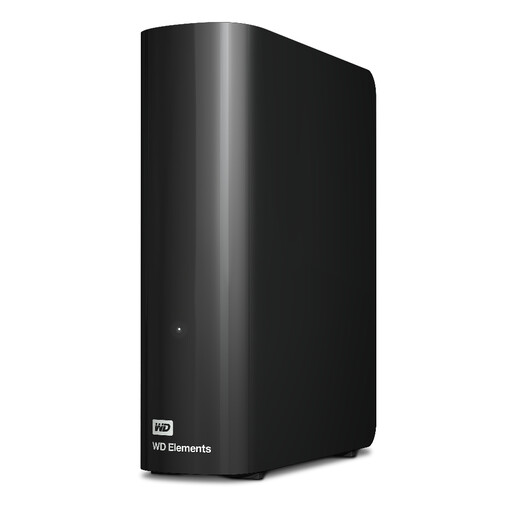
Western Digital WD Elements 12TB desktop hard drive
A desktop option for a local library that will stay in one place. Its product name specifies 12TB and USB 3.2 Gen 1; check the available connection, power requirements and file system for the computer that will make the backup. Keep a separate copy elsewhere if you need off-site recovery.
Joybuy
 No image available
Samsung Portable SSD T7 2 TB, grey
A portable local-copy option when you expect to move the drive between compatible devices. The product name specifies 2 TB and USB Type-C 3.2 Gen 2 (3.1 Gen 2). For a library already around 1–1.5 TB, compare the remaining room with expected growth and check the intended device’s file-system requirements.
Joybuy
Common questions
How much drive capacity does a 1–1.5 TB photo library need?
Choose capacity above the measured size of all the files you intend to copy, rather than matching current use exactly. Include videos outside the photo app and allow room for new files and any backup history; compare those needs with the capacity of the exact drive.
Can I put a Mac Photos library on any external drive?
Not without checking its setup. Apple specifies APFS or Mac OS Extended (Journaled) for an external drive holding a Mac Photos library and says not to use a device that is also used for Time Machine backups.
Can Windows make regular copies to an external drive or network location?
Yes. Microsoft says File History can make regular backups of monitored files and folders to an external drive or network location. Check that the folders containing your complete photo and video library are included, then try restoring files.
Is iCloud Photos or Google Photos enough on its own?
Do not assume either service meets every recovery need. Apple says iCloud Photos syncs deletions across devices and advises keeping backup copies. If using Google Photos as an off-site route, check upload limits, account storage and whether the selected quality setting preserves the files you intend to recover.
Does a two-drive NAS remove the need for another backup?
No. Synology warns that RAID crashes and drive failures can still cause data loss and recommends backing up to a different destination. Use a NAS for shared access if that meets your needs, but keep a distinct copy and test how to restore it.


