What should you check before choosing?
Start with the size and location of the files you need to copy, then decide how separate the backup must be from the computer and how much routine management you can take on. A local drive, cloud account and NAS solve different parts of that decision; they need not be mutually exclusive.
| Concern | What to check | Who this matters to |
|---|
| Completing the first copy |
Measure the files to be protected, including photo libraries and custom folders; allow capacity for later copies or versions. |
If I have years of photos in several folders, I want the first backup to include all of them without a lengthy upload. Roughly 33% of consumers would put that first-copy need above the other concerns here. |
| Keeping copies separate |
Decide where an additional copy will live and when a removable drive will be disconnected; try restoring a few files. |
If a computer failure, malware or an incident at home could take out my records, I need a copy beyond the affected device. Around 25% of consumers would make that separation their primary concern. |
| Backing up several devices |
Confirm each device’s backup-tool compatibility and which folders the scheduled process includes. |
With files changing on more than one computer, I need backups that do not depend on remembering every manual copy. That would be the leading concern for roughly 17% of consumers. |
| Managing cloud access |
Check storage allowance, sharing and account-security settings, and how you would retrieve files before leaving a service. |
If personal records are held in a cloud account, I want to control who can access them and how I would get them back. About 25% of consumers would prioritise that account-control need. |
Joybuy options for local backups
These external drives and NAS option cover local copies, portable transfers and shared household storage. For irreplaceable files, plan a separate copy beyond whichever device you choose here.
 No image available
Western Digital My Passport 2TB Black external hard drive
A local-drive option for making a first copy of household photos and documents.
Check whether its stated 2TB capacity covers every folder you intend to back up, and keep another copy elsewhere for irreplaceable files.
View on Joybuy
 No image available
Western Digital My Passport Ultra for Mac 5TB Silver external hard drive
A Mac-focused local-drive option for copying a substantial photo and document collection.
Check the collection against its stated 5TB capacity and confirm the drive format and backup-tool compatibility before use. Keep a separate copy of irreplaceable records.
View on Joybuy
 No image available
Western Digital My Passport Ultra 5TB Blue external hard drive
A portable local-copy option when a household needs to plan around a large existing collection.
Its stated capacity is 5TB. If the drive will be used with different computers, check their connection and backup-format requirements before copying files.
View on Joybuy
 No image available
Samsung Portable SSD T7 2 TB Grey, USB Type-C 3.2 Gen 2 (3.1 Gen 2)
A portable SSD option for households that regularly carry or transfer a local copy of their files.
Check whether 2 TB covers the intended backup and whether each device has a compatible connection. Keep another copy separately rather than relying on the portable drive alone.
View on Joybuy
 No image available
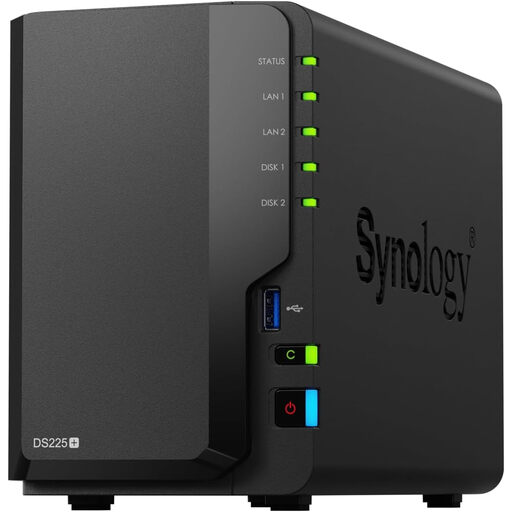
Synology DS225+ two-bay diskless NAS
A shared network-storage option for a household planning backups from several devices.
This is a diskless, two-bay model: choose compatible drives and check the intended backup software and storage arrangement before buying. Plan a further backup destination for files held on the NAS.
View on Joybuy
Backup questions answered
Is one external drive enough for household photos?
One external drive gives you a useful local copy, but it leaves irreplaceable photos exposed if it stays with or connected to the computer. The National Cyber Security Centre suggests keeping irreplaceable photos and videos both in the cloud and on removable media, and warns that attached backup drives can be affected by malware.
How much capacity should a Time Machine drive have?
Apple recommends a Time Machine disk with at least twice the Mac’s storage capacity. That is guidance for this Mac backup workflow, not a sizing rule for every drive; also account for the files you intend to include and future growth.
Can a NAS be my household’s only backup destination?
A NAS can provide shared storage, but it should not be the only copy of important files. Synology’s Hyper Backup documentation describes backing up a compatible NAS to another destination, such as an external device or cloud service; check the workflow supported by your chosen model.
What should I check before relying on cloud storage?
Check that the service can hold your files, that the account is protected, and how you would retrieve a full copy. UK government consumer guidance warns that suspension or cancellation can interrupt access, so arrange another copy before leaving a service.
How can I tell whether a backup will restore?
Open the backup and restore a small selection of recent photos and documents to a different location. Check files from every important folder rather than relying only on a completion notification; the National Cyber Security Centre advises confirming that backups contain the data you need.


