Home archive keepers
If your family photos and documents keep growing, check that a repeatable backup routine covers the whole collection and leaves room for new files. Which? discusses HDDs for longer-term computer-file backups.


Choose a portable HDD for a larger photo and file archive that you update mainly at home, or an SSD if you regularly carry the drive and transfer large files. A USB flash drive is more suited to selected files than a sole long-term archive; cloud storage alongside a removable copy gives you another backup location, provided you protect the account. Whichever route you choose, configure the backup, check which folders it includes and test that you can restore a file.
The National Cyber Security Centre identifies loss, theft, device failure, accidental deletion and malware as reasons to keep a separate copy of important files.
If your family photos and documents keep growing, check that a repeatable backup routine covers the whole collection and leaves room for new files. Which? discusses HDDs for longer-term computer-file backups.
If you move large files between computers or other compatible devices, check ports, supplied cables and operating-system requirements before prioritising transfer speed. Samsung’s T7 documentation makes its quoted maximum speeds conditional on the connection and host hardware.
If internet access is unreliable, or you do not want every copy connected to your main computer, removable storage offers a separate backup location. The National Cyber Security Centre advises keeping at least one backup offline.
Decide where a recoverable copy will live, then check capacity and compatibility before choosing a drive for its transfer speed.
Choose it when: You need removable capacity for a larger photo and document archive that stays mostly at home.
Trade-off: Which? distinguishes HDDs for longer-term backups from faster SSDs, so frequent large transfers may take more time.
Choose it when: You often carry the backup or transfer large files between compatible devices.
Trade-off: A quoted maximum speed depends on the drive, cable and host connection; compare capacity against the files you need to protect.
Choose it when: You need a removable copy of selected documents or a way to move smaller sets of files.
Trade-off: Check its capacity and connector, and keep another recoverable copy rather than relying on one easily misplaced drive.
Choose it when: You want a cloud copy as well as a local copy that can be kept separate from the main device.
Trade-off: Cloud backup needs internet access and account protection; a local drive still needs a working backup routine.
| Concern | What to check | Who this matters to |
|---|---|---|
| Capacity and coverage | Measure the files to be protected, allow for growth and check that the backup routine includes the intended folders. | I want older photos and new files in the same recoverable archive, not a copy that stops short when storage fills up. About 31% of consumers put complete library coverage first. |
| Portable transfer speed | Check the drive connector, supplied cable and host USB support; maximum speeds require the stated compatible setup. | When I regularly move a large photo or video collection, waiting for transfers affects how readily I keep the copy up to date. For about 25% of consumers, fast portable transfers are the primary need. |
| Device compatibility | Confirm the ports, external-storage support and file-system requirements of each intended device. | I need files to move to another computer or a compatible phone without discovering that the drive cannot connect or needs reformatting. Direct device compatibility comes first for about 19% of consumers. |
| Recovery and separation | Check that backups complete and a test file restores; keep a copy separate and protect cloud accounts where used. | If my main device is lost, files are deleted or malware reaches it, I need a copy I can actually restore without exposing every backup to the same incident. Roughly 25% of consumers prioritise that recoverability and separation. |
A copied or synchronised folder may leave out important files, and an untested copy may not help when you need to restore one.
Choose the folders to protect, confirm the backup has completed and restore a non-critical test file before relying on it.
The National Cyber Security Centre warns that connected backup storage can be affected by malware, including ransomware.
Keep at least one copy separate from the main device when it is not being updated.
A drive may need a different cable or formatting before it works with your intended device. Apple says Time Machine cannot back up to a disk formatted for Windows.
Check the ports and backup requirements first. Copy wanted files elsewhere before reformatting, which can erase them.
A different connector may require an adapter, while changing the file system takes time to move and safeguard existing files.
An online copy can be useful, but access to it depends on the account and an internet connection. It does not replace checking that the intended files can be recovered.
Check that the cloud space covers your files, enable multi-factor authentication where available and retain a separate removable copy of important files.
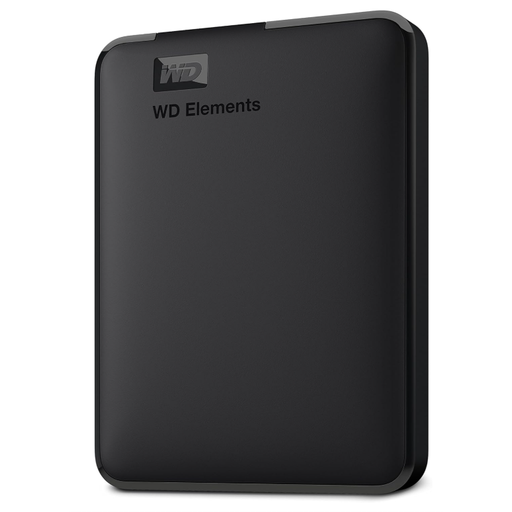
The WD Elements Portable line is relevant to people choosing a removable HDD for a larger local archive.
The portable T7 SSD line is relevant when large-file transfers and switching between compatible devices matter.
The Expansion portable HDD line is another reference point for removable computer backups.
The DataTraveler Exodia line is relevant to selected-file copies and transfers rather than serving as the only substantial photo archive.
These selections include portable SSDs for moving files between compatible devices and a listed portable HDD for a larger local archive. Match the stated capacity and connection to your files and devices before setting up a backup.
 No image available
Consider this portable SSD if you regularly move a large collection between compatible devices. The listed connection is USB Type-C 3.2 Gen 2; check your device, cable and file-system setup. Samsung’s stated T7 maximum transfer speeds require compatible host hardware, connection cables and UASP.
 No image available
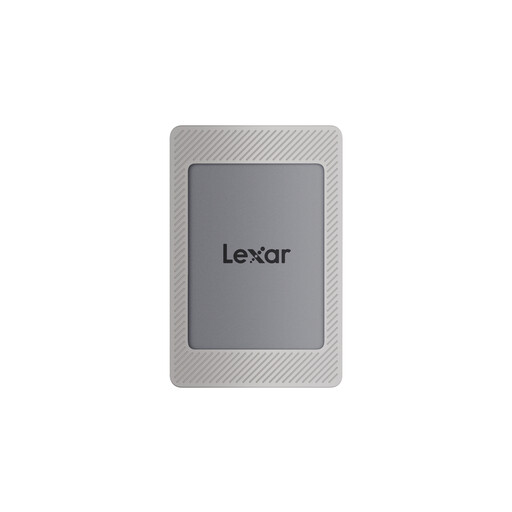
This portable SSD is an option when you want to carry a removable copy and its capacity fits the files you have chosen to protect. It is listed with USB 3.2 Gen 2; check the intended device connection and required backup format before use.
 No image available
Consider this model if you want a portable file copy for a compatible iPhone 15/16 setup or computer. Its title specifies USB 3.2 Gen 2 and advertised maximum read and write speeds of 1050MB/s and 1000MB/s; check the exact phone, attachment arrangement and backup file system before relying on it.
 No image available
The product title presents this as a portable HDD for a larger local file archive, with 6TB capacity and USB 3.0. Confirm the drive identity, capacity and connector on the product page before buying: the accompanying product details describe a different type of storage device. Check the file system required by your backup software as well.
No. Choose the files to protect, configure copying or backup software, confirm that a backup has completed and restore a test file. The National Cyber Security Centre describes a backup as a separate copy kept in a safe location.
Not without changing its format. Apple says Time Machine cannot back up to a Windows-formatted disk and identifies APFS or APFS Encrypted as preferred formats. Copy any files you want to keep elsewhere before reformatting, which can erase the drive.
Microsoft’s File History can back up to an external drive or network location. Check that the Pictures and Documents libraries contain the files you want protected; folders elsewhere need to be included in a library for File History to cover them.
Not every copy needs to remain connected. The National Cyber Security Centre advises keeping one or more backups offline so an incident affecting a live device does not also reach every backup. Reconnect a removable drive when your backup routine requires an update.
Consider encryption when the drive holds personal or sensitive files and could be lost or stolen. The Information Commissioner’s Office describes encryption as a way to protect personal information on USB and backup media from unauthorised access; keep the password or recovery information secure so you can still restore the files.