For photos and documents on a phone, an automatic cloud backup can be convenient if it covers the data you need; for a large computer archive, a removable drive provides a separate local copy. Use both routes when you want copies in different places, and disconnect the drive between backups. Whichever route you choose, keep a separate copy and test that you can restore files: moving them to another device is not enough.
Who needs which backup?
Families whose photos are mainly on phones
Check the account used for photo backup and whether device data is covered separately. Apple says iCloud Photos syncs photos and videos outside the daily iCloud Backup; Google likewise provides separate controls for Google Photos and Android device backup.
Households with computer and camera archives
If videos, camera files and documents are spread across computer folders, choose enough space for the files you intend to protect and check which folders the backup includes. Microsoft says Windows File History makes regular copies to an external drive or network location; the drive must be available when that local backup runs.
People keeping irreplaceable records
For family photos and important documents, consider a cloud copy alongside a removable copy stored separately. The National Cyber Security Centre defines a backup as a copy in a separate safe location and advises against leaving a backup device permanently connected.
What should you check before choosing?
Start with the files and devices involved, then decide how the backup will run and how you would recover a file from it.
| Priority | What to check | Your needs |
|---|
| Separate copy |
Keep the backup apart from the original files. Check that moving or deleting a file will not leave you with only one recoverable copy. |
I want to recover family photos or documents if the original device is lost, damaged or replaced. |
| Device coverage |
Check the account, backup settings and included data on each device. Apple says iCloud Photos is separate from daily iCloud Backup; Google provides separate photo and Android device backups. |
My photos and device data may need different settings, even when they use the same account. |
| Capacity |
Compare the files you plan to back up with the available cloud or drive space. Allow for new photos and videos, and check whether a backup has completed. |
A growing photo library needs room beyond what it occupies today. |
| Backup routine |
Check when automatic backups run and how you will update a removable copy. Apple says automatic iCloud Backup requires power, Wi-Fi and a locked screen. |
I would rather not discover after losing a device that its recent files were never copied. |
| Drive connection |
For a removable drive, check the connector on the device you will use. Disconnect and store the drive separately after backing up, as the National Cyber Security Centre advises. |
I want a local copy without leaving it connected to the computer all the time. |
| Restoration |
Find the restore steps for your chosen service or device, then open or restore a small selection of files. |
A copy is useful to me only if I can get the files back when needed. |
Backup mistakes to avoid
-
Treating sync or a one-time transfer as the whole backup
If files are moved rather than copied, or an expected folder is excluded, the separate copy you need may not exist. Apple also says photos in iCloud Photos are synced rather than included in the daily iCloud Backup.
List the data covered by each route, keep a separate copy and try restoring a few files before relying on it.
-
Choosing an SSD for its advertised speed alone
Samsung says reaching the stated maximum speeds for its portable SSDs depends on compatible host hardware, cable support and USB mode. That figure alone does not establish how a drive will perform with your computer.
Check your computer’s port and the cable you will use, then decide whether frequent transfers or a local archive matter more to you.
-
Leaving a removable backup connected
The National Cyber Security Centre warns that a permanently connected backup device can be affected during a ransomware incident.
Complete the backup, check a selection of files, safely eject the drive and store it separately until the next backup.
-
Assuming the available cloud space is enough
A photo and video collection can fill the storage allocated to an account, preventing a backup from completing.
Compare your current usage with the available space, leave room for new files and check backup status regularly.
Relevant platforms and brands
Apple
iCloud Photos and iCloud Backup are relevant to households using iPhone and iPad.
- Apple says iCloud Photos syncs photos and videos automatically, while iCloud Backup covers eligible information not already synced.
- Photos and videos in iCloud Photos are not part of the daily iCloud Backup. Check both settings and the storage available to the account.
Google
Google Photos and Android device backup are relevant when household files and devices use a Google account.
- Google says Google Photos can automatically save photos and videos when backup is switched on.
- Check photo and device-backup status separately. Google says Android device-backup data other than photos and videos backed up to Google Photos is erased after 57 days of device inactivity.
Microsoft
Windows File History is an option for making local copies of files on an external drive or network location.
- Microsoft says File History makes regular backups and can recover previous file versions.
- Check which folders are included and connect the backup destination when the backup needs to run.
Samsung
Samsung’s portable SSD range is relevant when considering a compact removable copy of household files.
- Samsung lists portable SSD models with USB connections and stated transfer speeds.
- Samsung says maximum transfer performance depends on compatible host hardware and connection support. A drive still needs a backup and restore routine.
Removable storage options on Joybuy
These SSD, hard-drive and USB flash-drive options can hold a removable copy of selected household files. Check their capacity and connection against your devices, then plan how you will make and restore that copy.
 No image available
Samsung Portable SSD T7 4 TB USB Type-C 3.2 Gen 2, Grey
A removable SSD option for a large photo or video backup set that you plan to update separately from the original files.
The product name specifies 4 TB and USB Type-C 3.2 Gen 2. Check the connection on your device and test how you will restore files.
View on Joybuy
 No image available
Samsung MU-PE1T0S 1 TB USB Type-C 3.2 Gen 2, Black
This removable SSD may suit a selected set of household files if its capacity covers what you intend to copy.
The product name specifies 1 TB and USB Type-C 3.2 Gen 2. Check device compatibility, allow for future files and test restoration.
View on Joybuy
 No image available
Western Digital My Passport 2 TB Portable Hard Drive, Black
A portable hard drive is an option for keeping a local copy of files from a household computer.
The product name specifies 2 TB. Check its connection and setup requirements for your computer, and confirm that your chosen backup routine lets you restore files.
View on Joybuy
 No image available
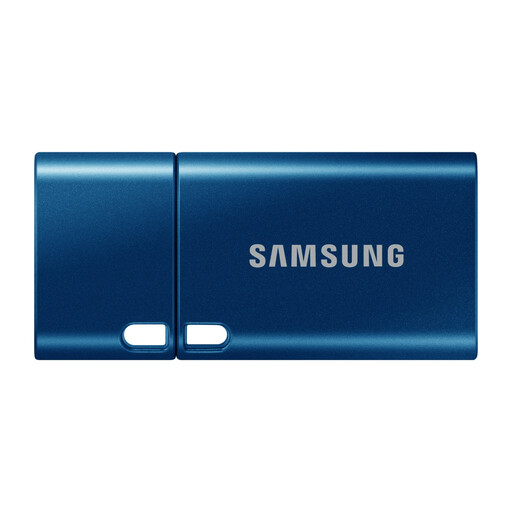
Samsung MUF-512DA 512 GB USB Type-C 3.2 Gen 1, Blue
A USB flash drive can hold a selected set of documents as an additional removable copy, rather than the only copy of a growing family archive.
The product name specifies 512 GB and USB Type-C 3.2 Gen 1. Check that the device you will use has a suitable connection and that you can open the copied files.
View on Joybuy
Backup questions answered
Is copying photos to an external drive a backup?
Yes, if the files remain as a separate recoverable copy. Moving them and deleting the original can leave only one copy; keep another copy and check that you can open or restore files from the drive.
What should I check before relying on iCloud for iPhone photos?
Check iCloud Photos and iCloud Backup separately, as well as the account’s available storage. Apple says photos and videos using iCloud Photos are synced rather than included in the daily iCloud Backup; automatic iCloud Backup requires power, Wi-Fi and a locked screen.
What should Android users check in Google backup?
Check the signed-in account, Google Photos backup status and the device’s backup details. Google says Android device-backup data other than photos and videos backed up to Google Photos is erased after 57 days of device inactivity.
Should an external backup drive stay plugged in?
Not permanently. The National Cyber Security Centre advises disconnecting a backup device when it is not in use because a connected drive can be affected during a ransomware incident. Eject it safely after backing up and store it separately.


