Choose a two-bay NAS if you want a central photo library and do not expect rapid capacity growth; consider four bays if room to expand matters more. In either case, plan a separate backup and check that the exact model supports the photo-upload and backup workflow you need: RAID can help after a drive failure, but Synology states that it is not a backup.
Who is a photo-catalogue NAS for?
Household photo-library keepers
If photos are spread across phones, cameras and computers, a central catalogue can make them easier to browse. Look for a mobile-upload workflow you will use regularly, while keeping a second copy separate from the NAS.
Growing RAW-photo catalogue owners
When originals, edits and other files are accumulating, usable capacity and the route to adding storage become important. Compare a compact enclosure with the flexibility of more bays before choosing drives.
Multi-device creative users
Frequent large imports or access from several devices can make networking and photo organisation more relevant. Check the whole connection path and the exact model’s software features rather than choosing by a NAS port specification alone.
What matters when choosing?
Choose the number of bays around your expected catalogue growth, then check how photos will reach the NAS and how you will recover them from a separate copy. Faster networking is a further consideration if large transfers are a regular part of your workflow.
Two-bay NAS
Consider it when: You want a central household or personal catalogue and do not expect to need more drive bays soon.
Trade-off: Growing protected capacity later may mean replacing existing drives with larger ones.
Four-bay NAS
Consider it when: A growing RAW-photo collection or several libraries make additional bays valuable.
Trade-off: More bays can mean more drives to plan for, and they do not remove the need for a separate backup.
| Concern | What to check | Who this matters to |
|---|
| Recoverable backup |
Check for scheduled backup to a separate destination and test restoring a photo and a folder. |
If I delete photos by mistake or lose access to the NAS, I need another copy I can restore. Around 31% of consumers put recoverability first. |
| Capacity and growth |
Allow for originals, edits and future files; compare usable capacity and bay count, then check drive compatibility for the exact model. |
My catalogue is growing, so I want room for more files without an awkward drive replacement later. Capacity growth comes first for around 31% of consumers. |
| Photo workflow |
Check the chosen model’s photo app, phone compatibility, upload method and sharing controls. |
I need phone photos to reach the catalogue routinely and want to find them afterwards. Around 23% of consumers put easy import and browsing first. |
| Transfer workflow |
Check the NAS port and the computer, router or switch and cabling along the transfer path. |
Large batches or access from several devices make slow local transfers disruptive for me. Faster ingest and access lead the choice for around 15% of consumers. |
Mistakes to avoid
-
Treating a mirrored NAS as the only backup
Synology says RAID is not a backup. A drive-failure setup does not by itself protect the photo catalogue from deletion or an incident that affects connected storage; the UK National Cyber Security Centre advises keeping important backups separate.
Set up another backup destination and test restoring both an individual photo and a folder.
-
Overlooking drives and space for another copy
A NAS enclosure needs compatible drives before it can hold a catalogue. The separate backup also needs enough capacity for the files you intend to retain.
Check the enclosure maker’s drive-compatibility information for the exact model, and plan capacity for both the NAS and its backup destination.
-
Assuming a faster NAS port speeds up every transfer
The computer-to-NAS connection also runs through other equipment, which can limit the transfer rate.
Map the computer, switch or router, cabling and NAS connection before choosing faster-network features.
Using the faster connection may require compatible network equipment and a client adapter.
-
Assuming every model has the same photo tools
Mobile upload and photo-recognition features depend on the NAS ecosystem, model, software and app permissions. QNAP, for example, documents specific hardware support for QuMagie recognition on the TS-262.
Check the exact model’s photo app, your phone platform and the upload and organisation features you intend to use.
Relevant brands to consider
Synology
Synology’s NAS range includes photo-management and backup tools, with the DS224+ offering two bays and the DS423 offering four.
- Synology documents photo tools and backup to other destinations; its DS423 documentation describes options including external storage and a secondary server.
- Check features against the particular model. Synology also states that RAID is not a substitute for a separate backup.
QNAP
QNAP offers the QuMagie photo workflow for browsing, organisation and phone-photo backup.
- QNAP documents two M.2 PCIe slots and Edge TPU support for QuMagie recognition on the TS-262.
- Confirm the chosen model’s features, app version and phone-upload setup before relying on them.
ASUSTOR
ASUSTOR pairs Photo Gallery 3 with AiFoto 3 for a photo-gallery and mobile-upload workflow.
- The documented Lockerstor 2 Gen2 configuration includes 2.5GbE, USB 3.2 Gen 2 and M.2 options.
- Those connections are most relevant when the rest of the network and the intended workflow can use them; check the exact model variant.
Joybuy NAS choices
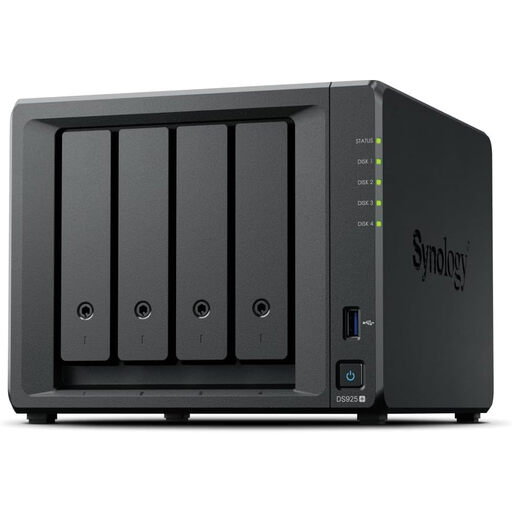
This four-bay NAS is a choice to consider if room for a growing photo catalogue is your priority. Check its backup options and drive compatibility before making it part of your storage plan.
 No image available
Synology DiskStation DS925+ 4-bay NAS
Consider this four-bay model if your photo catalogue needs room to grow. Confirm its supported drives and separate backup options for your planned setup; check the compatible expansion unit before planning to add one.
View on Joybuy
Frequently asked questions
Is RAID enough to back up a photo catalogue?
No. Synology states that RAID is not a backup: drive-failure tolerance does not provide an independent copy if files are deleted or connected storage is affected. Keep another copy separately and test that you can restore photos from it.
Should I choose a two-bay or four-bay NAS for photos?
Choose two bays if your catalogue is relatively contained and you can accept replacing drives when you need more protected capacity. Consider four bays if adding storage over time is a stronger priority; Synology’s DS224+ and DS423 are documented two-bay and four-bay examples respectively. Either setup still needs a separate backup.
Can a NAS back up photos from my phone automatically?
It can if the chosen model and photo app support the upload workflow for your phone. QNAP documents photo and video backup through QuMagie Mobile, while ASUSTOR documents mobile upload using AiFoto 3; check app compatibility, permissions and connection setup for the model you choose.
Which drives should I use in a NAS enclosure?
Start with the enclosure maker’s compatibility information for the exact model and drive capacity. Western Digital describes its Red range as designed for NAS workloads, and Seagate documents IronWolf NAS hard drives; neither brand name alone confirms compatibility with a particular enclosure.


