What matters when choosing backup storage?
Choose a routine you can keep up, then decide whether the files also need a disconnected copy. Cloud storage and removable media address different parts of that decision; neither removes the need to check what is copied and how recovery works.
External hard drive or SSD
Consider it when: You want a locally held copy of a substantial photo or document collection that you can disconnect after updating.
Trade-off: You must maintain the copying routine and store the drive safely; a connected drive is not an offline copy.
Encrypted removable media
Consider it when: You need to carry or store a selected set of sensitive files offline and its capacity is sufficient.
Trade-off: PIN and recovery arrangements matter: losing access to the device must not mean losing your only copy.
Automatic cloud storage
Consider it when: Keeping recent copies from everyday devices matters more than keeping every copy offline.
Trade-off: Access depends on the account, and synchronised changes or deletions may also reach cloud files.
Cloud plus an offline copy
Consider it when: You want automatic capture alongside a separately held copy of important files.
Trade-off: The removable copy still needs regular updates, secure storage and restore checks; the combination cannot prevent every loss.
| Concern |
What to check |
Who this matters to |
| Recent automatic copies |
Confirm device support and exactly which camera libraries or computer folders are copied. Check whether other account data shares the storage allowance. |
If my photos and documents are spread across everyday devices, I want new files captured without remembering each transfer. Around 33% of consumers would put automatic copying first. |
| Separate recovery copy |
Check whether a removable copy can be disconnected and stored separately, and practise restoring a file. |
When a device or account is affected, I want another route back to important files rather than a drive left attached to the same computer. Roughly 25% of consumers would make separate recovery their primary concern. |
| Capacity and connections |
Measure the files to protect, allow room for growth and check the drive connector, cable and operating-system requirements. |
As my photo library grows, I need the chosen storage to hold it and work with my actual devices. For about 25% of consumers, that fit would be the main priority. |
| Protected access |
Check encryption coverage, PIN or account-recovery arrangements and who can access shared files. |
If I carry confidential records, I want to limit access if the device is lost without locking myself out of the only copy. Around 17% of consumers would put protected access first. |
Removable storage options on Joybuy
These drives suit the removable-copy part of a household backup routine: external storage for a photo and document library, or a smaller encrypted USB drive for selected files. Choose capacity for the files you will protect, check your device connections and disconnect an offline copy after updating it.
 No image available
Western Digital My Passport Ultra for Mac 5TB
Consider this portable hard drive for a sizeable local copy in a Mac-centred setup.
Capacity: 5TB. Check the file-system and connection requirements against every device you intend to use, particularly if you also use Windows.
View on Joybuy
 No image available
Western Digital Elements Portable 4TB, black
Consider this removable hard drive for a local copy of a growing collection of household files.
Capacity: 4TB. The product name specifies USB 3.0; check connection and file-system requirements for the computers you plan to use.
View on Joybuy
 No image available
Western Digital Elements Desktop 10TB
Consider this desktop hard drive if a large local archive and a fixed place to update it suit your routine.
Capacity: 10TB. Check its power and file-system requirements for your setup; keeping it continuously connected would not make it an offline copy.
View on Joybuy
 No image available
SanDisk Portable SSD 2TB
Consider this portable SSD when you want a removable local copy that you will move between locations.
Capacity: 2TB. Check the connector, cable and operating-system compatibility against your devices before choosing it.
View on Joybuy
 No image available
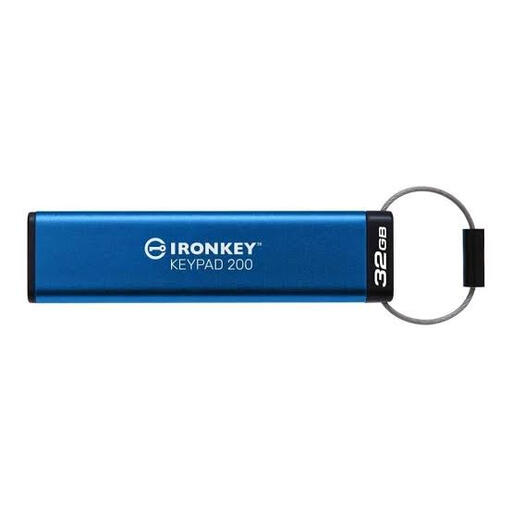
Kingston IronKey Keypad 200 32GB
Consider this keypad-protected USB drive for a selected set of sensitive documents, not as the sole copy of a broad photo library.
Capacity: 32GB. The product name specifies AES-256; check host connection and the exact PIN recovery and lockout behaviour before relying on it.
View on Joybuy
Backup storage questions
How much storage do I need for photos and documents?
Measure the files you intend to protect, including videos and device backups, then leave room for new files and any versions you plan to retain. Kingston notes that the usable capacity shown by an operating system can differ from a drive’s advertised capacity because of formatting and capacity conventions.
Is an external drive enough if it stays connected?
A permanently connected drive does not provide an offline recovery copy. The National Cyber Security Centre warns that ransomware has affected connected USB and network drives, so disconnect a removable backup after updating it and store it safely.
What should we check before sharing cloud storage?
Check each person’s account access, sharing permissions and recovery arrangements before relying on a household plan. Apple says eligible iCloud+ plans can be shared with up to five other family members; confirm which files and backups use the shared allowance and set up account security for each person.
How long does OneDrive keep earlier file versions?
Microsoft states that OneDrive file version history is retained for 30 days and applies to file types including photos, videos and PDFs. That limited window is a reason to keep a separately managed copy when you may need to recover older files.
What should I do before getting rid of an old backup drive?
Take deliberate steps to remove stored data before the drive leaves your control; simply deleting files may not prevent retrieval. The National Cyber Security Centre’s sanitisation guidance explains that principle, although it is written for organisations rather than as a household disposal procedure. Use an appropriate electrical-equipment recycling route for the device.


