Choose a backup approach by the size of your photo and document library, where the copy will be kept and how often you need to move it. A portable hard drive can be disconnected and stored separately; a portable SSD is worth considering for frequent carrying and large transfers if your computer supports its connection, while a desktop drive suits a fixed, high-volume archive. If losing the computer and local drive together is a concern, consider an additional, independently protected cloud copy and check that you can restore earlier versions.
Who needs which backup approach?
Families protecting photos and documents
If a computer fails or a file is changed by mistake, you need more than a copy of the latest files. The National Cyber Security Centre advises keeping important data in a separate safe location; check that your routine covers the right folders and that you can restore a test file.
Households with a large library kept at home
If you back up mainly at one desk, measure the files you intend to protect and allow space for growth and backup history. A fixed desktop drive may suit that arrangement, but the National Cyber Security Centre warns that a connected backup can be affected alongside the computer.
People who carry a backup between locations
A portable drive is easier to move with a laptop or between computers. If transfer speed influences your choice, check the computer port and cable: Samsung says the stated maximum speed of its T7 Shield depends on a compatible host, cable and connection settings.
What matters when choosing?
Start with the files and earlier versions you need to recover, then decide where a separate copy can safely live. Drive format and transfer speed matter after those decisions.
Portable hard drive
Choose when: You want a local copy that you can unplug and store separately after backing up.
Bear in mind: One drive kept beside the computer remains vulnerable to loss at the same location.
Portable SSD
Choose when: You carry the drive often or regularly transfer large folders.
Bear in mind: Advertised maximum speeds depend on the computer and cable, as Samsung specifies for the T7 Shield.
Desktop drive
Choose when: Your library is large and backups normally happen at a fixed desk.
Bear in mind: Plan how to disconnect or separately protect a copy rather than leaving the only backup connected.
Local drive and cloud backup
Choose when: You want another copy away from both the computer and local drive.
Bear in mind: The National Cyber Security Centre advises checking protection against deletion or overwrite; cloud storage is not automatically isolated.
| Concern |
What to check |
Who this matters to |
| Earlier file versions |
Check which folders are backed up, how long versions are kept and whether a test file can be restored. |
If I overwrite a photo, I need its earlier version, not another copy of the changed file; around 29% of consumers put version recovery first. |
| Copy separation |
Decide where a copy will be stored when not in use, and check cloud account protection and version retention if using a service. |
A failure or incident affecting my computer must not take every copy with it; for around 29% of consumers, keeping a copy separate is the primary concern. |
| Archive capacity |
Measure the files to protect and allow room for growth and backup history; compare usable space with the labelled capacity. |
Years of files need to fit without squeezing out future backups. Capacity is the main concern for around 24% of consumers. |
| Portability and transfers |
Check the computer port, supplied cable and any adapter needed for the drive you intend to carry. |
When I move the backup between computers, connecting it easily and completing large transfers matter most; around 18% of consumers prioritise this need. |
Backup mistakes to avoid
-
Assuming a copied folder preserves earlier files
A copy of the latest folder may not help after a file has been overwritten or deleted. Microsoft Support says Windows File History can restore earlier file and folder versions.
Choose a workflow that retains the versions you need, include every relevant folder and restore a non-critical file as a test.
-
Leaving the only backup permanently connected
The National Cyber Security Centre reports that ransomware has affected both original data and connected USB or network backups. A second copy is of limited use if the same incident can reach it.
Disconnect and store a local copy after backing up, or maintain another independently protected copy. Check the protections of any cloud service rather than assuming it is isolated.
-
Choosing capacity from the label alone
Seagate explains that formatting and operating-system measurement can make displayed space lower than a drive’s labelled capacity. Retained backup versions also need room.
Measure the folders you will back up and allow space for growth and the history you want to keep.
-
Expecting every USB-C port to deliver an SSD’s stated speed
Samsung says the T7 Shield’s maximum transfer figures require a USB 3.2 Gen 2-capable host and cable, with UASP enabled.
Check your computer’s port and the cable you will use before choosing a portable SSD for its rated speed.
Relevant brands for reference
Western Digital
The My Passport portable hard-drive range is relevant if you want a drive that can be moved and stored separately.
- Western Digital lists USB-C connectivity, capacities up to 6 TB and bundled Acronis backup software for its current My Passport USB-C range.
- Confirm the exact model, computer compatibility and software settings; bundled software does not by itself establish which earlier versions you can restore.
Seagate
The Expansion desktop range is relevant to a large library kept at a fixed workstation.
- Seagate’s Expansion desktop data sheet lists USB-C models with capacities up to 30 TB.
- Seagate notes that a computer may display less available capacity than the label suggests. A desktop drive still needs a plan for a separated copy.
Samsung
The T7 Shield portable SSD range is relevant when a backup travels or large folders are transferred frequently.
- Samsung lists 1 TB, 2 TB and 4 TB T7 Shield versions and states maximum read and write speeds of 1,050 and 1,000 MB/s under compatible connection conditions.
- Samsung’s IP65 and drop-resistance statements are manufacturer test claims; it says relevant liquid, dust and drop damage is not covered under warranty.
Joybuy drives for local backups
These portable HDDs and SSDs are options for keeping a local copy of household photos and documents. Match capacity to your files, then choose backup software and a storage routine that let you recover the copies you need.
 No image available
Samsung Portable SSD T7, 4 TB, grey
A portable local-copy option if you move photo and document folders between computers. It has a stated 4 TB capacity and USB 3.2 Gen 2 connection; check your computer and cable before choosing it for transfer speed.
View on Joybuy
 No image available
Samsung T7 Shield MU-PE1T0S, 1 TB, black
Consider this portable SSD if you carry your backup and its 1 TB capacity fits your files and intended history. Samsung states that this model has IP65 testing and a 3-metre drop-resistance claim, but excludes relevant liquid, dust and drop damage from warranty coverage; maximum transfer speed depends on a compatible host, cable and UASP.
View on Joybuy
 No image available
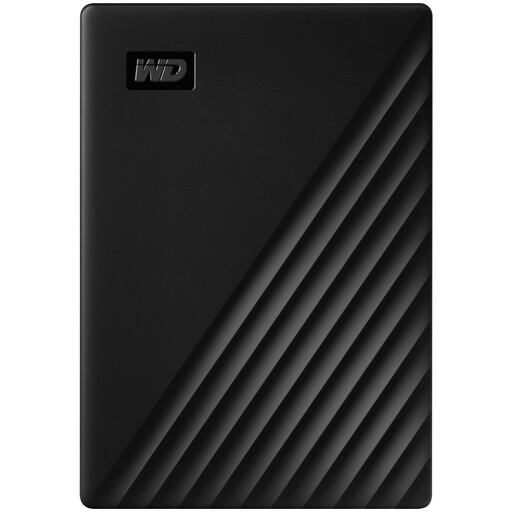
Western Digital My Passport portable hard drive, 4 TB, black
A portable hard-drive option for a local file copy that you can disconnect after backing up. Its stated capacity is 4 TB; check the backup workflow’s folder coverage and version-restoration settings before relying on the copy.
View on Joybuy
 No image available
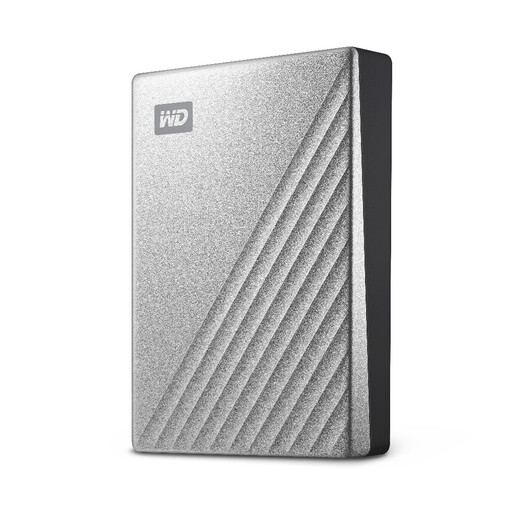
Western Digital My Passport Ultra portable hard drive, 4 TB, silver
This portable hard drive suits a local-copy routine where you can put the drive away between backups. Its stated capacity is 4 TB; confirm its connection to your computer and test whether your chosen workflow restores earlier files.
View on Joybuy
 No image available
Western Digital My Passport Ultra for Mac portable hard drive, 5 TB, silver
A Mac-focused portable option if you want a local copy that can be stored away from the computer. It has a stated 5 TB capacity; check the operating-system setup, connection and backup software against the computer you will use.
View on Joybuy
Backup questions
Is one external drive enough for household photos and documents?
One external drive gives you a separate copy if it is stored apart from the computer, but it cannot cover every shared loss or incident. The National Cyber Security Centre reports that connected USB and network backups can be affected by ransomware; disconnect a local copy when it is not being updated, or consider another independently protected location.
Can Windows restore an earlier version of a photo or document?
Windows File History can restore earlier file and folder versions, according to Microsoft Support. Check that it includes the folders where you keep your photos and documents, then restore a non-critical file to confirm your setup works.
How much space should a Mac backup disk have?
For Time Machine, Apple advises a backup disk with at least twice the storage capacity of the Mac where possible. That is guidance for a Time Machine disk, not a universal minimum for copying selected files; also check that the external device connects to a compatible Mac port.


