Choose the screen for the exact laptop configuration before paying for extra processing power: compare its stated brightness conditions, colour coverage, resolution and finish, then assess the delivered screen at your bright-window desk. For a Lightroom Classic workflow, Adobe recommends at least 16GB RAM, a fast SSD and a display resolution of 1920 × 1080 or higher; its named AI editing features call for a separate graphics-memory check. Neither an OLED label nor a high resolution establishes how a screen will handle reflections in your room.
Who this choice affects
Bright-window photo editors
If you sort or edit photographs beside a bright window, the exact panel matters more than a display-family name. Apple lists a Liquid Retina XDR display for MacBook Pro, while Lenovo offers OLED options on relevant models; neither claim establishes how your chosen screen will handle reflections at your desk.
Gallery builders using Lightroom Classic
Organising photographs, making edits and exporting a gallery calls for enough memory, display resolution and working storage. Adobe recommends at least 16GB RAM, a fast SSD and a display resolution of 1920 × 1080 or higher for Lightroom Classic.
Users of AI-assisted editing features
If Denoise, Lens Blur or Reflection Removal is part of your Lightroom Classic workflow, check graphics memory separately from system RAM. Adobe specifies 8GB dedicated GPU memory or 16GB shared memory for full GPU acceleration and those features.
What to check when choosing
For a laptop used beside a bright window, assess the display first. Then match memory, storage and graphics capability to the photo tasks you actually perform.
| Concern |
What to check |
Who this matters to |
| Screen in window light |
Compare the exact panel’s finish, stated brightness conditions and colour coverage; inspect reflections at your usual desk position. |
If I edit beside the window, I need to see photographs and controls without distracting reflections, rather than relying on an OLED or XDR label. Around 36% of consumers put this screen assessment first. |
| Editing and gallery workflow |
Check software and operating-system compatibility, memory and active storage. Adobe recommends at least 16GB RAM and a fast SSD for Lightroom Classic. |
When I keep a photo catalogue, edits and gallery publishing work moving together, I need a configuration that fits those everyday tasks. Around 29% of consumers prioritise that workflow baseline. |
| Portable workspace |
Compare the exact laptop’s size and weight with the screen space and connections you need for image grids, drives and card readers. |
If I move between working spaces, I want a laptop I can carry while retaining enough room to arrange photographs. Around 21% of consumers make that balance their primary concern. |
| AI-assisted processing |
If you use Lightroom Classic’s named AI features, check for Adobe’s specified 8GB dedicated GPU memory or 16GB shared memory for full GPU acceleration. |
When Denoise, Lens Blur or Reflection Removal is central to my editing, I need to check graphics memory rather than assume ordinary photo-editing specifications cover it. Around 14% of consumers put this capability first. |
Buying pitfalls
-
Assuming every model in a range has the advertised screen
Lenovo describes some display characteristics as “up to” a stated specification, while Dell notes that changing a configuration can alter its specifications. A family-level display claim is not the specification of the laptop you order.
Check the exact configuration’s panel, resolution, brightness conditions, colour coverage and memory before ordering, then compare those details with the delivered machine.
-
Buying for basic editing when AI tools are the main workload
Meeting ordinary Lightroom Classic requirements does not establish that a laptop meets Adobe’s guidance for full GPU acceleration and its named AI features.
If you regularly use Denoise, Lens Blur or Reflection Removal, check whether the chosen configuration has 8GB dedicated GPU memory or 16GB shared memory, as Adobe specifies for those features.
-
Treating the internal SSD as the entire storage plan
Adobe recommends a fast SSD for Lightroom Classic, but an active catalogue, original photographs, exports and backups serve different purposes.
Decide what must stay on the laptop and what needs separate archive or backup storage. Check the connections needed for your chosen drives and card reader.
External storage or an adaptor may be needed for the workflow you choose.
-
Leaving the bright-window screen check until too late
A panel specification cannot show exactly where reflections will fall at your desk. Changing your mind about a screen and reporting a faulty or misdescribed laptop are also different return situations.
Read the seller’s return instructions before ordering and inspect the delivered screen promptly in the position where you plan to work.
Relevant brands for reference
These ranges offer different configurations to investigate; their names alone do not settle bright-window screen suitability.
Apple
MacBook Pro is a macOS route for photo editing and gallery publishing if your chosen software supports it.
- Apple lists Liquid Retina XDR displays and memory and SSD configurations across the MacBook Pro range.
- Check the exact configuration and its screen in your workspace; the display name does not establish reflection performance beside a bright window.
Lenovo
IdeaPad Slim 5i and Yoga Slim 7i are Windows ranges worth examining when display options and portability matter.
- Lenovo advertises optional OLED displays and up to 100% DCI-P3 colour coverage on applicable IdeaPad Slim 5i configurations.
- Those are configuration-dependent manufacturer specifications, not features to assume on every IdeaPad or Yoga laptop.
Dell
The XPS 16 is a larger Windows laptop route for working with photographs and gallery layouts on a built-in screen.
- Dell describes the XPS 16 as a creator-oriented 16-inch laptop with configurable Intel Core Ultra processors.
- Dell warns that configuration changes can alter specifications; confirm the selected panel, memory, storage and graphics details.
Joybuy laptops to consider
These laptops offer different memory, storage and screen-size choices for photo-gallery work. Match the configuration to your editing software and workload, then assess the exact screen beside your window.
 No image available
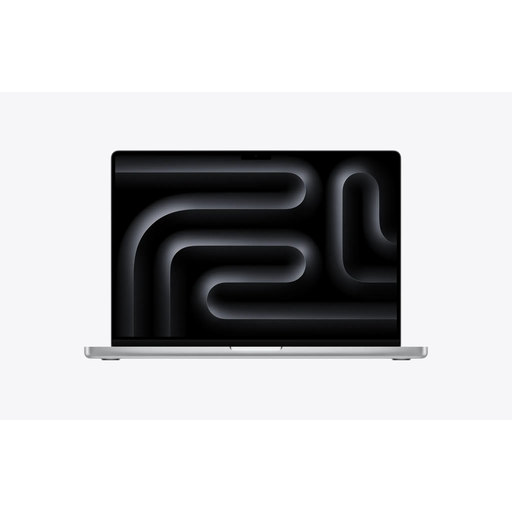
Apple MacBook Pro 16.2-inch M5 Max, 18-core CPU/32-core GPU, 36GB/2TB, Silver
Consider this configuration if you want a larger built-in workspace and substantial internal storage for an active photo library. Check the exact panel’s ordinary-use brightness and finish at your bright-window desk, and confirm whether the power adaptor you need is included.
View on Joybuy
 No image available
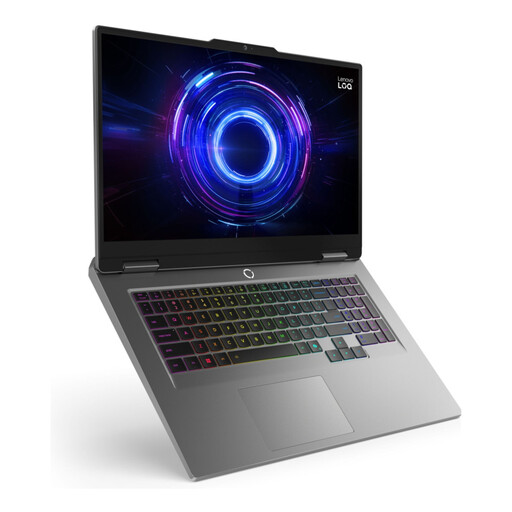
LOQ 17IRX10 i7-13650H, 24GB/1TB, W11H
Consider this laptop if its memory and internal storage suit the size of your active photo library. Confirm the exact processor designation before ordering, and check the selected display’s specifications and its appearance beside your window.
View on Joybuy
 No image available
ASUS Vivobook 14 X1407QA-LY003W Copilot+ PC, Snapdragon X, 16GB/512GB, Quiet Blue
This 14-inch configuration is worth considering if a smaller laptop fits the way you build your gallery. Its stated 16GB memory matches Adobe’s Lightroom Classic recommendation; check that your intended editing software supports this configuration and assess the screen at your desk.
View on Joybuy
 No image available
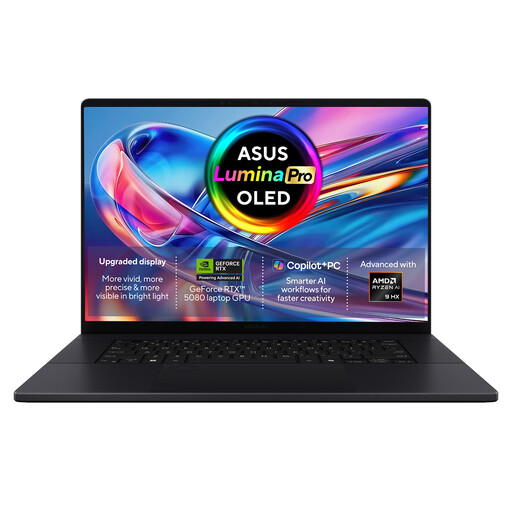
ASUS ProArt P16 H7606WW-SE006W, 16-inch 4K OLED, Ryzen AI 9 HX 370, RTX 5080 16GB, 64GB/2TB
Consider this Windows 11 Home configuration if your photo work includes graphics-intensive editing as well as a substantial active library. Its named GPU has 16GB dedicated memory, but an OLED and 4K label do not settle reflection handling; check software compatibility and inspect the screen in your workspace.
View on Joybuy
 No image available
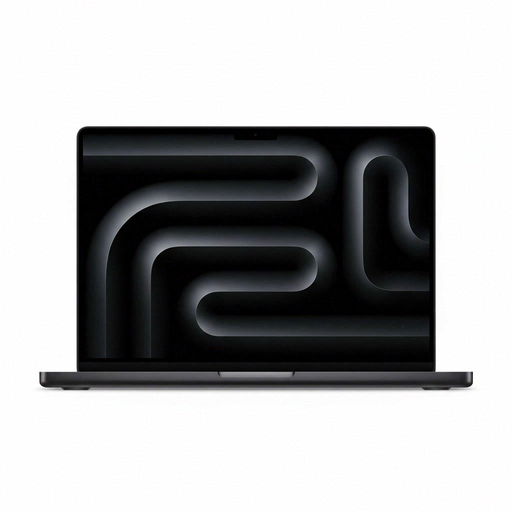
Apple MacBook Pro 14.2-inch M5 Pro, 15-core CPU/16-core GPU, 24GB/2TB, Space Black
Consider this more compact MacBook Pro if macOS suits your editing software and you want 2TB of internal storage. Verify the exact display details and assess reflections at your desk; also confirm whether the required power adaptor is included.
View on Joybuy
Questions about photo-gallery laptops
What specifications should I start with for Lightroom Classic?
Start with Adobe’s recommended 16GB or more RAM, a fast SSD and a display resolution of at least 1920 × 1080. Allow storage for your active catalogue, previews, exports and photographs as well as the application itself.
Do I need a dedicated graphics card to build a photo gallery?
Not necessarily for ordinary photo organisation, editing and publishing. If your Lightroom Classic work relies on Denoise, Lens Blur or Reflection Removal, Adobe specifies 8GB dedicated GPU memory or 16GB shared memory for full GPU acceleration and those features.
How can I check whether the screen works beside my window?
Inspect the delivered laptop at your usual desk position, with a photo grid and editing controls on screen. Look for reflections at your normal viewing angle, compare the installed screen with the configuration you ordered and follow the seller’s applicable inspection and return instructions.
What if an online laptop purchase is faulty?
A faulty or misdescribed laptop may give rise to remedies under the Consumer Rights Act 2015, including a short-term right to reject when its conditions apply. The Act’s explanatory notes on legislation.gov.uk distinguish that statutory right from a change-of-mind return; contact the seller promptly and describe the fault rather than relying only on a voluntary returns policy.


