For colour-critical photo editing, prioritise a monitor whose colour-space coverage matches your output and whose calibration method you can use. For video, choose screen size and resolution around the footage and editing controls you need to see; HDR matters when your intended workflow supports it. A USB-C connection can simplify a laptop desk, but only if the computer, monitor and cable support the video and charging functions you need.
Who these choices suit
Photo editors preparing images for print
If screen colour needs to relate predictably to printed or other colour-managed output, check the monitor’s relevant colour-space coverage and how you will recalibrate it. Adobe’s Lightroom Classic guidance identifies monitor calibration as part of its colour-management workflow.
Home video editors reviewing 4K or HDR work
Consider how much room you need for footage and editing controls. Check HDR capability only if your intended editing and review workflow uses HDR; Adobe’s Premiere DirectX HDR requirements on Windows also include computer and display conditions.
Laptop-based creators setting up a desk
If a single cable for the display and other desk functions appeals, check the laptop’s video output, the monitor’s USB-C or Thunderbolt functions and the cable. Apple Support notes that an unsuitable cable or adapter can limit external-display resolution or refresh rate.
What to check before buying
Start with the output you edit for, then check that the display fits both your computer and your desk. Which? treats photo and video editing as a distinct monitor use rather than assuming an everyday work screen meets the same needs.
| Concern |
What to check |
Who this matters to |
| Colour-managed photo work |
Check coverage of the colour space relevant to your output and a calibration method compatible with the exact monitor. |
When I adjust photographs for print or other colour-managed output, I need a screen I can keep calibrated for those decisions. About 33% of consumers put dependable photo-colour judgement first. |
| 4K and HDR video review |
Decide whether you need to view 4K footage at native resolution; for HDR, check the application, computer and display requirements together. |
If I review 4K footage or work in HDR, I want the display to accommodate that workflow rather than rely on an HDR label alone. Roughly 27% of consumers make video-review capability their primary concern. |
| Laptop connection |
Check the laptop’s supported video output and the monitor and cable capabilities; confirm charging requirements separately. |
With a laptop at my editing desk, I want the connection to deliver the picture I need without compromising the setup. Around 20% of consumers put compatible laptop connectivity first. |
| Desk fit and adjustment |
Measure the available desk space and check the stand’s adjustment or mounting options. |
If my home desk has limited depth, a larger screen is useful only when I can position and view it comfortably. About 20% of consumers prioritise a workable editing space and screen position. |
Buying pitfalls
-
Assuming factory calibration lasts indefinitely
A factory colour-accuracy claim applies to a particular model and does not replace an ongoing calibration plan. ASUS advises regular calibration for consistent colour accuracy.
Check the exact monitor’s calibration method and compatible instruments and software before relying on it for colour-critical work.
Using an external calibration method may require a compatible device.
-
Expecting every USB-C socket to carry video and power
The connector alone does not establish display output or charging capability. The Video Electronics Standards Association describes DisplayPort Alt Mode as a way to carry video over USB-C, while Apple Support warns that an unsuitable cable or adapter can limit the displayed resolution or refresh rate.
Match the laptop’s documented output, the monitor’s input and charging capability, and the cable to your intended display mode.
A different cable, adapter or dock may be needed for the connection you intend to use.
-
Choosing HDR without an HDR editing workflow
An HDR-labelled monitor does not by itself establish that the editing system can review HDR footage. Adobe’s requirements for Premiere DirectX HDR on Windows include an HDR10-capable display and supported computer conditions.
If you intend to use that workflow, check Adobe’s application, operating-system, GPU and display requirements together.
-
Choosing by panel size alone
A larger panel does not establish the colour-management or connection capabilities your work needs, and its stand must still fit the home desk.
Measure the desk and check adjustment or mounting options, then assess colour and connectivity separately.
The desired position may call for a suitable arm or changes to the desk layout.
Brands to consider
BenQ
BenQ’s AQCOLOR and PhotoVue models are relevant to photo-led editing where colour-space coverage and a screen-to-print workflow matter.
- BenQ specifies 99% Adobe RGB, 95% P3 and 100% sRGB coverage for the SW321C; these are claims for that model.
- Check the calibration approach and desk fit of the exact BenQ model rather than applying SW321C specifications across the range.
EIZO
The ColorEdge range is relevant when a colour-managed workflow is central to the monitor choice.
- EIZO describes the CG2700X as a 4K model with a built-in calibration sensor and USB-C functions for video, data and power.
- Confirm the features and laptop compatibility of the particular ColorEdge model under consideration.
ASUS
ProArt includes models aimed at creators seeking colour-management features, with capabilities that differ by model.
- ASUS lists a built-in colorimeter and hardware-calibration support for the PA32UCXR.
- Check the exact ProArt model’s calibration tools, colour-space specifications and connections; PA32UCXR features do not describe every model.
Dell
UltraSharp and PremierColor models provide points of reference for adjustable displays with colour and laptop-connectivity features.
- Dell specifies a 27-inch 4K panel and integrated calibration sensor for the UP2720QA.
- Dell marks that exact model unavailable, so use its specifications to identify features to check on a current model, not as a current purchase option.
Calibrite
A calibration device is an alternative route for someone keeping an existing monitor and maintaining its display profile.
- Calibrite presents Display Pro HL as a display-calibration device with controls for colour-management settings.
- Check compatibility with your monitor and intended software before choosing an external device.
Joybuy monitor selections
These monitors offer different screen formats for home photo and video editing, including colour-focused desktop models and a USB-C model aimed at a laptop desk. Compare each one with your output, computer and available space.
 Image unavailable
ASUS ProArt Display PA32UCG-K 32-inch 4K
Consider this model if you want a 32-inch screen for 4K editing and have room for it on your desk. Its product title identifies an IPS Mini LED panel, HDR10 and Thunderbolt 3; confirm the exact port capabilities, calibration method and HDR brightness before relying on those features in your workflow.
View on Joybuy
 Image unavailable
ASUS ProArt PA278CV IPS WQHD
This WQHD model is an option when your editing layout does not require a 4K display. Check its colour-space and calibration specifications against your output, and confirm laptop video and charging compatibility if you plan to use USB-C.
View on Joybuy
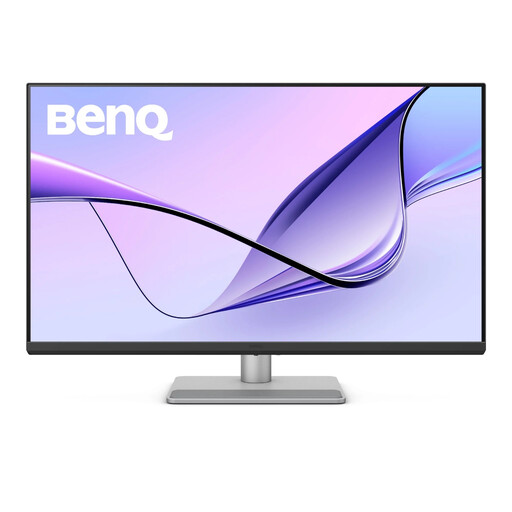 Image unavailable
BenQ MA320UP 32-inch 4K USB-C
For a laptop-based editing desk, this Mac-oriented model combines a 4K display with USB-C in its product description. Check its video and charging functions against your specific computer, measure the space for a 32-inch screen and confirm the calibration approach if your output is colour-critical.
View on Joybuy
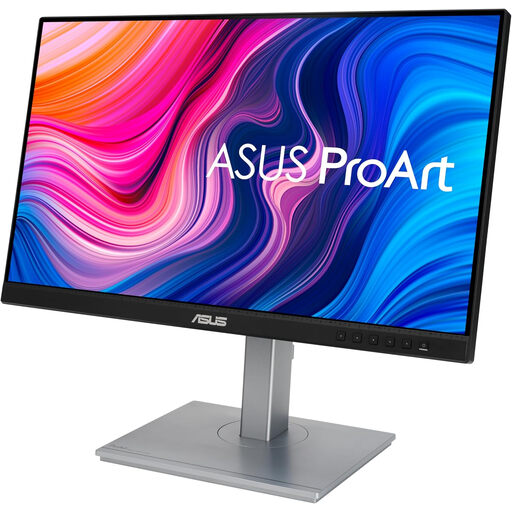 Image unavailable
ASUS ProArt PA247CV IPS Full HD 75 Hz
Consider this Full HD model if that resolution leaves enough room for the editing controls you use. Check the exact colour-management features for your output and verify laptop video and charging compatibility before planning a USB-C desk connection.
View on Joybuy
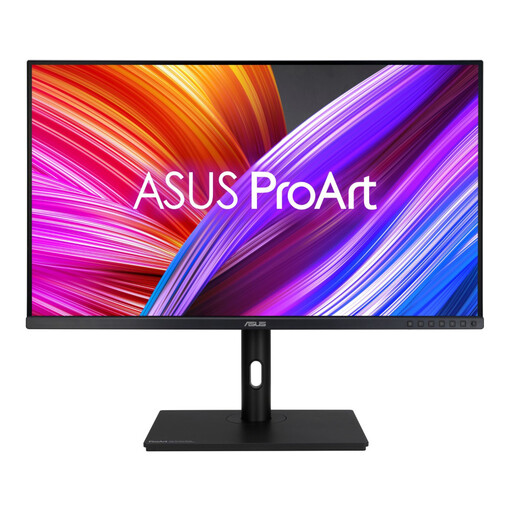 Image unavailable
ASUS ProArt PA328QV IPS WQHD
This WQHD model is worth considering for an editing desk where a larger screen is useful but viewing 4K footage at native resolution is not the requirement. Check desk fit, calibration options and the available inputs against your computer before choosing it.
View on Joybuy
Common questions
Do I need a calibration tool for home photo editing?
An external tool is most relevant when you need repeatable colour decisions; a monitor with a compatible integrated sensor offers another calibration route. Adobe calls for monitor calibration in its Lightroom Classic colour-management guidance. Check which method and software your exact monitor supports.
Will any USB-C monitor work with my laptop through one cable?
No: the laptop, monitor and cable must support the functions you intend to use. Check video output, the required resolution and refresh rate, and charging separately. The Video Electronics Standards Association describes DisplayPort Alt Mode as a USB-C video capability, not a feature guaranteed by the connector’s shape.
Do I need HDR for home video editing?
Prioritise HDR when your intended editing and review workflow uses it, rather than for every video project. For Premiere DirectX HDR on Windows, Adobe specifies an HDR10-capable display alongside supported operating-system and GPU conditions.
What should I do if a monitor bought in the UK is faulty?
Keep your order details and evidence of the fault, then contact the retailer about a remedy. GOV.UK explains that UK consumer protections cover faulty goods and that the Consumer Rights Act 2015 provides for remedies including repair or replacement. A fault is a different issue from simply changing your mind about a monitor.


