Choose an external hard disk drive for a sizeable local archive, a portable SSD if you often carry or transfer large files, or cloud storage when you need selected files across devices. For irreplaceable photos and documents, keep separate local and off-site copies: the National Cyber Security Centre recommends considering both removable media and cloud storage. Check that the files you need are included and that you can restore them.
Who needs a photo and file backup?
Family-photo preservers
If photos or documents would be difficult to replace, keep a copy that remains recoverable if a device or the copy at home is lost. The National Cyber Security Centre advises considering both cloud storage and removable media for irreplaceable files.
Growing-library keepers
If your laptop or phone is running short of space, decide which files need to stay on the device and which need a separate backup. Check the capacity available on a drive or in your cloud account before moving files.
Multi-device file users
If you want to access files on several devices or regularly move large folders, consider whether cloud access or a portable drive better fits the task. Microsoft Support notes that OneDrive sync can also carry changes and deletions between devices.
What should you prioritise?
External hard disk drive
Choose it when: you want a sizeable archive stored locally, particularly if your internet connection is unreliable.
Trade-off: a drive kept at home is not an off-site copy; disconnect it when it is not in use.
Portable SSD
Choose it when: you often carry or transfer large collections and have a compatible device connection.
Trade-off: a manufacturer’s rated maximum speed is not a guarantee of the speed your computer will achieve.
Cloud storage
Choose it when: you need selected files available across devices or want a copy outside your home, with suitable internet access.
Trade-off: check the account capacity and recovery options; synchronisation can also sync deletions.
Local and cloud copies
Choose it when: you want separate copies of files that would be particularly difficult to replace and can maintain both routes.
Trade-off: you need to check and restore each copy separately; a connected drive and a synced folder are not necessarily independent backups.
Start with the files you need to recover, then check capacity, device compatibility and how you would restore a copy.
| Concern |
What to check when buying |
Who this matters to |
| Recoverability |
Confirm the important folders are included, test restoring a file and consider keeping a copy away from home. |
If losing family photos or essential documents would be hard to accept, I want a copy I can actually restore. Around 33% of consumers put recoverability first. |
| Archive capacity |
Check the size of the files to protect, allow for growth and compare that with usable drive space or remaining cloud capacity. |
If my photo and file library keeps growing, I need enough space for the files I plan to preserve. Around 27% of consumers make archive capacity their primary concern. |
| Access across devices |
Check supported devices, which folders are included and what happens when a file is changed or deleted. |
If I need selected files on more than one device, I want an access method that fits how I use them. Around 20% of consumers prioritise cross-device access. |
| Portable transfers |
Check the exact model, device ports and cables, file format and any backup-software requirements. |
If I often carry or copy large folders, I need a drive and connection that work with my devices. Around 20% of consumers put frequent portable transfers first. |
Backup buying pitfalls to avoid
-
Mistaking synchronisation for an independent backup
Synced changes can include deletions. Apple says iCloud Photos deletions appear across connected devices, while Microsoft documents that OneDrive syncs changes and deletions between a computer folder and the website.
Keep a separately recoverable copy of files you cannot replace, and test restoring it.
-
Leaving the only external backup connected
The National Cyber Security Centre warns that malware can affect attached removable storage as well as the computer.
Disconnect a removable backup when it is not in use and consider keeping another copy off-site.
-
Choosing by headline speed or capacity alone
A drive’s rated transfer speed depends on the host and connection, while formatting and file-system requirements can affect compatibility.
Check the exact model against your devices, ports, cables and backup software before choosing.
-
Assuming a cloud account will keep accepting photos
Apple says new iCloud Photos uploads and device backups stop when iCloud storage is full.
Check account usage, upload settings and plan capacity against the files you intend to keep.
Brands to consider
Seagate
The Expansion Portable line is a local-storage option for sizeable photo and file archives.
- Seagate lists Windows and Mac compatibility for the Expansion line.
- Seagate says Time Machine use requires reformatting; copy files you need before reformatting.
Samsung
The Portable SSD T7 may suit frequent transfers when a compact drive and compatible high-speed connection are useful.
- Samsung rates the 1 TB T7 at up to 1,050 MB/s read and 1,000 MB/s write.
- Samsung says reaching those maximums depends on the host, cable and UASP support; check your own devices and connection.
Crucial
The X9 portable SSD line is an option for moving photos and files between compatible devices.
- Crucial rates X9 reads at up to 1,050 MB/s under its stated test conditions.
- Crucial says compatibility can depend on file format and host capabilities; reformatting erases drive data.
Apple
iCloud and iCloud+ are cloud options for people using iCloud Photos, iCloud Drive or Apple-device backups.
- Apple lists a free 5 GB allocation and larger iCloud+ subscriptions.
- Apple says iCloud Photos deletions sync across connected devices and advises keeping backup copies of the photo library.
Microsoft
OneDrive can sync selected computer folders for access across devices.
- Microsoft documents folder syncing on Windows and macOS.
- Changes and deletions can sync too. Microsoft's whole-OneDrive restore feature requires a qualifying Microsoft 365 subscription and covers actions within the last 30 days.
Google
Google Photos is a cloud option focused on photos, where upload quality and account storage affect the choice.
- Google says an account includes up to 15 GB of storage.
- Google says both Original quality and Storage saver uploads count towards storage; Storage saver can compress or resize images and videos.
Joybuy storage choices
These Joybuy choices cover portable SSDs and external hard drives for keeping local copies of photos and files. Compare the capacity, connection and features that match your devices and backup needs.
 No image available
Samsung Portable SSD T7 4 TB USB Type-C 3.2 Gen 2 (3.1 Gen 2) Grey
A local-storage option for a sizeable photo and file archive or frequent large-file transfers.
4 TB capacity; USB 3.2 Gen 2. Listed sequential speeds are up to 1,050 MB/s read and 1,000 MB/s write.
View on Joybuy
 No image available
Samsung Portable SSD T7 2 TB USB Type-C 3.2 Gen 2 (3.1 Gen 2) Grey
A portable local drive for a photo or file archive and transfers between compatible devices.
2 TB capacity; USB 3.2 Gen 2. Listed sequential speeds are up to 1,050 MB/s read and 1,000 MB/s write. The product description lists USB-C-to-C and USB-C-to-A cables.
View on Joybuy
 No image available
Samsung MU-PE1T0S 1TB USB Type-C 3.2 Gen 2 (3.1 Gen 2) Black
A 1TB external SSD for storing and transferring personal files; check compatibility with your devices before choosing it.
Listed speeds are up to 1,050 MB/s read and 1,000 MB/s write. The description claims IP65 protection for temporary water exposure and drop resistance up to 3 metres; it should not be submerged.
View on Joybuy
 No image available
SanDisk Portable SSD 2TB
A portable local-storage option for a collection of photos, videos and other files.
2 TB capacity. The product description lists read speeds up to 800 MB/s and up to 2-metre drop protection.
View on Joybuy
 No image available
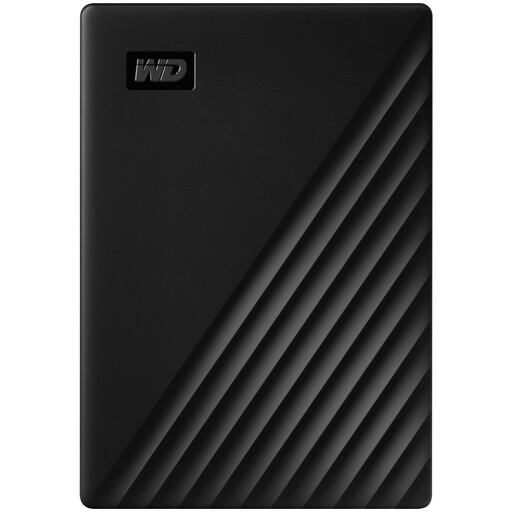
Western Digital My Passport 4TB Portable Hard Drive - Black
A portable hard drive for keeping a local copy of photos, videos and documents.
4TB capacity; USB 3.2 Gen 1. The product description lists AES 256-bit hardware encryption and password protection.
View on Joybuy
Photo and file backup FAQs
If my laptop is full, can I move its photos to one external drive and call that a backup?
No, not if moving the photos removes the laptop originals and leaves the drive as the only copy. Keep another recoverable copy and check that recently added files are present.
Will an external drive work with my Mac backup setup?
Check the exact model and software before using it. Seagate says its Expansion Portable drive requires reformatting for Time Machine, while Crucial says X9 compatibility can depend on formatting and host capabilities. Copy files you need before reformatting a drive.
Does cloud photo sync protect a photo I delete by mistake?
Not indefinitely. Apple says an iCloud Photos deletion appears on connected devices and can be recovered from Recently Deleted for 30 days. Check your service’s recovery options and keep a separate copy of irreplaceable photos.
What should I check before paying for more cloud storage?
Check what uses your account capacity, whether the files you need have uploaded, and the plan’s capacity and recurring terms. Apple says a full iCloud account stops new photo uploads and device backups; Microsoft’s whole-OneDrive restore feature requires Microsoft 365.
What happens when my iCloud storage is full?
Apple says new iCloud Photos uploads and device backups stop when the account is full. Check your storage use and confirm that the files you intend to keep have uploaded.


