For photos and important files, choose cloud storage when automatic access matters, a compatible external drive for a local copy, or a USB stick for selected files that fit; combining cloud storage with a disconnected drive means you are not relying on one route alone. The National Cyber Security Centre advises keeping important data in a separate location, and UK Government cyber guidance recommends practising restoration. Whichever route you use, check what was copied, whether you can access it, and whether you can restore a file.
Who needs a personal backup?
Phone-photo keepers
If you want photos to upload without remembering each manual copy, check the upload status, what is included, available storage and account recovery before changing phones. Apple Support and Google One Help explain their respective photo-backup options.
Growing-library owners
If photos and documents are spread across a computer or several devices, check that the storage can hold the collection, that its format suits your backup method, and that you can restore a sample file. Microsoft Support, Samsung UK and Seagate provide guidance on computer backups, drive connections and formats.
Separate-copy planners
If you want another copy that is not always connected to the original device or dependent on a synchronised account, plan when to update, disconnect and test it. The National Cyber Security Centre discusses offline backups and the risks to connected storage.
What should you check before choosing backup storage?
Cloud storage
Choose when: automatic uploads and access after losing a device matter most, and the service covers your files.
Trade-off: storage limits, account access and synchronised deletions can affect what remains available.
External hard drive or SSD
Choose when: you want a local copy of a larger collection or computer backup.
Trade-off: you need to arrange or configure updates, check the format and disconnect the drive if you want an offline copy.
USB flash drive
Choose when: a selected set of files fits the drive and its connector works with the device you will use to restore them.
Trade-off: copying selected files is not necessarily a whole-device backup, and a small removable drive can be misplaced.
Cloud plus a disconnected drive
Choose when: relying on an online account or a connected local copy alone would be a concern.
Trade-off: you need to maintain the account and update, test and safely store the separate drive.
The National Cyber Security Centre advises keeping important data in a separate location; UK Government cyber guidance also recommends practising how to restore it.
| Concern |
What to check |
Who this matters to |
| Independent, testable recovery |
What is copied, whether the copy is separate, and whether sample files open. |
If a device fails, I want a separate copy I can open and test, not just a sign-in that says syncing is on. About 29% of consumers prioritise independent, testable recovery. |
| Automatic backup and completion |
Which photos or folders are enabled, the last successful backup and remaining storage. |
I want recent photos included without having to remember every manual transfer. About 23% of consumers put automatic updates and knowing they finished first. |
| Room for the collection |
Available cloud allowance or drive capacity compared with the files you intend to copy and their expected growth. |
If my collection is growing, I need the intended files to fit rather than relying on a capacity label alone. About 18% of consumers prioritise room for their collection. |
| Device and restore compatibility |
Connector, cable, file format and whether the method restores files or a whole device. |
When I use more than one type of device, I need to know that I can connect the storage and read or restore the files where I need them. About 18% of consumers prioritise compatibility across their devices. |
| Account access and file protection |
Account-recovery options and, for an encrypted drive, how its password or key will be retained. |
If the files are sensitive, I want to control access without making the backup impossible to recover. About 12% of consumers prioritise account access and protection. |
Backup-storage mistakes to avoid
-
Treating synchronised photos as an independent, permanent backup
Apple Support says iCloud Photos items are not duplicated in iCloud Backup, and a synchronised deletion can affect devices using that library.
Check what has uploaded and how recovery works for the service you use. Keep another restorable copy of files you cannot afford to lose.
-
Choosing a drive by capacity or advertised speed alone
A drive’s advertised speed depends on the host connection, and a format suitable for ordinary file sharing may not suit a built-in backup utility.
Before buying or formatting a drive, check the host port, cable, file system and restore utility. Reformatting can add setup work, so check the drive’s existing contents first.
-
Leaving the only external backup connected beside the original
The National Cyber Security Centre explains that incidents can affect connected backup storage as well as the original files.
After confirming an update has finished, disconnect the drive, store it separately and periodically test that you can restore files.
-
Assuming a cloud account will keep accepting uploads
Apple and Google describe storage allowances shared with other services. When an account reaches its limit, new uploads or file creation may be affected.
Check available space and backup status before relying on the account; you may need to clear space or change the storage arrangement to continue.
Brands and services to consider
Apple
Relevant if you use Apple devices and are comparing cloud photo access with a Mac-to-drive backup.
- Apple Support says iCloud Photos can upload photos automatically when enabled, while Time Machine is a separate option for backing up a Mac to a drive.
- Apple says iCloud Photos items are not duplicated in iCloud Backup. Its free 5 GB allowance is shared, and Apple advises setting up recovery methods before enabling optional Advanced Data Protection.
Google
Relevant if you want photo backup through a Google Account and access on signed-in devices.
- Google One Help explains that photo backup can be enabled automatically.
- Google says personal-account storage of up to 15 GB is shared with other Google services. Check available space and account-recovery options.
Microsoft
Relevant for comparing cloud folder backup with a recurring local backup for computer files.
- Microsoft Support says Windows File History can make recurring copies to an external drive or network location.
- OneDrive folder backup depends on which folders are enabled. Microsoft says its whole-OneDrive restore feature is for Microsoft 365 subscribers and covers actions within the last 30 days.
Samsung
Relevant if you are considering a portable SSD for carrying a local copy or transferring files.
- For the UK T7 1 TB model, Samsung specifies USB-C-to-C and USB-C-to-A cables.
- Samsung states that the model’s maximum read and write speeds require a USB 3.2 Gen 2 host, compatible cables and UASP enabled. Check the connection on your own device.
Seagate
Relevant when comparing external-drive formats for ordinary file access and built-in backup utilities.
- Seagate recommends exFAT for ordinary access from both Mac and PC computers.
- Seagate says exFAT is not compatible with or recommended for built-in Time Machine or Windows File History backups; check the format against the utility you plan to use.
Kingston
Relevant for a USB-A flash drive used to hold a deliberately selected set of files.
- Kingston lists DataTraveler Exodia variants in 64 GB, 128 GB, 256 GB and 512 GB, with a USB Type-A connector.
- The connector and capacity must suit the receiving device and selected files; those specifications alone do not establish automatic or whole-device backup.
Joybuy options for local backups
These Joybuy listings cover removable local storage: portable SSDs for larger file collections and a USB flash drive for selected files.
 No image available
Samsung Portable SSD T7, 4 TB, Grey
A portable local-storage option for a larger photo or file collection.
4 TB capacity; USB 3.2 Gen 2; USB-C-to-C and USB-C-to-A cables are listed. The product description says it is not waterproof or dustproof, so keep it away from liquids and moisture.
View on Joybuy
 No image available
Samsung Portable SSD T7, 2 TB, Grey
A portable local-storage option for photos and other large files.
2 TB capacity; USB 3.2 Gen 2; optional AES 256-bit hardware encryption. USB-C-to-C and USB-C-to-A cables are listed, along with compatibility claims for PCs, Macs and Android devices. The product description says it is not waterproof or dustproof.
View on Joybuy
 No image available
Samsung MU-PG4T0B, 4 TB, Black
A portable SSD option for keeping a local copy of a larger collection.
4 TB capacity; USB 3.2 Gen 2x2; AES 256-bit hardware encryption. USB-C-to-C and USB-C-to-A cables are listed. The product description says it is not waterproof or dustproof.
View on Joybuy
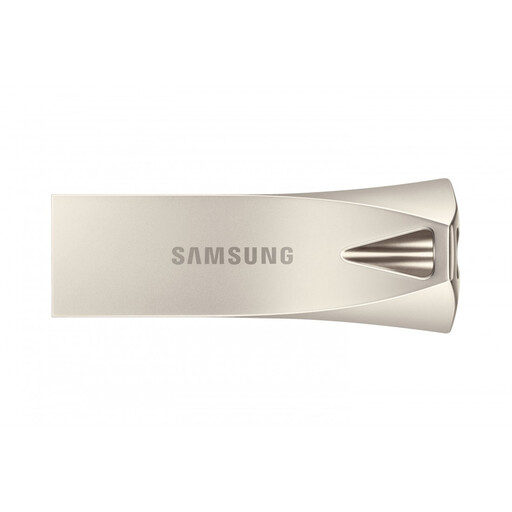 No image available
Samsung MUF-256BE USB flash drive, 256 GB, Silver
A removable option for selected photos, documents or other files that fit the drive.
256 GB capacity; USB Type-A connector; USB 3.2 Gen 1. The product description identifies a capless design for devices with a compatible USB Type-A port.
View on Joybuy
 No image available
Samsung MU-PE1T0S, 1 TB, Black
A portable SSD option for a separate local copy of photos and documents.
1 TB capacity; USB 3.2 Gen 2; IP65 rating. The product description says the protection is for temporary water exposure and the drive should not be submerged. It also lists compatibility with Macs, PCs and Android devices.
View on Joybuy
Personal backup questions
If my photos are in iCloud Photos, are they also in my iCloud device backup?
No: Apple Support says iCloud Photos items are not duplicated in iCloud Backup. Check that uploads have completed and keep another restorable copy if you need protection from a deletion that synchronises across devices.
How can I check whether an automatic backup covers my files?
Check the enabled photo or folder settings and available storage, then confirm the last completed upload or backup before changing devices. Microsoft Support notes that standard computer folders may need to be selected for OneDrive folder backup.
Can one external drive work for Mac Time Machine and ordinary Windows file copies?
Do not assume one format suits both uses. Apple says Time Machine cannot back up to a Windows-formatted disk, while Seagate says exFAT supports ordinary Mac-and-PC access but is not compatible with or recommended for Time Machine or Windows File History. Reformatting a drive may erase its existing files.
Will a USB drive work directly with my iPhone?
It may work for file access if the connector or adapter, partition and format meet Apple’s requirements. Being able to access files through supported apps is not the same as having a restorable whole-iPhone backup.
What should I check before relying on cloud storage?
Check the available account space after other services use their shared allowance, which photos and folders are included, and whether you can recover access to the account. Before relying on it as your only copy, confirm that the intended files uploaded and that you know how to restore them.


