Choose an external hard disk drive (HDD) for long-term local backups, an external solid-state drive (SSD) if you regularly move large files, or cloud storage when access across household devices matters most. Which? describes HDDs as suited to long-term file backup and SSDs as generally faster; cloud access depends on an internet connection. For files that would be hard to replace, keeping separate local and cloud copies reduces dependence on one location, provided both routines save the files you need and allow you to restore them.
Who needs which approach?
Families protecting hard-to-replace files
If losing family photos or important documents would be especially difficult, prioritise a recoverable copy away from the original device. The National Cyber Security Centre advises keeping backups in a separate safe location; a local copy and a cloud copy can reduce reliance on either location alone.
Households using several devices
If photos and documents need to be available on phones, tablets and computers, check which devices and accounts a cloud plan supports and what it copies automatically. Which? notes that cloud files can be accessed across devices when there is an internet connection.
Households with growing local libraries
If the main task is storing a separate copy of a large photo or video collection, an external HDD suits long-term local backup. Which? notes that SSDs are generally faster, making them more relevant when large files are moved frequently; either type still needs a backup routine.
What matters when choosing?
Decide where a separate copy will live before comparing drive capacity or cloud allowances. An HDD or SSD provides local storage, cloud storage provides online access, and using both means checking that each copy can be restored independently.
| Concern |
What to check |
Who this matters to |
| Recoverable copies |
Confirm that important folders are copied to a separate location and test restoring a file. Keep a removable drive separate from the computer when it is not in use. |
If losing my photos or documents would be difficult to put right, I want a copy I can recover after a device problem or accidental deletion. Around 40% of consumers put that resilience need first. |
| Access and automation |
Check supported devices, account access and which folders or photo libraries are copied automatically. Online access requires an internet connection. |
When files are spread across household phones and computers, I want current copies available without manually moving them each time. Around 30% of consumers prioritise that access and low-effort routine. |
| Space and transfer needs |
Compare the size of the current library with drive or cloud capacity, leaving room for growth. For frequent large transfers, check the device port and cable as well as the drive type. |
As my photo and video library grows, I need enough space for another copy and transfers that fit my routine. Around 30% of consumers place this storage and transfer need first. |
Backup mistakes to avoid
-
Assuming any second location protects every file
An external drive can hold a genuine backup if it contains a separate copy, but files left only on the original computer are not protected by that drive. The National Cyber Security Centre defines a backup as a copy kept in a separate safe location.
Check which files have actually been copied, keep the backup separate when practical and try restoring a non-sensitive file.
-
Choosing capacity before checking backup coverage
A large drive or cloud allowance does not establish that every phone library or computer folder is included. Microsoft Support says Windows Backup can copy selected user folders to OneDrive, so the selected locations matter.
List the devices and folders you need to protect, then check the backup application’s selections and current storage use.
-
Assuming one disk format fits every backup workflow
Apple Support says Time Machine cannot back up to a Windows-formatted disk. A drive used to move files between computers may therefore need preparation before it can serve as a Time Machine backup disk.
Check the required format and keep another copy of existing files before reformatting a drive.
Reformatting can permanently erase files already on the disk.
-
Treating a rugged drive as the whole backup plan
Samsung says the T7 Shield’s IP65 rating is based on controlled testing, and its stated warranty excludes liquid, dust and drop damage. Physical protection claims do not replace a separate recoverable copy.
Read the conditions for the exact model and maintain another copy of important files.
Relevant brands to consider
Western Digital
Its My Passport USB-C line is relevant to households considering portable local HDD storage.
- Western Digital lists My Passport USB-C capacities from 2TB to 6TB and supplies backup software for the cited line.
- Check the exact model’s connection, software and disk-format requirements against the devices used at home.
Seagate
Backup Plus Portable is a local HDD option for households planning computer backups.
- Seagate lists capacities up to 5TB and software for one-click or scheduled backups on the cited line.
- Seagate says reformatting may be needed for Time Machine; check the exact drive before using it with an existing file collection.
Samsung
The T7 Shield line is relevant when a portable SSD and frequent large transfers are priorities.
- Samsung lists a 4TB USB 3.2 Gen 2 T7 Shield variant with password protection.
- Samsung bases its stated resistance rating on controlled tests and excludes liquid, dust and drop damage from the cited warranty. Do not treat it as a substitute for another backup copy.
Apple
iCloud+ is relevant to online access in Apple-centred households, while Time Machine supports local Mac backups.
- Apple lists UK iCloud+ capacity tiers from 50GB to 12TB and says a plan can be shared with up to five other family members.
- Apple Support says Time Machine cannot back up to a Windows-formatted disk. Check device access and formatting separately, particularly in a mixed-device household.
Microsoft
OneDrive and Windows Backup are relevant to households considering online copies of Windows user folders.
- Microsoft lists 100GB of cloud storage with Microsoft 365 Basic and 1TB with Microsoft 365 Personal. Microsoft Support says Windows Backup can copy selected user folders to OneDrive.
- Check the account, devices and selected folders rather than assuming that every file type and location is covered.
External drives on Joybuy
These portable HDDs and SSDs are choices for making a local copy of household photos and files. Choose a drive type and capacity for your routine, then confirm device compatibility and how the copies will be made; an external drive does not provide the online access of cloud storage.
 No image available
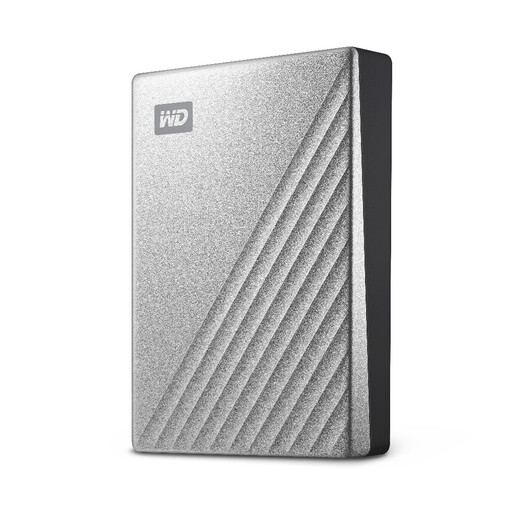
Western Digital My Passport Ultra 4TB Portable HDD, Silver
This 4TB portable HDD suits a household planning a local copy of a growing photo and document collection.
If the copy is for Time Machine, confirm the required Mac backup format and workflow before moving files.
View on Joybuy
 No image available
Western Digital My Passport Ultra 5TB Portable HDD, Blue
This 5TB portable HDD is a local-storage choice for a household with a larger photo and video collection.
For Mac backups, check the intended software and disk format; preserve another copy before any reformatting.
View on Joybuy
 No image available
Samsung Portable SSD T7 4TB, Grey
This 4TB portable SSD is a local-copy option for households that frequently move large photo or video files.
The title specifies USB Type-C 3.2 Gen 2 (3.1 Gen 2); check the computer connection and the backup software you intend to use.
View on Joybuy
 No image available
SanDisk Portable SSD 2TB
This 2TB portable SSD suits a household planning to carry a local copy of its photos and files.
Check the connector, supplied cable and device support, then set up a backup routine for the folders you need.
View on Joybuy
 No image available
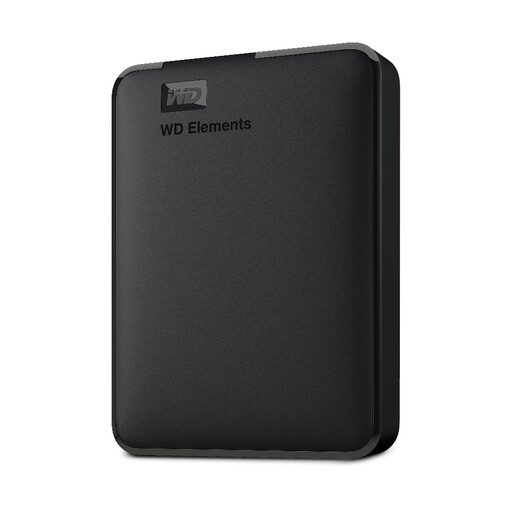
WD Elements Portable 2TB External HDD, Black
This 2TB portable HDD suits a household seeking space for a separate local photo and file copy.
The title specifies USB 3.0 and describes the drive as formatted for PC and Mac. Check the format required by your backup software, particularly for Time Machine.
View on Joybuy
Frequently asked questions
Does an external drive count as a backup?
Yes, if it holds a separate copy rather than the only copy of your files. The National Cyber Security Centre includes removable media among possible backup locations; keep the drive separate from the computer when it is not in use and test that you can restore a file.
How much capacity should a Mac Time Machine drive have?
Apple Support recommends a backup device with at least twice the Mac’s storage capacity: for a Mac with 1TB of storage, that means a 2TB backup disk. This is Time Machine guidance, not a sizing rule for every household backup method.
Can the same external drive be used for Windows files and Time Machine?
It may need a different format before Time Machine can use it. Apple Support says Time Machine cannot back up to a Windows-formatted disk, so check the intended arrangement and copy off any existing files before reformatting.


