Choose a portable HDD for a transportable local copy when transfer speed is not the priority; consider a portable SSD for frequent large transfers, or a desktop drive for a collection that stays in one place. Cloud storage can make off-site access and automatic uploads easier, but check its capacity, terms and deletion behaviour. Whichever route you use, keep a separate recoverable copy and test that you can restore files.
Who these storage options suit
Photo-backup planners
If you want to recover personal photos and files after a device is lost, damaged or cleared, keep a separate backup copy rather than treating a move of your only copy as a backup. The UK National Cyber Security Centre describes a backup as a copy stored separately from the original.
Space-limited laptop owners
If your laptop is running short of room, decide whether you need to move working files or maintain backup versions. A Mac Photos library and a Time Machine backup have different destination-format requirements, so check the intended use before formatting a drive.
Frequent file movers
If you regularly carry or transfer large folders, weigh portability against the speed your computer, port and cable can support. A drive’s quoted maximum speed may depend on a particular connection.
What to consider before choosing
Portable HDD
Choose when: You want a local copy that you can carry and transfer speed is not the main concern.
Trade-off: Which? describes HDDs as suitable for longer-term file backups and SSDs as generally faster; you still need a separate copy and a backup routine.
Portable SSD
Choose when: You often move large photo or video folders or want storage that is easy to carry.
Trade-off: SSDs are generally faster and usually cost more than HDDs; actual speed depends on the drive and compatible host connection.
Desktop drive
Choose when: Your collection stays mainly beside one computer and you have room and suitable power connections.
Trade-off: A desk-based setup is less convenient to carry; check the exact model’s power arrangement.
Cloud storage
Choose when: Off-site access, automatic uploading or access across devices matters more than keeping files on a locally connected drive.
Trade-off: Check storage limits, continuing terms and how synchronised deletions and file restoration work.
| Concern |
What to check when buying |
Who this matters to |
| Recoverable backup |
Decide where originals and backup copies will live, how often changes are copied, and how you will test a restore. Check whether cloud use is backup or synchronisation. |
If I lose access to my laptop, I want another copy I can restore—not just the same files moved elsewhere. Around 29% of consumers prioritise recovering important files. |
| Capacity and growth |
Measure the folders to store and allow for intended backup versions. For Mac Time Machine, Apple recommends a backup device with at least twice the Mac’s storage capacity. |
When my photo or video collection grows, I want enough room for the files and the backups I plan to keep. Around 23% of consumers put capacity first. |
| Speed and portability |
Consider transfer frequency and physical size; check the drive, host port and cable together. Connector shape alone does not establish a quoted transfer speed. |
If I carry and transfer large folders regularly, I care about portability and a connection my computer can use. Around 18% of consumers prioritise frequent transfers. |
| Device and app compatibility |
Check the device’s port and required format for the intended use. Mac Time Machine and a Mac Photos library have different format requirements; reformatting can erase existing data. |
When I use more than one device or a particular backup app, I want a drive that fits that workflow before I move files. Around 18% of consumers put compatibility first. |
| Off-site access |
Check cloud storage limits and terms, whether deletions synchronise, and how to restore files. Keep another copy of important files where needed. |
If I want files available away from my laptop without routinely connecting a drive, I care about automatic off-site access and recovery options. Around 12% of consumers prioritise this convenience. |
Backup mistakes to avoid
-
Moving your only photo library and calling it a backup
If the drive holding the originals is lost or damaged, the files may be lost too. Keep a separately stored copy and check that you can restore from it.
Maintaining another copy takes storage space and time for regular backups and restore checks.
-
Choosing by connector shape or headline SSD speed alone
A USB-C connector by itself does not guarantee the host, cable and drive support a quoted maximum speed. Samsung’s T9 maximum of up to 2,000 MB/s is conditional on a USB 3.2 Gen 2x2 host, compatible cables and UASP being enabled.
Check the exact laptop port, cable and drive interface before relying on the stated maximum.
-
Assuming one format suits every Mac use
Apple gives different format guidance for Time Machine and an externally stored Photos library. Reformatting a drive can permanently remove its existing data.
Choose the application and devices first, then check the format requirements and move existing files elsewhere before reformatting.
Allow time and, if needed, space elsewhere to move files before changing a drive’s format.
-
Treating photo synchronisation as an independent archive
With iCloud Photos, Apple says a deletion on one device is reflected across devices using the service. A local drive also needs a deliberate backup schedule.
Check the service’s deletion and recovery behaviour, and keep another recoverable copy of irreplaceable files.
Brands to know
Seagate
One Touch includes portable HDD options, while the distinct One Touch Hub is a desktop drive with a hub and scheduled-backup software.
- Seagate lists Toolkit backup setup for One Touch HDDs.
- The One Touch Hub documentation specifies an 18 W power adapter. Check the exact model and included accessories; do not assume a portable One Touch has Hub features.
Toshiba
Canvio Flex is a portable HDD line intended for sharing ordinary files among compatible USB-equipped devices.
- Toshiba lists 1 TB, 2 TB and 4 TB versions with USB-A and USB-C cables.
- Check whether the supplied format suits the intended Mac backup or Photos-library workflow; cross-device compatibility does not establish that every app can use the drive as supplied.
Samsung
The T9 is a portable SSD for frequent transfers where the host connection supports its speed-oriented specification.
- Samsung rates the T9 at up to 2,000 MB/s.
- Samsung conditions that maximum on a USB 3.2 Gen 2x2 host and cables with UASP enabled; actual performance varies.
Crucial
The X9 Pro is a portable SSD option for file transfers, subject to the device and connection used.
- Crucial states speeds of up to 1,050 MB/s for the X9 Pro, measured on its specified high-performance test computer, and says it ships in exFAT.
- Crucial’s UK page labels the 1 TB X9 Pro variant “EOL”. Check the exact variant and whether its format suits your intended Mac workflow.
Joybuy products for local storage
These Joybuy options cover portable HDDs and SSDs for carried file copies, plus desktop drives for collections kept mainly in one place.
 No image available
Samsung MU-PE1T0S 1TB Portable SSD
Its 1 TB capacity and portable SSD format suit carrying files and regular transfers.
USB 3.2 Gen 2; read speeds up to 1,050 MB/s and write speeds up to 1,000 MB/s. IP65-rated dust and water resistance is for temporary water exposure; do not submerge the drive.
Joybuy
 No image available
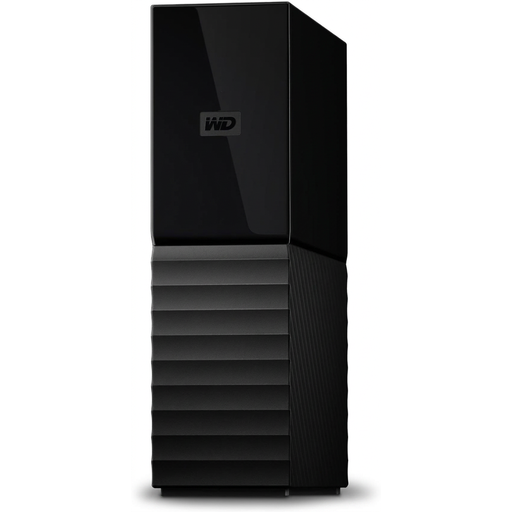
Western Digital My Book 22TB External Desktop Hard Drive
A 22 TB desktop drive is suited to a large collection kept mainly in one place.
USB 3.0 connectivity, backup software, password protection and hardware encryption.
Joybuy
 No image available
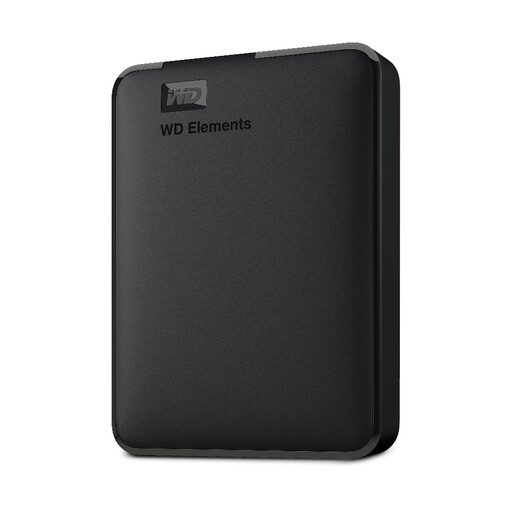
WD 2TB Elements Portable External Hard Drive
This 2 TB portable HDD suits carrying a local copy of photos, videos and other files.
USB 3.0; described as plug-and-play and formatted for PC and Mac.
Joybuy
 No image available
SanDisk 2TB Portable SSD
A portable 2 TB SSD for carrying and transferring photos, videos and other files.
Read speeds up to 800 MB/s; described as offering up to 2-metre drop protection.
Joybuy
 No image available
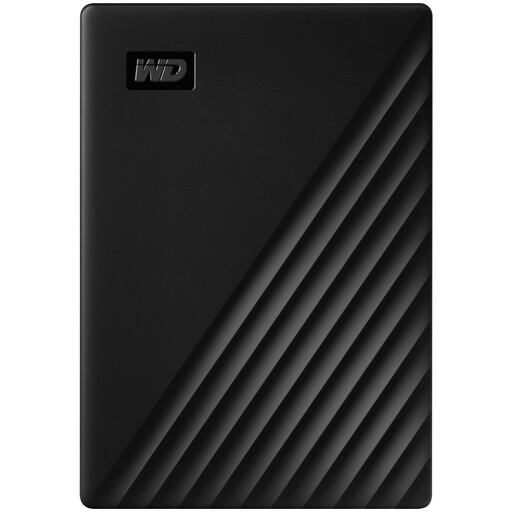
Western Digital My Passport 4TB Portable Hard Drive
This 4 TB portable HDD suits a larger local file copy and recurring backups.
USB 3.2 Gen 1, 256-bit AES hardware encryption and software for scheduled backups. The enclosure is not waterproof; keep it away from liquids.
Joybuy
Frequently asked questions
How do I check that my files are actually backed up?
Keep a copy separate from your working files, confirm the intended folders are included and periodically restore a test file. Moving your only copy to an external drive creates storage space, not a second copy.
Can I use any Windows-compatible drive for Mac Time Machine or Photos?
No; check the format for the specific Mac use before moving files. Apple prefers APFS or APFS Encrypted for a Time Machine disk, while an external Mac Photos library needs APFS or Mac OS Extended (Journaled). Apple also says not to store that library on a device used for Time Machine. Reformatting a drive can erase its existing data.
What should I check before setting up Windows File History?
Choose the intended external drive or network destination and check that the folders you need are included. Microsoft says File History covers libraries such as Documents and Pictures; a disconnected external drive cannot receive its next backup until it is reconnected.
Does syncing photos to the cloud mean I can safely delete them from my device?
Not without checking how that service handles deletion and keeping another recoverable copy. Apple says deleting an item in iCloud Photos removes it across devices using the service; that behaviour should not be assumed for every cloud-storage product.


