For periodic backups of a growing photo and file archive, consider a portable HDD; for frequent transfers of large files, consider a portable SSD. A USB flash drive is useful for moving selected files, while cloud storage helps when you need access across signed-in devices. Before choosing, check capacity, your device connections, the backup setup and how you will protect personal files.
Who needs which kind of storage?
Households backing up photos and computers
If your photo library and documents are growing, capacity and a repeatable backup routine matter more than the fastest transfer specification. Microsoft says File History can make regular copies to an external drive or network location.
People moving large creative files
If you carry photo, video or project files between locations, a portable SSD is worth considering for frequent transfers. Check the computer port and cable before relying on a quoted maximum speed.
People using several devices
Use removable storage when you need to carry selected files between compatible computers. If access across signed-in devices matters more, compare that workflow with cloud storage and check the account’s remaining capacity.
What should you check before choosing?
Start with whether you need an ongoing backup, frequent large-file transfers or access from several devices; then check the capacity and setup that task requires.
| Priority | What to check | Your needs |
|---|
| Archive capacity |
Compare the size of your current files with the drive capacity and allow for growth. For Google storage, check usage across Drive, Gmail and Photos: Google says the account allowance is shared. |
My photos and documents keep growing, so I need space for the archive I have now and the files I plan to add. |
| Transfers and portability |
Which? distinguishes HDDs for long-term computer-file backup from generally faster SSDs. For a quoted SSD speed, check the host port, cable and any required protocol; check the connector and power arrangement if you will carry the drive. |
I move large photo or video folders often and want a drive that fits the devices I take with me. |
| Backup setup |
Check the backup tool’s destination and format requirements before putting files on a drive. Apple says Time Machine cannot back up to a Windows-formatted disk; Microsoft says File History can back up to an external drive or network location. |
I want regular copies of important folders, not just a drive I remember to copy files onto occasionally. |
| File sharing |
For deliberate transfers, check the ports on both devices and the drive’s file format. Apple documents ExFAT for a disk over 32GB used with both Mac and Windows computers. |
Sometimes I only need to take a chosen folder to another computer, rather than back up the whole library. |
| Privacy |
Check which encryption option works with your computer and how you will retain its password or recovery key. Microsoft says manual BitLocker Drive Encryption is available on Windows Pro, Enterprise and Education, but not Home. |
If I lose a portable drive containing personal files, I want those files protected from unauthorised access. |
| Access across devices |
Check which devices can sign in and how much cloud capacity remains. Google says a standard account includes up to 15GB shared across Drive, Gmail and Photos; reaching the limit affects uploads and photo backup. |
I want to reach photos from signed-in devices without carrying the same drive everywhere. |
What can go wrong?
-
Expecting an SSD’s quoted speed on every computer
Samsung says the T7 Shield’s up-to-1,050MB/s read and 1,000MB/s write figures require a USB 3.2 Gen 2 host and compatible cable, with UASP enabled. A different connection may limit transfers.
Check your computer’s port specification and the cable you intend to use before choosing a drive for its headline speed.
-
Formatting a drive before checking what is on it
Formatting erases stored files. Apple says Time Machine cannot back up directly to a Windows-formatted disk, so a drive used for Mac backup may need preparation before use.
Decide whether the drive is for Time Machine, Windows backup or cross-platform file transfer, and copy any files you need elsewhere before formatting.
-
Confusing file transfer with a backup routine
Copying selected files onto a USB drive does not automatically keep later changes backed up. Microsoft describes File History as a separate process that makes regular backups.
Use removable storage for deliberate transfers, and set up a regular backup process for files you need to keep.
-
Carrying personal files without protecting access
The UK Information Commissioner’s Office says encrypting personal information on USB or backup media helps protect it against unauthorised access, particularly if the device is lost or stolen.
Choose an encryption method compatible with your computer, enable it, and keep the password or recovery key separately from the drive.
Relevant brands and services
Samsung
The T7 Shield line is a portable SSD option for frequent file transfers and carrying a drive between locations.
- Samsung quotes up to 1,050MB/s read and 1,000MB/s write for the T7 Shield when the host, cable and UASP support its required USB mode.
- Samsung’s IP65 and drop-resistance statements concern specified conditions; they are not a reason to treat the drive as protected against every accident.
Western Digital
WD Elements Portable is an HDD line for carrying and backing up photos, videos and other files.
- Western Digital identifies USB 3.2 Gen 1/USB 3.0 connectivity for the Elements Portable line.
- The USB interface alone does not establish SSD-like transfer performance; choose the capacity against the files you need to store.
Seagate
The Expansion portable HDD line is relevant when you want removable capacity for computer files.
- The 1TB Expansion STKM1000400 is USB-powered, so that model does not need a separate power adapter.
- Check the particular model and connection you are buying rather than assuming every Expansion drive has the same setup.
Google
Google’s account-based storage is relevant when you want photos and files available across signed-in devices.
- Google says a standard account includes up to 15GB shared across Google Drive, Gmail and Google Photos.
- Because the allowance is shared, email and Drive files also use capacity needed for photo backup; check account usage as the library grows.
Joybuy storage options
These options cover portable SSDs for frequent file transfers, a portable HDD for a larger local archive and a USB flash drive for moving selected files. Choose a backup setup separately from the drive itself.
 No image available
Samsung Portable SSD T7 2TB Blue
A portable SSD to consider if you frequently move large photo or video folders and need 2TB of removable storage.
The product description states USB 3.2 Gen 2, up to 1,050MB/s read and 1,000MB/s write, and included USB-C-to-C and USB-C-to-A cables. Maximum speed depends on a compatible port and cable. Optional AES 256-bit password protection requires setup; check the format needed for your Mac backup workflow before using it with Time Machine.
Joybuy
 No image available
Samsung T7 Shield Portable SSD 1TB Blue
This 1TB portable SSD suits frequent large-file transfers when you also want the T7 Shield’s stated physical-protection features.
Samsung quotes up to 1,050MB/s read and 1,000MB/s write with a compatible USB 3.2 Gen 2 host, cable and UASP. Its IP65 and up-to-3-metre drop-resistance statements apply to specified conditions; do not submerge the drive. Check the required format before planning a Time Machine backup.
Joybuy
 No image available
Western Digital My Passport Ultra Portable HDD 5TB Blue
Consider this 5TB portable HDD for a larger local photo and file archive when frequent high-speed transfers are not the main requirement.
The product description states USB-C connectivity, bus power, an included USB-A adapter and optional 256-bit AES hardware encryption. It says Mac use requires reformatting: copy existing files elsewhere first, and check the intended format and Time Machine requirements before relying on it for Mac backup. Avoid moving the HDD during transfers.
Joybuy
 No image available
SanDisk Portable SSD 2TB
This 2TB portable SSD is an option for carrying a photo or file library and transferring files between compatible devices.
The product description quotes up to 800MB/s read speed, a 40g form and up-to-2-metre drop protection. Treat those as stated product limits rather than guarantees for every connection or accident. Check the format needed for Time Machine and the encryption option if you plan to store sensitive files.
Joybuy
 No image available
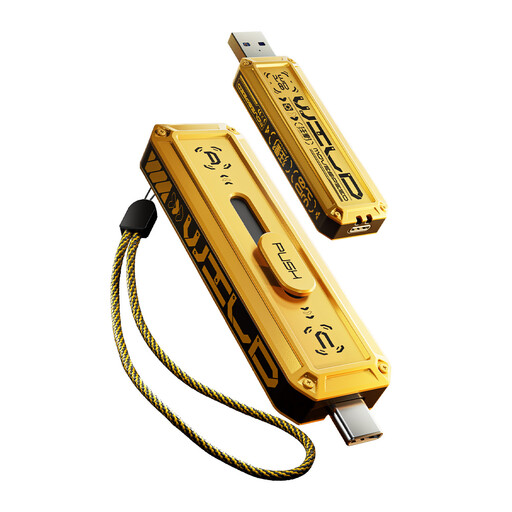
MOVESPEED YSUWD10-1TSY 1TB USB-A/Type-C Flash Drive Yellow
Use this 1TB flash drive for deliberate transfers of selected files between devices with compatible USB-A or USB-C ports, rather than as an automatic backup routine.
The product description states USB 3.2 Gen 2×1 and up to 1,090MB/s read and 1,030MB/s write; actual transfer speed depends on the connected device. Check the intended device’s port, file-format needs and available encryption before using it across platforms or for sensitive files.
Joybuy
Common questions
Can an external drive be used with Windows File History?
Yes. Microsoft says File History can make regular backups to an external drive or network location. Check that the folders containing the files you want to keep are included in its backup setup.
Can Time Machine back up to a Windows-formatted drive?
No. Apple says Time Machine cannot back up to a disk formatted for Windows and identifies APFS or APFS Encrypted as preferred formats for a Time Machine backup disk. Copy any existing files elsewhere before reformatting, which erases the disk.
What format works for file transfers between Mac and Windows?
Apple documents ExFAT for a disk over 32GB used with both Mac and Windows computers. Copy existing files elsewhere before formatting, and treat this as a file-transfer choice rather than assuming the disk is then ready for Time Machine.
How can I protect files on a portable backup drive?
Choose encryption that works with the computer you use and keep its password or recovery key separately from the drive. Apple recommends password-protected APFS encryption for a newly formatted Mac drive; Microsoft says manual BitLocker Drive Encryption is available on Windows Pro, Enterprise and Education, but not Home.
What happens if Google account storage fills up?
Google says its storage is shared across Drive, Gmail and Photos. At the account limit, Google says you cannot upload or create Drive files, send or receive Gmail messages, or back up photos and videos to Google Photos. Check usage across all three before relying on the account for a growing photo library.


