Photographers with growing RAW libraries
If you retain originals and edited exports, plan for both more storage space and recovery if a local device is lost. The drive holding the library should not be its only copy.


Choose the device you work from separately from the copies you rely on for recovery. A desktop external hard drive suits a mostly stationary archive, a portable SSD suits photos you regularly carry or edit, and a NAS suits a shared household library; cloud storage can provide an off-site copy. Whichever route you use, keep independent copies, including one off-site, and test that you can restore your files.
If you retain originals and edited exports, plan for both more storage space and recovery if a local device is lost. The drive holding the library should not be its only copy.
A portable drive can carry current shoots between locations. Check its connection against your computer, then arrange a separate copy rather than leaving the travelling drive as the sole home for those files.
A NAS can give several devices access to one local library, while a cloud service may help with access from other locations. Either arrangement still needs a recovery plan for deletion, device failure or loss of account access.
Decide where you will keep and use the working library, then choose separate destinations from which you can restore it.
| Priority | What to check | Your needs |
|---|---|---|
| Separate copies | Identify the working copy, an independent backup and an off-site destination. Backblaze describes a three-copy approach using two media types, with one copy off-site. | I need my photos to remain recoverable if one drive fails or something happens to the equipment at home. |
| Capacity and location | Measure the existing library and allow for incoming RAW files, exports and retained versions. Compare a stationary desktop drive with a portable drive according to where you use the files. | My archive mostly stays at home, but I may want a smaller working collection to travel with me. |
| Transfers and connections | Check the drive interface, computer port and cable together. Samsung says the T7 Shield’s stated maximum transfer speeds require USB 3.2 Gen 2 and UASP support; that figure should not be assumed for other SSD models. | Frequent shoots mean I want to move current files without choosing a connection my computer cannot use fully. |
| Shared access | For a NAS, check drive compatibility, setup, maintenance and backup destinations. Synology warns that RAID or local copies alone can still leave data at risk. | Several people need access to the household library, and we can manage the equipment needed to keep it available. |
| Restore and privacy | Try restoring sample originals and exports, including an older version where available. For cloud storage, check account recovery, export, access controls and where the provider stores and processes data; the National Cyber Security Centre advises understanding the applicable jurisdictions. | I want to know I can get usable files back, and I want to understand who can access family photos stored online. |
Physical protection does not create another copy or recover a file you delete. Samsung also says liquid, dust and drop damage are not covered by the stated T7 Shield warranty.
Use the SSD for mobile work if it fits your needs, but keep an independent copy and test a restore.
Synology warns that RAID crashes and drive failures can still cause data loss, and recommends backing up to a different destination.
Plan the NAS drives and a separate off-site destination before relying on a shared archive.
A NAS arrangement also calls for compatible storage drives and ongoing maintenance.
Retaining new RAW files, exports and backup versions can change the capacity you need. Recovery also depends on access to the account and a connection.
Measure the library, allow for growth and check how you would export or restore it if you changed plans.
A backup job can finish without showing whether the version you need is readable. Synology describes integrity checks and versioned restoration as relevant backup functions.
Periodically restore a sample of originals and edited files to another location and open them in the software you intend to use.
The portable T7 Shield SSD is an example of working storage for photos that need to travel.
The two-bay DS224+ illustrates a NAS route for a shared local photo library and versioned recovery.
iCloud+ is a cloud-storage option to examine for an Apple-centred household.
The Elements Desktop range provides examples of stationary external hard drives for local storage.
These portable SSDs and external hard drives are options for local working storage or a local copy of a photo library. Choose a separate off-site destination as part of the backup plan.
 No image available
Consider this portable hard drive when you need to move a sizeable local photo collection. Check the intended computer and file format before use, particularly if you use a Mac, and keep another copy elsewhere.
 No image available
The 4TB portable SSD is a candidate for current shoots or a travelling working library. Check whether your computer supports its stated USB 3.2 Gen 2x2 connection before relying on maximum interface performance; retain a separate backup.
 No image available
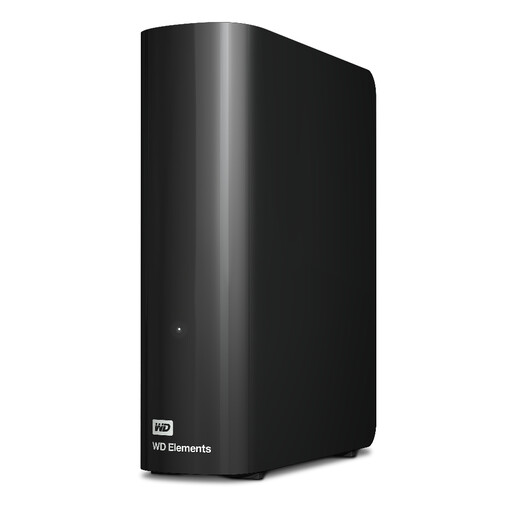
Its desktop format makes this a local archive option when the photos mostly stay in one place. Check power and file-system requirements for your setup, especially with a Mac, and arrange an independent copy.
 No image available
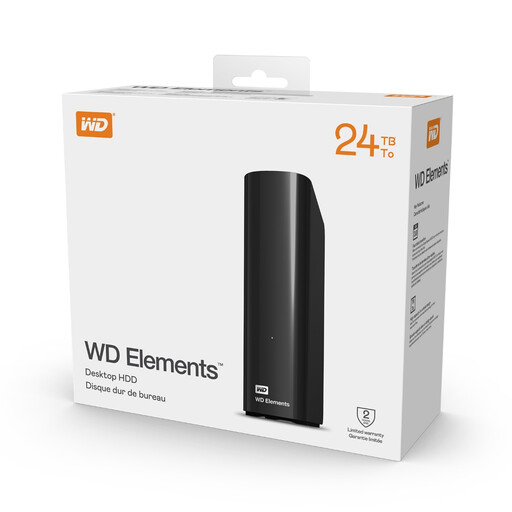
This desktop drive is an option for a large, mostly stationary collection. Confirm the supplied power adaptor suits your socket and check the file system for your computer; its 24TB stated capacity does not replace an off-site copy.
 No image available
A portable option for moving or working with current photo files, with USB 3.2 Gen 2 stated in its name. Compare 2TB with the size and expected growth of your library before deciding what it can hold, and keep a separate backup.
No. If the files exist only on that drive, losing it could mean losing the library. Backblaze recommends three copies on two media types, with one copy off-site; your working library can count as one of the copies.
No. Synology warns that RAID crashes and hard-drive failures can still cause data loss. Back up the NAS to a different destination and include an off-site copy for photos you cannot replace.
Choose according to how you use the files: a desktop HDD fits a largely stationary archive, while a portable SSD fits photos you frequently carry or work from. Measure your library before choosing capacity, check your computer’s connection and use a separate backup destination whichever drive you select.
Not necessarily. Check whether originals and earlier versions remain recoverable, whether deletions synchronise across devices, and how you would restore the whole library. Keep an independent local copy if losing access to the cloud account would otherwise leave you without the photos.
Check capacity, sharing and account-recovery controls, then try the export or restoration process before relying on the service. The UK National Cyber Security Centre advises understanding where a provider stores, processes and manages data and which jurisdictions apply.