Choose a portable SSD when you regularly transfer large video files, work from the drive or carry it between devices; choose a portable or desktop hard drive when archive capacity matters more than transfer speed and portability. For irreplaceable photos and video, keep a separate backup copy, preferably with one copy offsite or offline, and check connector, power and file-system compatibility before buying.
Who this is for
Phone-first photo and video collectors
You regularly move photos or videos off an iPhone, iPad or Android phone to free space or create a local copy. Check the phone’s physical port, any adapter or power requirement, and the drive format before prioritising capacity or advertised SSD speed. Apple Support and Western Digital Support provide the relevant connection and formatting guidance.
PC or Mac users building a personal media backup
You want a repeatable backup routine rather than occasional manual copying. Microsoft Support says File History can back up selected libraries to an external drive or network location, while Apple Support explains how Time Machine can back up a Mac to compatible external storage.
Creators with active video projects and larger archives
You need to separate fast working storage from long-term capacity. SSDs suit frequent large-file transfers and active work when the connection supports their speed, while portable or desktop hard drives can suit high-capacity archives kept mainly in one place.
Buying priorities
| Priority |
What to check |
Your needs |
| Connection and power |
Check the device port, cable type and whether an adapter is needed. Confirm whether the drive is bus-powered or needs mains power, especially for phone use. |
I want to connect the drive to my phone, PC or Mac without discovering an adapter, power or recognition problem afterwards. |
| Capacity and transfer workflow |
Size the drive for the current media library and expected growth. Check the USB generation, cable and host support instead of relying only on a maximum MB/s figure. |
My library needs room to grow, and I want transfers that suit how often I move or work with large video files. |
| Backup resilience |
Keep a copy separate from the original device. Consider an offline or offsite copy, and use backup scheduling where File History or Time Machine fits the workflow. |
I need a recovery plan that still helps after deletion, device failure, theft, local damage or malware. The UK National Cyber Security Centre advises keeping important data backed up separately and, where possible, retaining one backup offline. |
| Cross-platform format |
Choose a file system supported by every intended device. If the drive will move between Windows and macOS, confirm the format before copying files; formatting erases existing contents. |
I want to exchange files between Windows and a Mac without having to reformat a drive that already holds my archive. Western Digital Support recommends exFAT for drives used on both systems. |
Mistakes to avoid
-
Treating an external drive as the only backup
The UK National Cyber Security Centre defines a backup as a separate copy stored separately, and warns that ransomware can affect original files alongside connected USB, network and cloud backups.
Keep at least one additional copy away from the main device. Where practical, disconnect one backup when it is not being updated and test that important files can be restored.
A single incident can affect irreplaceable photos, videos and project files stored on both a computer and a connected drive.
-
Buying on an SSD’s maximum MB/s figure alone
Maximum SSD performance depends on the computer or phone port, cable and supported USB mode. Samsung states that the T7 Shield’s quoted maximum speeds require USB 3.2 Gen 2, a compatible cable and UASP support.
Check the host device’s port specification and supplied cable before paying extra for a faster drive. For occasional archive backups, capacity and backup practice may matter more than peak transfer speed.
-
Reformatting after files have been copied without another copy
Western Digital Support warns that formatting for exFAT is data-destructive and cannot be undone.
Decide which devices will use the drive and prepare its format before loading an archive. Before reformatting an existing drive, copy its contents to another verified location.
Reformatting can erase every file currently stored on the drive.
-
Using a desktop archive drive as a portable phone-transfer drive
Desktop external drives require mains power, while portable drives are designed for carry-around storage. Seagate specifies a power adapter for its Expansion Desktop range.
Choose a desktop drive for a fixed, high-capacity archive. For transfers between devices or use away from a desk, choose a portable SSD or bus-powered portable hard drive instead.
Relevant brand references
Samsung
A portable SSD range for compact, high-speed storage, including rugged options for active transfers and work away from a desk.
- Samsung states that the 2TB T7 Shield uses USB 3.2 Gen 2 and PCIe NVMe, with sequential read/write figures up to 1,050/1,000MB/s when the host, cable and UASP support the required conditions.
- Samsung’s IP65 and 3m drop claims are based on controlled internal testing; it also states that liquid, dust and drop damage are not covered by warranty.
Crucial
A portable SSD range aimed at compact, higher-capacity storage for media transfer and active files.
- PCMag UK’s August 2026 external-SSD roundup selected the Crucial X10 as its overall pick for most buyers, citing capacities from 1TB to 8TB, benchmark results and IP65/drop protection.
- PCMag UK notes that the X10 does not include AES hardware encryption, has a three-year warranty and needs a less common USB port for Gen 2x2 speed.
Seagate
An external hard-drive range covering portable multi-terabyte storage and mains-powered desktop drives for larger stationary archives.
- Seagate specifies Expansion Portable models up to 5TB and Expansion Desktop models up to 28TB, supporting different portable and fixed-location archive needs.
- Seagate says Time Machine use with Expansion Portable requires reformatting, while Expansion Desktop drives require a power adapter. Neither type removes the need for a separate backup copy.
Western Digital
An external-storage range with cross-platform formatting guidance and both portable SSD and hard-drive options.
- Western Digital Support says a drive used on both Windows and macOS should be formatted as exFAT.
- Formatting is destructive. PCMag UK’s September 2026 hard-drive roundup selected WD My Passport for portable use and WD My Book for desktop use; these are route-specific editorial picks rather than a judgement on every WD drive.
Joybuy product options
Joybuy product options for portable SSD transfers and active media files, plus a desktop hard drive for a larger fixed local archive.
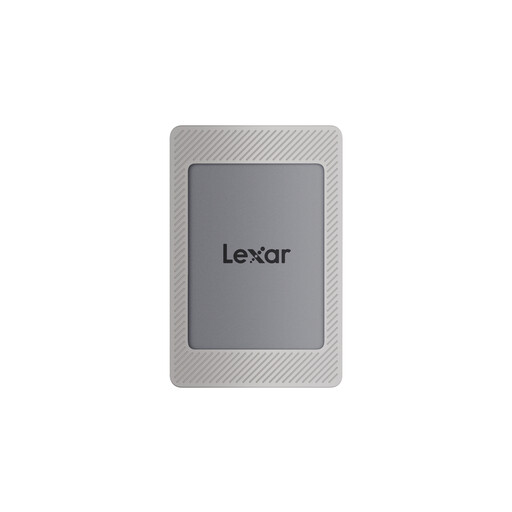 No image available
Lexar ES4 Portable SSD with Magnetic Set 2TB
A portable option for transferring media from iPhone 15/16 and USB-C devices before making computer copies.
2TB capacity; USB 3.2 Gen 2 with stated speeds up to 1,050MB/s read and 1,000MB/s write; USB-C-to-C and USB-A-to-C cables are stated as included. Magnetic attachment is described for iPhone 15/16 use with the supplied case or ring and does not support MagSafe wireless charging. Format the drive appropriately before cross-platform use, and keep another separate copy of irreplaceable media.
Joybuy
 No image available
Samsung Portable SSD T7 4TB Grey
A larger portable SSD option for growing photo and video libraries that still need regular transfers.
4TB capacity; USB Type-C 3.2 Gen 2; stated USB-C-to-C and USB-C-to-A cables; optional AES-256 hardware encryption. The stated maximum transfer figures require a compatible USB 3.2 Gen 2 host and suitable cable. Check the required file system for every intended device before copying media.
Joybuy
 No image available
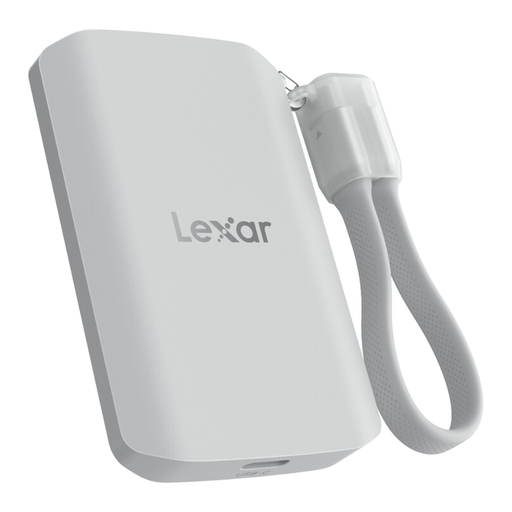
Lexar ES5 Portable SSD 1TB
A mobile-focused SSD for specified phone-recording workflows and frequent transfers away from a desk.
1TB capacity; USB 3.2 Gen 2x2; stated speeds up to 2,000MB/s read and write; IP65 rating and stated 3m drop resistance. Direct ProRes recording is stated for iPhone 15/16 Pro, with Galaxy S25 Pro Video support also stated. Top speed may be lower on systems without USB 3.2 Gen 2x2, and the auto-backup feature does not support iCloud backup.
Joybuy
 No image available
Samsung MU-PE1T0S 1TB Portable SSD Black
A compact SSD for regular large-file transfers between PCs, Macs and supported Android devices.
1TB capacity; USB Type-C 3.2 Gen 2; stated speeds up to 1,050MB/s read and 1,000MB/s write; USB-C-to-C and USB-C-to-A cables are included. The listed IP65 protection is not full submersion protection. Compare 1TB with the current library and expected video growth, and check phone or iPad formatting and power requirements before buying.
Joybuy
 No image available
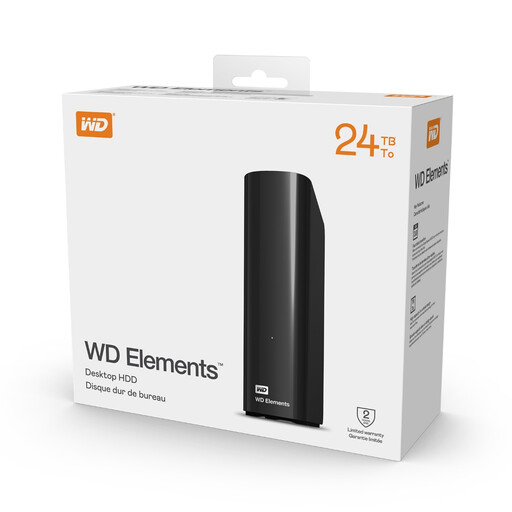
Western Digital Elements Desktop External Hard Drive 24TB
A desktop hard-drive option for a large home archive of completed projects or family media.
24TB stated capacity; desktop 3.5-inch form factor; USB-A connectivity; external AC power; USB 3.2 Gen 1. It is intended for a fixed desk setup rather than direct phone transfer. Confirm the shipped file system and any Windows, macOS or Time Machine preparation before buying, and maintain a separate offline or offsite copy for irreplaceable files.
Joybuy
Frequently asked questions
Can I connect an external drive directly to an iPhone or iPad?
Compatible iPhone and iPad models can use USB storage devices and SD cards through the appropriate connection. Apple Support says the drive needs one data partition and a supported format; an adapter may also be required. Confirm the exact device port and available power before choosing a drive.
Which format should I use between Windows and a Mac?
For a drive that must be read and written on both Windows and macOS, Western Digital Support recommends exFAT. Reformatting erases the drive, so copy existing files to another location first.
How large should a Time Machine backup drive be?
Apple Support recommends a storage device with at least twice the capacity of the Mac. It also advises using the Time Machine backup disk only for Time Machine backups rather than general file storage.
Can a Windows PC back up photos and videos to an external drive automatically?
Yes. Microsoft Support says File History can regularly back up libraries such as Pictures and Videos to an external drive or network location after you choose the backup destination.
Is one external drive enough protection for irreplaceable photos and videos?
No. The UK National Cyber Security Centre describes a backup as a separate copy and notes that malware can affect connected USB, network and cloud backups. Use an external drive as one layer and keep another separate copy, preferably with one backup offline where practical.


