Choose storage around the archive’s main job: a portable hard drive for files you carry occasionally, a portable SSD for frequent transfers, or a desktop drive for an archive kept beside one computer. An adapter or card reader addresses a phone or camera transfer problem, but does not provide archive capacity by itself. Check your devices, cables, power and file-system requirements before buying, and keep an independent copy rather than relying on one drive.
Who needs which storage route?
Households building a long-term archive
If years of photos and videos live mainly on one computer, look for enough capacity and a backup routine you can repeat. Microsoft Support describes regular external-drive backups through File History; the National Cyber Security Centre also advises keeping backups separate.
Families moving files off phones and tablets
If direct transfer matters, check the device port, adapter, available power and drive format before choosing capacity. Apple Support sets specific conditions for iPhone external storage, while Western Digital Support explains the format choice for sharing a drive between Windows and macOS.
People carrying large video files
A compact portable SSD may fit frequent transfers away from the main computer. Check the host port and cable: Samsung UK conditions the T7’s maximum rated speeds on a compatible USB connection and UASP support.
What matters when choosing storage?
Portable hard drive
Choose when: A computer handles most transfers and you want to carry the archive occasionally.
Bear in mind: Direct phone use needs its own connector, power and format checks.
Portable SSD
Choose when: You frequently move large files or need access while travelling.
Bear in mind: Rated transfer speeds depend on the host connection and cable, as Samsung UK notes for its T7.
Desktop drive
Choose when: The growing archive stays beside the household’s main computer.
Bear in mind: Check its power arrangement; a desk-based drive is less suited to travel or direct phone transfers.
Adapter or card reader
Choose when: Getting files from a phone, tablet or camera card is the immediate obstacle.
Bear in mind: It enables a compatible transfer route, not storage capacity or a second copy.
For a growing household photo and video archive, identify your primary need before choosing a drive or transfer accessory.
| Concern | What to check | Who this matters to |
|---|
| Capacity and routine backup |
Measure the current archive and expected growth; check whether your chosen computer backup routine includes the intended folders. |
If years of family media are accumulating on one computer, I need room for new files and a copying routine I will actually use. Around 33% of consumers put capacity and repeatable backup first. |
| Transfer compatibility |
Check each device’s port, data-capable cable, power needs and required file system before moving files. |
When photos are spread across phones, tablets and computers, I need a transfer path that works with those devices. Cross-device compatibility comes first for around 27% of consumers. |
| Portable access |
Compare the capacity you need with the host port and cable requirements for any rated SSD speed. |
If I often carry large video files, I want to open and move them away from the main computer without planning around a fixed desk. Around 20% of consumers prioritise portable access. |
| Independent copies |
Plan where another copy will live and test that you can retrieve sample files. |
For irreplaceable family media, I do not want one connected drive to be the only place the files survive. Keeping separate copies is the leading need for around 20% of consumers. |
Mistakes that can disrupt your archive
-
Treating one external drive as the entire backup plan
The National Cyber Security Centre warns that connected USB or network backups can be affected alongside the original files during a ransomware incident.
Keep another independent copy, disconnect at least one backup when it is not in use, and test that you can restore a few photos and videos.
-
Choosing by capacity and connector shape alone
A connector that fits does not establish that a phone can use the drive. Apple Support notes that iPhone external storage may need an adapter and that external hard drives often need additional power; Google Android Help notes that not every USB cable transfers files.
Map the complete route from each source device to the storage destination, including adapters, data-capable cables and power.
A compatible adapter, powered hub or replacement data cable may be needed for the intended transfer route.
-
Reformatting after copying the archive
Western Digital Support states that formatting erases the data on a drive. A format suitable for sharing files between Windows and macOS also needs to be checked against any device-specific backup workflow.
Choose the format before transferring files, or make sure every file exists elsewhere before reformatting.
-
Expecting headline SSD speeds on every computer
Samsung UK conditions the T7’s maximum rated speeds on USB 3.2 Gen 2, a compatible cable and UASP support.
Check the actual computer port and cable before using a speed rating to decide between portable drives.
Relevant brands to consider
Seagate
Seagate UK presents One Touch as portable storage and Expansion Desktop as a desk-based route for backup and archiving.
- The product families offer distinct portable and fixed-location approaches to a household archive.
- Check the exact variant’s capacity, connection and availability rather than applying family-level details to every drive.
Samsung
Samsung’s Portable SSD T7 range is relevant to compact storage for frequent transfers.
- Samsung UK lists USB-C-to-C and USB-C-to-A cables for the T7, which may help when moving between compatible computers.
- Samsung’s maximum rated T7 speeds require USB 3.2 Gen 2, compatible cables and UASP; check host compatibility and format requirements for the intended setup.
Western Digital
Western Digital’s format guidance is useful when a household plans to share an external drive between Windows and macOS computers.
- Western Digital Support identifies exFAT as a format for use across Windows and macOS.
- Reformatting erases existing data, so preserve files elsewhere before changing a drive’s format.
Joybuy storage choices
These portable hard drives and SSDs suit households considering storage they can move between locations. Choose capacity against your archive size, then check the exact devices and backup routine you intend to use; a separate desktop-drive or phone-adapter decision may still be relevant.
 No image available
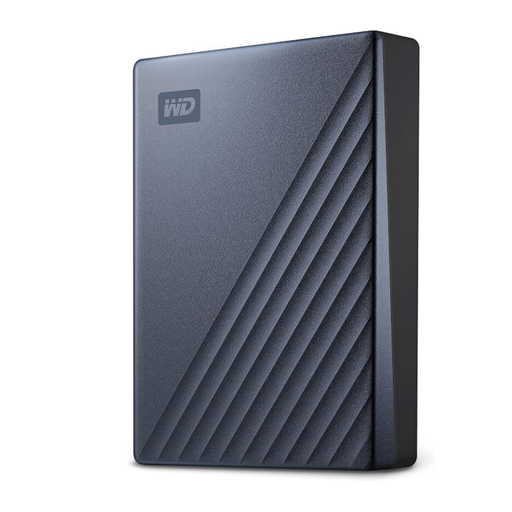
Western Digital My Passport Ultra 5 TB, Blue
A portable HDD to consider when a computer is the usual hub for a growing photo archive.
The listing specifies 5 TB, USB-C connectivity and a USB-C-to-USB-A adapter, and describes scheduled backup options. It says macOS use requires reformatting; preserve another copy before changing the format.
Joybuy
 No image available
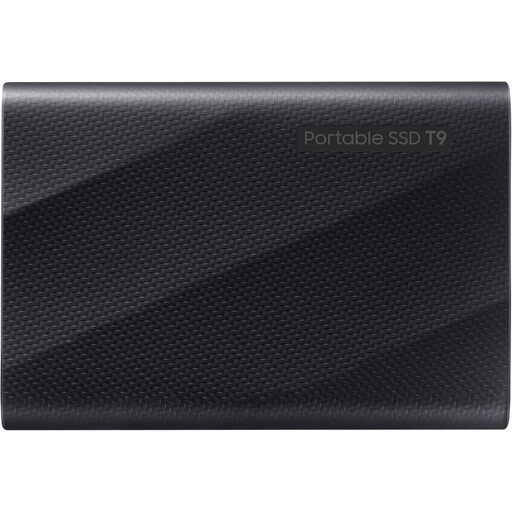
Samsung MU-PG4T0B 4 TB Portable SSD, Black
A portable SSD to consider for frequent transfers of large media files between compatible devices.
The listing specifies USB 3.2 Gen 2x2, rates read and write speeds at up to 2,000 MB/s, and lists USB-C-to-C and USB-C-to-A cables. Check that your host connection supports the interface before relying on that rating.
Joybuy
 No image available
Samsung Portable SSD T7 2 TB, Grey
A compact portable SSD to consider when you regularly move an archive between compatible computers.
The listing specifies USB 3.2 Gen 2 and USB-C-to-C and USB-C-to-A cables. Samsung UK rates the T7 at up to 1,050 MB/s read and 1,000 MB/s write when the host, cable and UASP requirements are met.
Joybuy
 No image available
Western Digital Elements Portable 4 TB, Black
A portable HDD to consider when photos and videos are copied through a computer with a suitable USB connection.
The listing specifies USB 3.2 Gen 1 and an included USB-A cable. Mac or other operating-system use may require reformatting; check the format before copying files.
Joybuy
 No image available
Samsung T7 Shield Portable SSD 1 TB, USB 3.2 Gen 2
A portable SSD to consider when the archive is carried between compatible devices and added physical protection matters.
The listing specifies a USB-C connection and claims IP65 dust and water resistance and drop resistance up to 3 metres; check the conditions of those claims before relying on them. Confirm the colour variant before buying, as the listed title and description differ.
Joybuy
Common questions
Can one external drive work with both Windows and Mac computers?
Yes, if its format and your intended uses are compatible. Western Digital Support identifies exFAT for sharing a drive between Windows and macOS, but formatting erases existing data; check any Time Machine requirements separately before choosing a shared-drive format.
Can I connect an external drive directly to an iPhone?
Sometimes, with a compatible connector or adapter and a supported storage setup. Apple Support says the device must have a single data partition in a supported format, and notes that external hard drives often need additional power.
How can I make computer backups repeatable?
Choose a backup routine for the computer that holds your archive, then check that it includes the intended photo and video folders. Microsoft Support describes regular external-drive backups through Windows File History, while Apple Support describes using a compatible external device for Mac Time Machine backups; test restoring a file before relying on either routine.
Is one large external drive enough to protect family photos?
No; one drive leaves the archive dependent on a single copy. The National Cyber Security Centre warns that connected backups can be affected alongside a computer and advises keeping backups separate, with at least one offline when it is not in use.


