Who needs which setup?
Start with where the photos are now and whether the backup drive will travel with you.
People whose photos are mainly on a phone
An iPhone or Android library needs a workable route to external storage or a computer first. Apple Support and Google Android Help describe different transfer steps, so check the phone connection, data cable, drive format and any power requirements before buying a drive for direct phone use.
Computer users setting up regular backups
If photos are already on a Windows PC or Mac, an external drive can be part of a repeatable backup routine. Microsoft Support describes File History backups to external storage, while Apple Support describes using an external device with Time Machine. Check which folders the chosen setup will back up.
Travellers and keepers of home archives
A drive carried between places raises different handling and connection questions from one kept beside a computer. Which? describes SSDs as generally faster than HDDs; a desktop drive instead suits a fixed location when its mains power and size fit the workflow.
What should you check before buying?
Choose the transfer route first, then check the drive and the routine that will turn copied files into a usable backup.
Portable HDD
Consider it: For periodic computer backups when a drive needs to be movable but frequent large transfers are not the main task.
Trade-off: Which? describes HDDs as generally slower than SSDs, so large transfers may take longer.
Portable SSD
Consider it: For frequent large photo or video transfers, particularly when you carry the drive.
Trade-off: Which? says SSDs usually cost more than HDDs; a USB-C plug also does not establish direct compatibility with a particular phone.
Desktop drive
Consider it: For a large photo archive backed up mainly from a computer in one place.
Trade-off: Mains-powered models need a power socket and are less convenient to carry or connect directly to a phone.
| Priority |
What to check |
Your needs |
| Transfer route |
Identify where the originals are stored. Check the phone or computer port, whether the cable transfers data, and whether a direct phone connection needs an adapter or external power. Google Android Help says Android USB transfers require File transfer mode. |
My photos are mainly on my phone, so I need a way to move the originals before choosing where to keep a copy. |
| Format |
Check whether every intended device can write to the drive. Apple Support says iPhone-connected storage requires one data partition and a supported format; it also notes that a Mac may read NTFS without being able to write to it. |
If I move files between a phone, Mac and Windows computer, I want the drive format to fit that specific workflow. |
| Capacity and handling |
Compare the library’s current size with room for new photos and videos, then decide whether the drive will travel. For Time Machine, Apple Support recommends a backup disk with at least twice the Mac’s storage capacity. |
A home archive can stay by the computer; a library I carry regularly calls for a drive I can handle and connect on the move. |
| Backup routine |
Check how often files will be copied and whether the backup includes the right folders. Open and restore sample files, and disconnect the drive after use, in line with UK National Cyber Security Centre guidance. |
I need recent photos to be recoverable, not just a copy that was made once and forgotten. |
| Privacy |
If the drive will contain private photos, check whether the exact model or backup software offers encryption and how its password is managed. Keep another independent copy: encryption does not duplicate files. |
When I carry an archive, I want to control access without relying on that one drive as my only copy. |
Relevant brand examples
These examples illustrate particular storage routes; check the exact model and variant rather than assuming a feature applies across a brand.
Samsung
The T7 Shield is a portable SSD example for people who carry a photo library or transfer large files regularly. The 1TB black variant is specified with password protection and AES-256 hardware encryption.
- The 1TB black variant has an IP65 rating and read speeds of up to 1,050 MB/s; actual transfer speed depends on the connection and device.
- Check the exact variant, phone connection, drive format and power arrangement before planning a direct phone-to-drive transfer.
Seagate
The Expansion portable HDD is an example of computer-connected storage for periodic backups. A 1TB model draws power through its USB cable.
- USB power removes the need for a separate power adapter for that listed portable model.
- Which? describes HDDs as generally slower than SSDs, a consideration when copying large libraries frequently.
Western Digital
Western Digital’s My Book desktop line provides a fixed-location alternative to a portable drive. An 8TB My Book configuration is available with password protection and 256-bit AES hardware encryption.
- The listed 8TB My Book configuration is suited to considering a large archive kept near a computer.
- Check the exact model’s power, operating-system and encryption setup. One desktop drive is still only one copy.
Joybuy storage options
These options cover portable HDDs, portable SSDs and a desktop drive for computer-based photo storage. For direct phone transfers, check the requirements of your particular phone and drive before choosing one.
 No image available
Western Digital My Passport 2TB Portable Hard Drive, Black
A portable HDD to consider for periodic photo backups from a computer. Its stated 2TB capacity is the starting point for checking whether your current library and future files will fit; confirm the drive format for the computer you intend to use.
View on Joybuy
 No image available
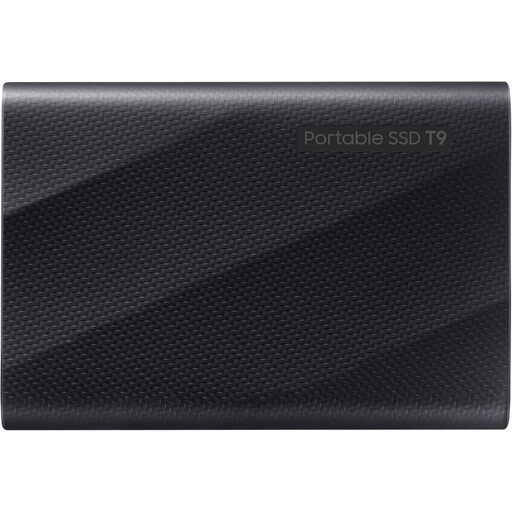
Samsung MU-PG4T0B 4TB USB-C 3.2 Gen 2x2, Black
A portable SSD option when you regularly move a large photo or video library. The name specifies 4TB and USB 3.2 Gen 2x2; check the computer’s port if that interface matters to your setup, and confirm format and power requirements before attempting direct phone use.
View on Joybuy
 No image available
Samsung T7 Shield 1TB Portable SSD, Blue
A portable SSD to consider when you carry a photo library and transfer large files. This blue 1TB USB 3.2 Gen 2 variant has a stated sequential read speed of up to 1,050 MB/s on Joybuy; that figure is not a promise of the same speed with every port or cable. Check connection, format and power requirements for direct iPhone use.
View on Joybuy
 No image available
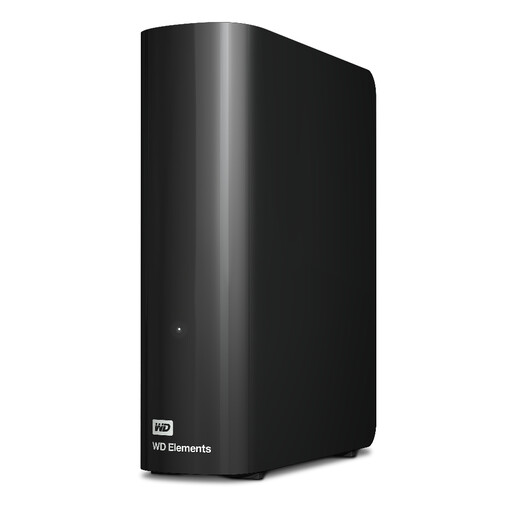
Western Digital WD Elements 12TB Desktop Hard Drive
A desktop HDD option for a large photo archive kept near a computer. The name specifies 12TB and USB 3.2 Gen 1; plan for a fixed-location setup, check the required power connection and confirm the drive format before using it with a Mac.
View on Joybuy
 No image available
Western Digital Elements Portable 4TB USB 3.0, Black
A portable HDD option for keeping a computer-based copy of a growing library. The stated 4TB capacity gives you a figure to compare with your files; check the drive format for your operating system and the connection requirements before planning phone-to-drive transfers.
View on Joybuy
Photo-backup questions
Can I copy iPhone photos directly to an external drive?
Yes, with a compatible connection and storage setup. Apple Support says an iPhone-connected drive must have one data partition and use a supported format, including exFAT, FAT32, APFS or HFS+. Check the connector or adapter and whether the drive needs external power before buying it for direct transfers.
Why is my Android phone not transferring photos over USB?
First unlock the phone and select File transfer from its USB notification, as Google Android Help directs. If the computer still cannot access the files, try another cable or port: not every USB cable carries data.
Can one external drive work with both Mac and Windows?
It can, if its format fits the intended file-transfer workflow. Apple Support identifies exFAT as Windows-compatible and notes that a Mac may read NTFS without being able to write to it. If the drive is for Time Machine instead, check its separate formatting requirements and copy existing files elsewhere before reformatting.
Should I keep ordinary photo folders on a Time Machine drive?
Apple Support advises using a Time Machine backup disk only for Time Machine backups. If you also want a browsable photo archive, plan separate storage or a carefully arranged volume setup, and check how each copy will be maintained.
Is one external drive enough for irreplaceable photos?
Do not rely on one drive as the only copy. The UK National Cyber Security Centre advises regular backups, checking that files can be restored and disconnecting an external backup device when it is not in use. Keep another independent copy so a problem with the drive does not leave you without the library.


