For podcast editing beside a bright window, choose a laptop whose exact display configuration addresses reflections as well as brightness; a high brightness figure alone does not establish that the screen will resist glare. Check that your DAW, plug-ins, storage and audio equipment suit the laptop before paying for graphics capability intended for demanding video or visual work.
Who this choice affects
Window-side podcast editors
If you work near an uncovered or strongly lit window, screen reflections deserve attention before graphics specifications. HP describes anti-glare treatment as a way to reduce reflected light, but the panel fitted to the laptop you buy still matters.
Portable multitrack editors
If you move between recording and editing locations, weigh screen space and carrying weight alongside local project storage and the connections your audio equipment needs. Audacity emphasises uninterrupted access to a drive or SSD for active work.
Podcast-and-video creators
If the same laptop must also run demanding video or GPU-assisted visual tools, a creator-oriented configuration may be relevant. That additional workload, rather than an audio timeline alone, should drive the graphics decision.
What to check when buying
Start with the screen you will use beside the window, then check your audio workflow. Treat extra graphics performance as a separate decision if video or visual production is also part of the job.
| Concern |
What to check |
Who this matters to |
| Timeline visibility near a window |
Check the exact panel for both brightness in nits and anti-glare or anti-reflective treatment. Assess reflections from your usual working angle if possible. |
I need to distinguish tracks and waveform controls without the window obscuring them. Around 38% of consumers put glare control and timeline readability first. |
| Audio-editing workflow |
Confirm your DAW, plug-ins and audio-interface compatibility, and check the local SSD capacity for active projects. Audacity calls for fast, uninterrupted drive access. |
If my sessions depend on particular plug-ins and recording hardware, I need those tools to work together before choosing a laptop. For around 37% of consumers, workflow compatibility is the primary concern. |
| Mixed audio and visual work |
Check the requirements of the video, effects or GPU-assisted applications you actually use; do not infer an audio-editing requirement from a laptop's graphics specification. |
I also produce demanding video or visual content, so those applications may change the configuration I need. Extra creator performance comes first for around 25% of consumers. |
Buying pitfalls
-
Treating brightness and anti-glare as the same feature
A bright screen can still reflect a nearby window. HP notes that anti-glare coatings reduce reflections, though they can slightly affect perceived image clarity or texture.
Check the brightness figure and surface treatment for the exact panel option, then consider where the screen will face in your workspace.
-
Choosing a discrete GPU for an audio-only timeline
Audacity states no specific CPU or GPU requirement, so a high-end graphics specification by itself does not establish a benefit for that audio workflow.
Check the requirements of your DAW and plug-ins, and choose a discrete GPU for this task only if your other applications need it.
-
Assuming Windows-on-ARM supports every audio plug-in
Audacity's Windows ARM64 information identifies plug-in and FFmpeg installer limitations. General Windows compatibility does not resolve those particular workflow needs.
Before choosing an ARM-based Windows laptop, confirm support for each essential DAW component, plug-in, audio interface and codec.
Relevant brands for reference
Apple
MacBook Air is a portable macOS option for editors considering a 13-inch or 15-inch screen. Apple lists 16GB starting unified memory and a 500-nit Liquid Retina display.
- Apple lists two Thunderbolt 4 ports and a 3.5mm headphone jack; check how your own interface and peripherals connect.
- The 500-nit figure does not establish how the screen handles reflections beside your window. Check that separately, along with macOS support for your software and drivers.
HP
The EliteBook X G2 and EliteBook X Flip G2i family is worth examining if a specified bright, anti-glare panel is central to your choice.
- HP lists an up-to-14-inch WUXGA anti-glare, 800-nit display option and up to 64GB memory for the Flip G2i.
- Those are family-level maximums and options, not specifications for every configuration. Confirm the panel and memory in the particular laptop offered.
ASUS ROG
The ROG Zephyrus G14 GU405 is a Windows option to consider when podcast production also involves demanding visual applications.
- ASUS ROG lists configurations with up to an RTX 5080 Laptop GPU and a 3K OLED panel rated at 1100 nits peak brightness.
- Peak brightness is not an anti-glare specification, and Audacity does not establish a need for that level of graphics hardware for ordinary audio editing.
Joybuy laptops for this task
These laptops offer different starting points for editing a podcast timeline: some name an anti-glare display, while others need a closer screen check before window-side use. Compare their stated configurations with your software, storage and connection needs rather than treating graphics power as a substitute for a readable screen.
 No image available
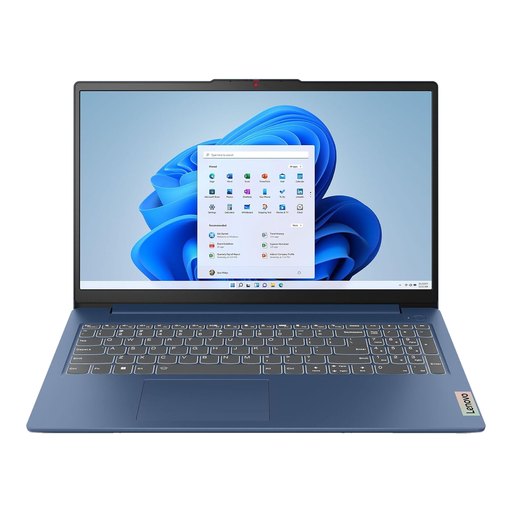
Lenovo IdeaPad 3 15IAU7, 82RK0177UK, 15.6-inch, 16GB RAM, 512GB SSD
Consider this configuration if you want a 15.6-inch timeline workspace and local SSD storage. Check the exact display brightness and reflection treatment for your window position, as well as compatibility with your audio setup.
Confirm the processor before ordering: the configuration information names both Intel Core i7 and Ryzen 7-7730U.
View on Joybuy
 No image available
ASUS Vivobook 15 X1504VA, Intel Core 5 120U, 15.6-inch, 24GB RAM, 1TB SSD
The 15.6-inch format and 1TB SSD make this a candidate for editing with projects stored locally. Check the exact screen's brightness and reflection handling beside your window, then confirm support for your DAW, plug-ins and interface.
View on Joybuy
 No image available
Lenovo LOQ Essential 15ARP11, Ryzen 7 170, RTX 5050, 15.6-inch 144Hz FHD, 16GB RAM, 1TB SSD
Consider the RTX 5050 configuration if your podcast projects also involve visual applications that need a discrete GPU; Audacity does not specify one for its audio workflow. Check the screen from your working position and confirm your DAW, plug-ins and audio interface are compatible.
Its stated weight is 2.30kg, which matters if you regularly carry your editing laptop.
View on Joybuy
 No image available
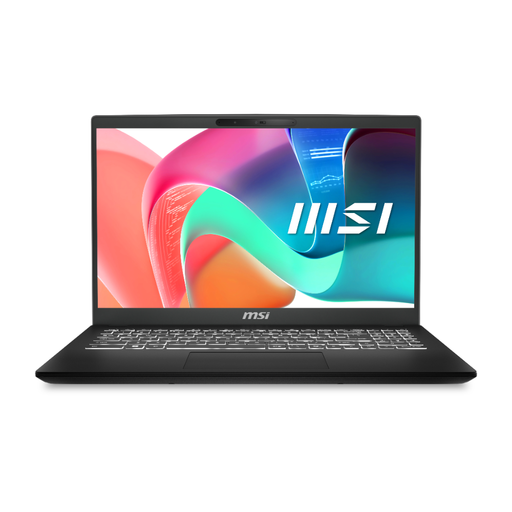
MSI Modern C2RMG-282UK, 9S7-15H431-282, 15-inch FHD, Intel Core 5, 16GB RAM, 512GB SSD
This is an option to assess if you want a larger timeline display and local project storage. Before choosing it for a bright window, confirm the panel's brightness and reflection treatment, along with the connections and software your recording setup requires.
View on Joybuy
 No image available
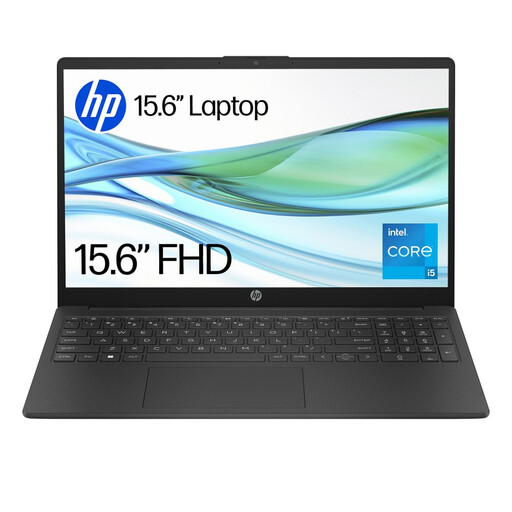
HP 15-fd0064na, 15.6-inch, Intel Core i5-1334U, 8GB RAM, 256GB SSD
The 15.6-inch screen and local SSD make this worth comparing for straightforward podcast sessions. Check whether 8GB RAM and 256GB storage suit your projects, and confirm the display's brightness and reflection treatment before choosing it for a window-side desk.
Check your DAW, plug-ins and audio-interface compatibility for this configuration.
View on Joybuy
Common questions
Will a brighter laptop screen solve reflections beside a window?
Not necessarily: brightness and reflection control are separate characteristics. HP describes anti-glare treatment as reducing reflected light and lists an anti-glare, 800-nit option for the EliteBook X Flip G2i; check that both specifications apply to the exact configuration you are considering.
Do I need a dedicated graphics card to edit a podcast timeline?
A dedicated GPU is not a general requirement for the Audacity workflow: Audacity states no specific CPU or GPU requirement. If you also edit demanding video or use GPU-assisted visual tools, check those applications' requirements separately before deciding.
Where should I keep active podcast projects?
Use storage that gives your editing software fast, uninterrupted access. Audacity warns that network storage, consumer external hard drives and USB thumb drives may be unreliable as working locations; check the laptop's local storage capacity against your project needs and keep a separate backup.
What should I do with an old laptop when replacing it?
Use an appropriate electrical-equipment collection or retailer take-back route rather than treating the laptop as ordinary waste. GOV.UK describes the UK waste electrical and electronic equipment framework as supporting recovery, reuse and recycling.


