Timeline-focused student editor
If tracks, clips and plug-in windows feel crowded on your laptop, a 27-inch QHD display is a starting point. Check that it also fits your available desk space.


For a podcast timeline on a student-room desk, a 27-inch QHD monitor is a sensible starting point: it offers more room for tracks and editing windows than Full HD at the same display scaling. Choose USB-C charging only if your laptop supports video through that port and can use the monitor’s stated power delivery. A 4K monitor is worth considering when detailed visual work is also important, but the extra resolution is not needed for audio editing alone.
If tracks, clips and plug-in windows feel crowded on your laptop, a 27-inch QHD display is a starting point. Check that it also fits your available desk space.
If cables crowd your desk, a USB-C monitor with power delivery may carry video and charge a compatible laptop through one connection. Check the laptop’s video-output and charging requirements first.
If you also work with detailed images or video, a 27-inch 4K display may make that second task more relevant to your choice. Confirm that your laptop can output the resolution you intend to use.
Start with the space your editing timeline needs, then check laptop connections and where the screen can sit on your desk. Treat 4K as a choice for additional visual work rather than a requirement for podcast audio.
| Concern | What to check | Who this matters to |
|---|---|---|
| Timeline space | Compare native resolution and check that your laptop can output it through the connection you plan to use. | When tracks and plug-in windows crowd my laptop screen, I want more of the timeline visible while I edit. Around 42% of consumers put timeline space first. |
| Desk connections | Check the laptop’s USB-C video capability and charging requirement against the monitor’s ports and stated power delivery. | If my charger and peripherals take up a small desk, I want a simpler laptop connection. Roughly 33% of consumers prioritise that setup need. |
| Visual work and positioning | Check whether detailed visual work calls for 4K, and whether the stand and desk depth let you position the screen comfortably. | When I edit images or video as well as podcasts, display detail and screen placement matter more to my daily work. About 25% of consumers put those needs first. |
A monitor’s USB-C power-delivery rating does not establish what your laptop’s port can output or how much charging power the laptop needs.
Compare the exact laptop’s port and charging specifications with the monitor’s video and power-delivery specifications before relying on one cable.
At the same display scaling, Full HD provides less room for editing controls than QHD. That difference matters if you regularly keep tracks and plug-in windows open together.
Compare native resolutions against your usual editing layout before deciding whether Full HD gives you enough workspace.
A feature label does not position the monitor correctly on a cramped desk. The Health and Safety Executive advises placing the screen directly in front of you, with its top around eye level and the screen roughly an arm’s length away.
Check the stand’s adjustment range alongside your desk depth and chair height; assess any labelled display features separately.
The S2722DC illustrates a 27-inch QHD option for a student-room workstation.
The GW2790QT represents a laptop-centred 27-inch QHD setup.
The 27UP850K-W is relevant when podcast editing is combined with detailed visual work.
These monitors offer QHD choices for podcast timelines alongside 4K choices for consumers who also want display detail for visual work. Check each model’s connections and stand against your laptop and desk.
 No image available
Consider this QHD option if timeline workspace is your main reason for adding a monitor.
The product name specifies an IPS panel and 100Hz refresh rate. If you want a one-cable laptop setup, confirm the exact variant’s USB-C video and charging capabilities before buying.
 No image available
Consider this model if detailed visual work is important alongside your podcast timeline.
The product name specifies a 27-inch 4K UHD display. Check your laptop’s 4K output, your preferred display scaling and whether the screen fits your desk; confirm USB-C charging capability if you need it.
 No image available
This is a 4K option to consider if your work includes visual projects and you also want to assess a USB-C laptop connection.
The product name specifies an IPS display and USB-C power delivery at 65W. Check that your laptop supports video over USB-C, can use that charging power and can output 4K at your intended settings.
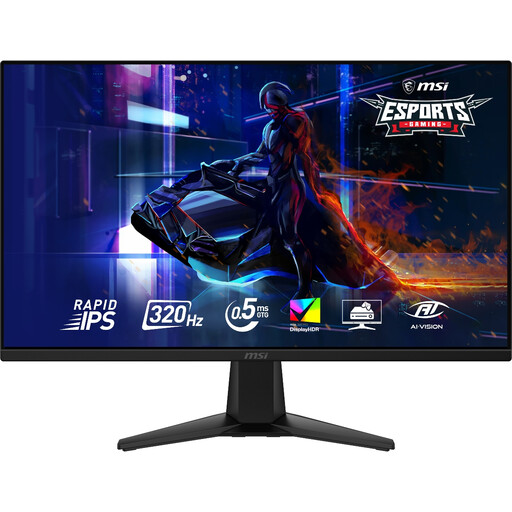 No image available
This QHD model may suit you if timeline space matters more than the higher resolution of a 4K display.
The product name specifies 2560 × 1440, a Rapid IPS panel and 320Hz. Check the stand’s positioning options and the connection your laptop can use; the refresh-rate specification alone does not make podcast editing more capable.
 No image available
Consider this model for a QHD podcast timeline, particularly if you do not need 4K for other work.
The product name specifies a 2560 × 1440 Fast IPS panel and 220Hz. Check how its screen finish behaves in your room’s lighting, and confirm the stand adjustment and laptop connections you require.
Start with QHD if podcast editing and general study work are your main tasks: at the same display scaling, it gives a 27-inch screen more workspace than Full HD. Consider 4K if you also work with detailed images or video, and check your laptop’s output capability and preferred scaling.
Yes, if your laptop supports video output over USB-C and its charging requirement is compatible with the monitor’s power delivery. Dell UK lists power delivery up to 65W for the S2722DC, while BenQ UK lists 65W for the GW2790QT; neither specification establishes compatibility with every laptop.
Position the screen directly in front of you, with its top around eye level and the display roughly an arm’s length away, in line with Health and Safety Executive posture guidance. Check whether the stand, desk depth and chair height let you achieve that arrangement.
Check the energy label and product information for a monitor before purchase. GOV.UK identifies electronic displays within UK energy-labelling requirements and describes dealer display duties; its guidance also identifies the UK Waste Electrical and Electronic Equipment regulatory framework. For end-of-life disposal, check an appropriate electrical-waste collection or retailer take-back route.