Long-timeline editors
If you often rearrange windows to see tracks, files and notes together, a wider screen is worth considering. LG UK describes the 21:9, 3440 x 1440 layout of its 34WQ75C-B as suitable for displaying multiple programmes at once.


Choose an ultrawide monitor if keeping a long podcast timeline and several panels visible is your main priority; a 27-inch 4K monitor makes more sense when desk space and fine interface detail matter more. Whichever format you choose, check that it fits your workstation and that any USB-C video connection and charging limit suit your laptop. An adjustable stand or suitable mount can help you position the screen comfortably, but it cannot compensate for an awkward desk layout.
If you often rearrange windows to see tracks, files and notes together, a wider screen is worth considering. LG UK describes the 21:9, 3440 x 1440 layout of its 34WQ75C-B as suitable for displaying multiple programmes at once.
A 27-inch 4K display is relevant when you want a more compact screen while reading waveform views, controls and text. BenQ UK and Dell UK list 27-inch 3840 x 2160 models; check your preferred interface scaling before deciding how much detail will be comfortable to use.
If you regularly connect a laptop, monitor ports, charging and stand adjustment may matter as much as screen format. Check the laptop’s video output and power requirements against the particular monitor rather than assuming that a USB-C socket provides a one-cable setup.
Choose it when: keeping a long timeline and adjacent editing windows in view matters more than fine detail in a narrower format.
Allow for: a wider physical screen and, in LG UK’s 34WQ75C-B example, 3440 x 1440 resolution rather than 4K.
Choose it when: a compact monitor and fine detail in controls and text take priority over horizontal timeline space.
Allow for: a conventional 16:9 canvas; check the scaling you find comfortable rather than assuming every 4K pixel adds usable editing space.
For a home-office podcast editing monitor, start with the need you would least want to compromise, then check the screen, connections and positioning against your desk and computer.
| Concern | What to check | Who this matters to |
|---|---|---|
| Timeline workspace | Check aspect ratio and native resolution, then measure the desk space available for a wider screen. | If I keep losing sight of tracks, files or notes, I want room to arrange them alongside the timeline. Around 42% of consumers put horizontal workspace first. |
| Detail on a compact screen | Check the monitor’s resolution and the interface scaling you would use at 27 inches. | On a smaller desk, I want to read labels and work with detailed controls without choosing a much wider monitor. Fine detail is the primary concern for around 33% of consumers. |
| Laptop and desk setup | Confirm USB-C video compatibility and charging wattage, as well as stand adjustment or suitable mounting. | When I connect my laptop for a long editing session, I want workable cabling and a screen I can position in front of me. Around 25% of consumers prioritise that setup. |
USB-C video support and charging limits vary by monitor and laptop. BenQ UK specifies DisplayPort Alt Mode and 65 W power delivery for the PD2705U, while LG UK lists up to 90 W for the 34WQ75C-B.
Check your laptop’s USB-C video capability and charging requirements against the exact monitor specification before relying on one cable.
A wider timeline canvas also needs physical space. LG UK specifies a width of 814 mm with the stand for its 34WP85CP-B, a different 34-inch ultrawide model; use the dimensions of the model you intend to buy for your final layout.
Measure usable desk width and depth, leaving room for any speakers or audio interface, and check where the stand or monitor arm will place the screen.
A height-adjustable stand helps with screen placement, but the desk, chair and input devices also affect the working position. The Health and Safety Executive advises placing the screen directly in front of you, with its top around eye level and the display about an arm’s length away.
Set up the complete desk after installation; if you raise a laptop screen, use separate input devices where needed for a workable keyboard and mouse position.
LG UK’s 34WQ75C-B is a 34-inch, 21:9 ultrawide reference for a timeline-heavy desk, with a 3440 x 1440 IPS panel, USB-C and RJ45.
BenQ UK’s PD2705U represents the 27-inch 4K route, with a 3840 x 2160 IPS panel, USB-C and an adjustable stand.
Dell UK’s UltraSharp U2725QE is another 27-inch 4K option, with an IPS Black panel, height and pivot adjustment, and an anti-glare surface.
These monitors cover compact 4K editing desks and larger screens for wider timeline layouts. Compare each one with your available desk space, preferred interface layout and computer connections rather than treating screen size alone as the deciding factor.
 No image available
Consider this for a 27-inch editing desk where 4K resolution and monitor-based laptop charging are priorities. The product name specifies an IPS panel, USB-C with 65 W power delivery and Dolby Audio. Check that your laptop supports the required video connection and can work with that charging limit; confirm the screen’s aspect ratio if your timeline layout depends on it.
 No image available
This is a 27-inch 4K choice to assess if you use a compatible Mac and want an adjustable monitor on the editing desk. Its product name specifies a Nano Glossy IPS screen, USB-C and a height-adjustable stand. Check its connections and charging suitability for your own computer, and confirm the aspect ratio if horizontal timeline space is a deciding factor.
 No image available
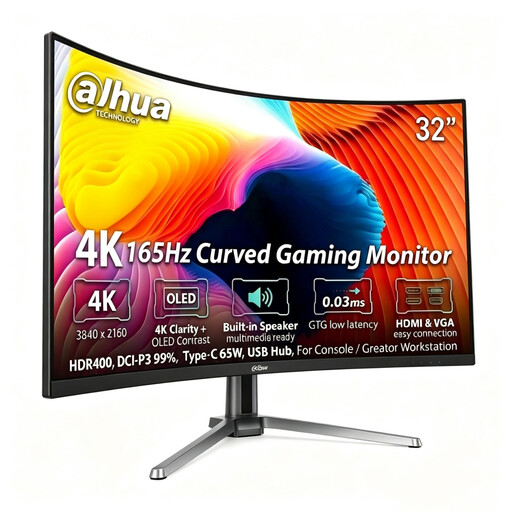
Consider this larger 4K display if you have room for a curved screen but are not specifically seeking an ultrawide timeline format. Its product name states 3840 x 2160 resolution, Type-C 65 W and a USB hub. Check desk fit, your laptop’s Type-C video compatibility and whether 65 W suits its charging needs.
 No image available
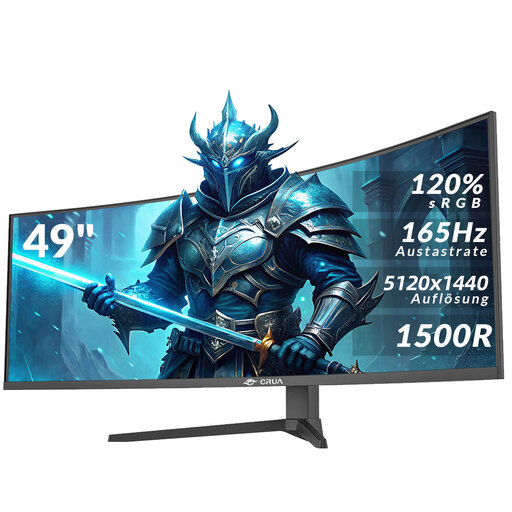
This is the option to assess when extensive horizontal timeline space is the priority and the desk can take a 49-inch screen. Its product name specifies 5120 x 1440 resolution, a 1500R VA panel and VESA 75 x 75 mounting. Check desk and mount capacity, arrange suitable help to handle the large screen, and confirm how you will connect your computer.
 No image available
This 27-inch model is relevant when you want 4K resolution on a more compact editing desk. Its product name specifies 95% DCI-P3 coverage, built-in speakers, HDMI and DisplayPort. Check that those display connections suit your computer, and confirm the aspect ratio if your editing layout calls for a particular timeline width.
No. A 34-inch 21:9 screen is worth considering when seeing more of a long timeline and adjacent panels is your priority, while a 27-inch 4K screen may suit a smaller desk or a preference for fine detail in a conventional layout. Check your editing software’s comfortable scaling and the physical space before choosing.
No. The laptop must support the video connection required by the monitor, and the monitor’s power-delivery limit must suit the laptop’s charging needs. Compare the specifications of both devices before relying on a single cable for display and charging.
Place the monitor directly in front of you, with the top around eye level and the screen roughly an arm’s length away, in line with Health and Safety Executive posture guidance. Use the stand or a suitable mount to help achieve that position, while also arranging the chair, keyboard and mouse comfortably.