
24/7 Customer Support

Free returns

Same-day & Next-day Delivery

Quality Guaranteed

Unlock Your Welcome Offers: FREE Delivery | Up to 80% OFF | Free 30-day JoyPlus trial
Download the APP
As a Joybuy Product Recommendation Officer, my role is to help you navigate the crowded market of tech gadgets. The rise of hybrid work and on-the-go lifestyles has made the portable monitor an essential tool for many. However, not all screens are created equal. A wrong choice can lead to a frustrating experience with tangled cables, poor visibility and a device that isn't as "portable" as advertised.
This guide cuts through the marketing clutter to focus on what truly matters, helping you avoid common purchasing mistakes and find a second screen that genuinely enhances your productivity or entertainment.
Before looking at features, it's crucial to understand the common pitfalls. Many buyers regret their purchase because they overlooked these three critical details.
To make an informed decision, focus on these core parameters. They determine how well the monitor will integrate into your workflow.
Your primary consideration should be how the monitor connects to your devices.
The quality of the panel dictates your viewing experience.
Instead of a generic list, we've matched specific models to different user needs. This ensures you get a product that fits your lifestyle, not just a list of specifications.
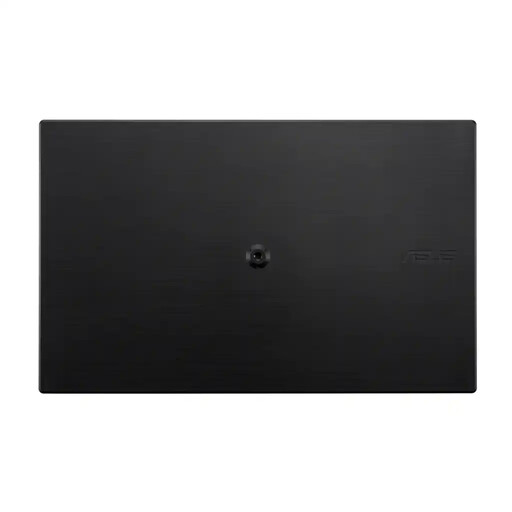
Why This Fits Their Persona: This user needs a reliable, no-fuss second screen for their laptop. They value simplicity and portability for moving between their home office and workplace. At 780g, it's light enough to carry daily.
It directly addresses the connectivity trap by being a dedicated single-cable USB-C monitor. Its anti-glare surface also solves the issue of reflections in bright office environments.
Simplicity: A single USB-C cable handles both power and video with compatible laptops. Clarity: The 15.6" Full HD IPS panel provides sharp text and wide viewing angles.
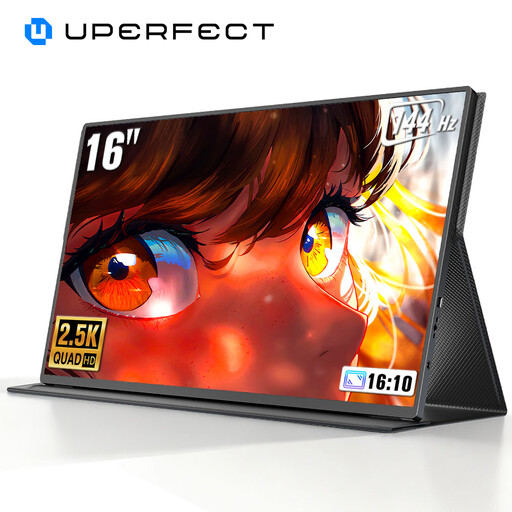
Why This Fits Their Persona: This user wants a high-performance screen for gaming on the go with a laptop, Nintendo Switch or other console. They prioritise smooth motion and sharp visuals over ultimate thinness.
It avoids the trap of being a basic 60Hz screen marketed for gaming. Its specifications (144Hz, 2K resolution) are clearly stated for high-performance use. It also includes both USB-C and Mini HDMI ports for broad compatibility.
Gaming Performance: The 144Hz refresh rate provides exceptionally smooth gameplay. Visual Detail: The 2560x1600 (QHD) resolution is sharper than Full HD, making game worlds more immersive.
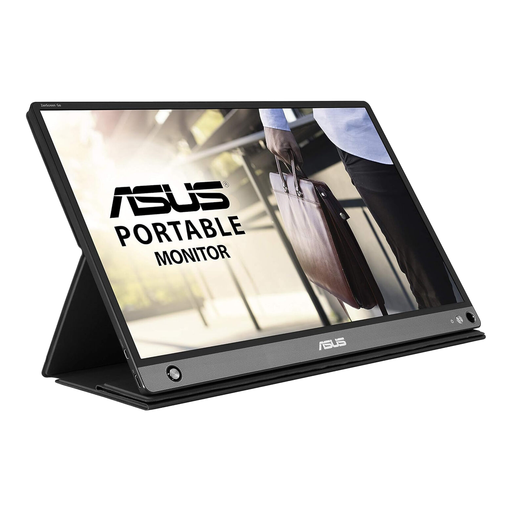
Why This Fits Their Persona: This user needs maximum flexibility. They might connect to a work laptop one day, a personal tablet the next and want to use it where power outlets aren't available.
The built-in battery completely sidesteps the power-draw problem and reliance on a compatible USB-C port for power. With both USB-C and Micro HDMI inputs, it offers a solution for nearly any modern device.
Built-in Battery: A 7800 mAh battery provides up to 4 hours of use, enabling true portability without draining your source device. Flexible Connectivity: Supports both USB-C and Micro HDMI.
We have compiled a complete, real-time list of products that fully satisfy these strict selection criteria and UK safety regulations.
Yes, if the monitor is powered solely by your laptop via USB-C, it will increase battery consumption. The exact drain depends on the monitor's brightness and your laptop's battery capacity. For extended use away from a power source, consider a model with its own built-in battery, like the ASUS ZenScreen Go or have a power bank handy.
For the vast majority of modern portable monitors, the answer is no. When connected via USB-C (with DP Alt Mode) or HDMI, they are typically plug-and-play on Windows, macOS and ChromeOS. Your computer will automatically detect it as a second display. Some older models or those with unique features like touchscreens might require a one-time driver installation, but this is becoming increasingly rare.
Yes, you can connect a portable monitor to consoles like the Nintendo Switch, PlayStation 5 or Xbox Series X/S. You will typically use an HDMI connection for video and a separate USB cable to power the monitor from either the console's USB port or a wall adapter. The Nintendo Switch can often output video and power through its USB-C port, but for stable performance, using the dock with an HDMI connection is recommended.