Colour-conscious client reviewers
If you show brand, web, photo or illustration work to clients, look for colour specifications that apply to the exact monitor. A screen-based review does not, by itself, establish how the work will print.


For design proofs on a small desk, choose a portable monitor whose footprint and stand fit beside your laptop, whose connection requirements your laptop meets, and whose stated colour characteristics suit the review. For print-critical approval, use the relevant output profile and soft-proof workflow: as Adobe explains, colours on a monitor may not match those on a printer.
If you show brand, web, photo or illustration work to clients, look for colour specifications that apply to the exact monitor. A screen-based review does not, by itself, establish how the work will print.
If you inspect fine type, spacing or interface layouts beside a laptop, a compact, higher-resolution screen may be useful. HP Store UK and Lenovo UK list 14-inch examples with 2560 × 1600 and 2240 × 1400 resolution respectively; the stand still needs room on your desk.
If you mark up or navigate a proof with someone at the desk, consider touch or pen input alongside the stand angle. Lenovo UK lists touch and active-stylus support for the ThinkVision M14t Gen 2.
For design proofs shown beside a laptop on a small desk, identify the review task that matters most, then check the monitor’s physical fit and connection requirements.
| Concern | What to check | Who this matters to |
|---|---|---|
| Colour confidence | Check colour-space coverage and any accuracy claim for the exact model; for print work, confirm the required output profile. | When I present colour-sensitive artwork, I need to know what the screen can show without treating it as a print match. Roughly 36% of consumers put colour confidence first. |
| Detail in a compact space | Compare native resolution with the monitor’s full dimensions and the depth its stand uses. | Fine type and layout spacing need to remain inspectable beside my laptop, without the display crowding the desk. Around 29% of consumers prioritise compact detail viewing. |
| Connection and power | Check whether the laptop sends video through its chosen port and meets the monitor’s power requirements. | I need to set up a proof without discovering that my USB-C port cannot provide the required video or power. For roughly 21% of consumers, a dependable connection comes first. |
| Direct annotation | Check touch and pen compatibility with your software, plus the stand angle needed for interaction. | If changes are marked during the discussion, I want to interact with the proof directly rather than use the display only for viewing. About 14% of consumers prioritise annotation. |
Adobe explains that colour can differ between a monitor and a printer. A display’s gamut specification alone cannot account for the intended output.
For print-critical approval, use the output provider’s ICC profile and the appropriate soft-proof settings.
USB-C describes the connector, not all the capabilities behind it. ASUS specifies DisplayPort Alt Mode and at least 10 W from the connected device for one-cable use of its PA148CTV.
Check the exact laptop port against the monitor’s video and power requirements before ordering.
An incompatible one-cable setup may require another connection or a separate power source.
A monitor that fits across the desk can still take up too much depth or sit awkwardly beside the laptop once its stand is open.
Measure the usable desk width and depth, then compare them with the monitor’s full dimensions and intended stand position.
Touch and pen input help when you annotate or navigate a proof directly, but they do not replace colour management.
Make direct interaction a selection requirement only if it forms part of your regular review process.
The Series 5 Pro 514pn is a compact option for reviewing layout detail and on-screen colour.
The ThinkVision M14d and M14t Gen 2 offer different ways to review proofs on a 14-inch screen.
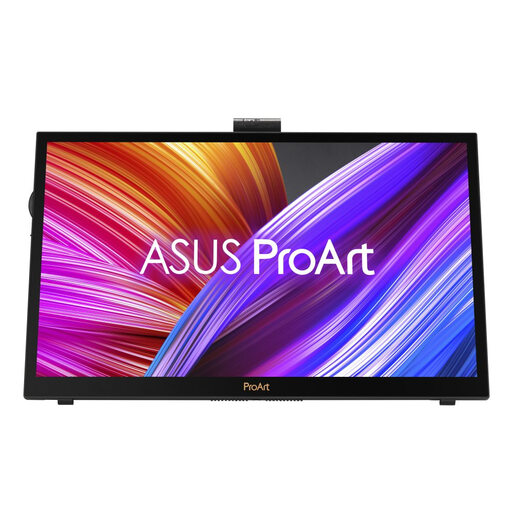
The PA148CTV is a portable option for screen-based colour review and touch interaction.
The VP16-OLED is a 15.6-inch portable OLED model aimed at on-screen image and video review.
These portable monitors offer options for showing design proofs on a small desk: a 4K UHD model for viewing detail and a smaller touchscreen model for interactive review. Check physical fit and laptop compatibility for either setup.
 No image available
Consider this model when viewing fine detail in a design proof matters to your on-screen review. Its product name specifies an IPS 4K UHD display; check its full desk footprint and the connection your laptop can provide.
 No image available
Consider this 14-inch model if you want to navigate a proof directly during a desk-side discussion. Its product name states 100% sRGB coverage, VESA support and a 180° adjustable stand; check the deployed footprint, laptop connection and colour-accuracy requirements for your work.
No: the laptop port must meet the monitor’s video and power requirements. For example, ASUS specifies USB-C DisplayPort Alt Mode and at least 10 W output from the connected device for one-cable use of the PA148CTV.
No. Adobe explains that what appears on a monitor may differ from another screen or a printer; for colour-critical print approval, use the relevant output ICC profile and soft-proof settings for the production workflow.
A 14-inch model is worth considering when space beside the laptop is tight; consider 15.6 inches if a larger viewing area matters more and the setup fits. Compare full dimensions and the stand’s deployed position rather than relying on diagonal screen size alone.