Field technicians reading dense manuals
If you work through diagrams, tables or multi-page procedures away from a desk, screen position, reflections and document orientation deserve more attention than gaming refresh rate.


Choose a portable monitor for field-trip manuals by checking the laptop’s video connection and the viewing position you can actually use, then consider the document layout. A 16:10, higher-resolution panel offers more vertical space for a page, while a 15.6-inch FHD panel offers a larger physical screen than a 14-inch model; neither choice removes the need to manage glare or check the working environment.
If you work through diagrams, tables or multi-page procedures away from a desk, screen position, reflections and document orientation deserve more attention than gaming refresh rate.
A single USB-C cable can simplify a temporary workstation, provided the laptop’s intended port can send video to the monitor. Check the port before relying on that arrangement in the field.
If the same screen may be used with older USB-A laptops and newer USB-C devices, a model offering both connection routes may help. USB-A operation can require an installed driver, so software permissions matter before travel.
Start with the exact device and port you will use, then judge the screen and stand against the manuals and temporary work surfaces you expect to encounter.
| Concern | Buying checks | Who this matters to |
|---|---|---|
| Manual legibility | Compare resolution and panel size for your document layout; check surface treatment and whether the stand gives a usable angle under the intended lighting. | If diagrams and tables fill the page, I need to see details without fighting reflections or an awkward screen angle. Around 33% of consumers put legibility and viewing position first. |
| Host connection | Confirm video output on the exact host port and the monitor’s required input; test the intended cable before departure. | A quick setup matters little to me if my field laptop cannot send a picture to the screen. For around 27% of consumers, a dependable connection is the primary need. |
| Carrying and setup | Compare the monitor’s stated weight, case and stand arrangement, including how securely it sits on the available surface. | When I carry equipment between temporary work areas, I need a screen I can pack and position without a complicated setup. Around 20% of consumers prioritise carrying and deployment. |
| Mixed-device use | Check each intended host, operating system and connection route, including any driver or rotation-software requirements. | If colleagues use different laptops or I need portrait viewing, I want those arrangements settled before the trip. Connection and orientation flexibility comes first for around 20% of consumers. |
A USB-C-shaped port does not establish that a laptop can send a display signal. ASUS says plug-and-play use of its USB-C portable monitors requires video functionality on the computer’s port.
Check the exact host port and test the monitor, cable and laptop together. For a USB-A connection that requires a driver, confirm you can install it before leaving.
An anti-glare finish does not, by itself, establish readability in direct sun or protection against rain, dust and impacts.
If the screen will be exposed to those conditions, check the exact model’s outdoor-use and protection information. Otherwise, plan a shaded, protected viewing position.
A larger panel can still be uncomfortable for a long manual if its stand cannot hold a useful angle. The Health and Safety Executive also identifies lighting and glare as considerations when arranging a display-screen workstation.
Check tilt, portrait positioning and stand footprint against the surfaces available during the trip.
Under the UK Health and Safety Executive’s display screen equipment guidance, employers must assess workstations for workers who use display screen equipment daily as part of normal work for continuous periods of an hour or more.
If your use meets that threshold, involve your employer’s assessment process and consider the whole temporary workstation, including lighting and screen position.
Lenovo’s ThinkVision mobile-monitor range includes USB-C screens designed for laptop-centred setups.
ASUS ZenScreen models include both straightforward USB-C displays and models offering another connection route.
AOC’s 16T3EA is a 15.6-inch portable monitor with a foldable stand.
These portable screens offer different panel sizes, resolutions and connection arrangements for reading manuals away from a desk. Match any model to your host device, carrying needs and available viewing position before choosing.
 No image available
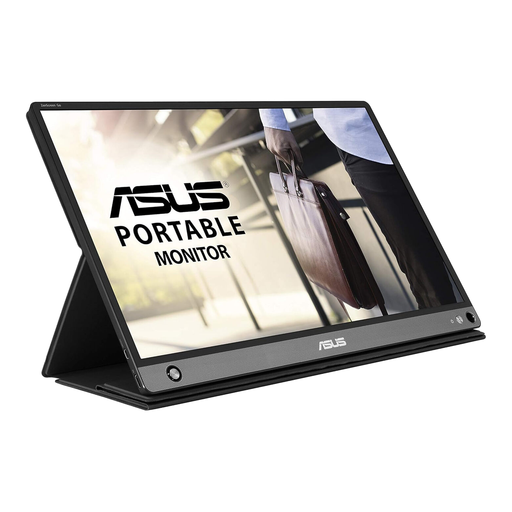
Consider this FHD model if you want a screen for manuals at a temporary workstation. Before relying on a single-cable setup, test video output from your intended host; also check that the available viewing position works for you.
 No image available
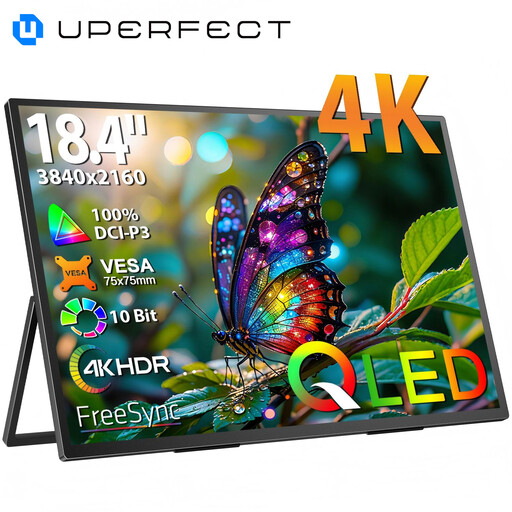
Consider the larger panel if you need room to view detailed pages and can accommodate it in your field kit. The product name specifies an 18.4-inch, 3840 × 2160 QLED display, USB-C and Mini HDMI connections, an integrated mount and VESA mounting. Check the carrying arrangement, viewing position and required host cable before travel.
 No image available
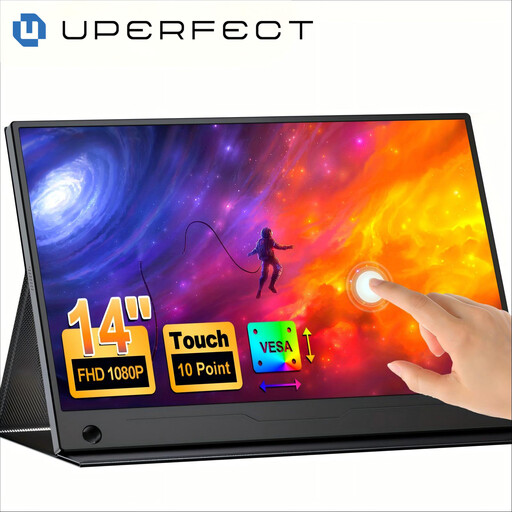
This 14-inch model may suit a temporary setup where stand adjustment matters. Its product name specifies a touchscreen, VESA compatibility and a 180° adjustable stand. Confirm the intended video connection, and keep it away from water or humid conditions as the product information advises.
 No image available
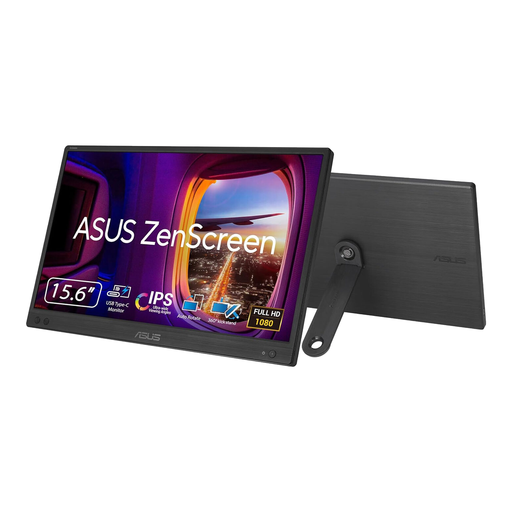
This FHD model is an option for viewing manuals with a laptop that can send video through its intended USB-C port. Confirm DisplayPort Alt Mode support and check how you will position the screen on the work surface.
 No image available
Consider this model if a 16:10 layout would give your manuals useful vertical page space. Its product name specifies a 16-inch, 2560 × 1600 QLED screen, 450-nit stated brightness, Mini HDMI and Type-C connections, and VESA compatibility. Check the stand arrangement and host connection; the brightness figure alone does not establish direct-sun readability.
No: a USB-C connector alone does not establish that the laptop can send video to a portable monitor. ASUS says plug-and-play USB-C display use requires video functionality on the computer’s port. Check the exact port and test the intended cable and monitor before the trip.
A higher-resolution 16:10 screen suits manuals where more vertical page space helps, while a 15.6-inch FHD screen gives a larger physical view than a 14-inch panel. Neither specification settles readability on its own: check reflections, lighting and whether the screen can sit at a comfortable angle.
Place it where you can read the manual without awkwardly turning towards the screen, and adjust its angle and the lighting to limit reflections. The UK Health and Safety Executive includes screen arrangement, lighting and glare in its display-screen guidance; follow the exact model’s instructions for handling and care.
They can apply when a worker uses display screen equipment daily as part of normal work for continuous periods of an hour or more. Under the UK Health and Safety Executive’s guidance, the employer must then assess the workstation; consider the temporary work surface and lighting as well as the extra monitor.