Colour-conscious archive editors
You organise photographs but also compare images, adjust edits or prepare files for web or print. The monitor’s stated colour coverage and accuracy matter alongside your editing and soft-proofing workflow.


For sorting photographs, managing metadata and keeping folders visible beside your laptop work, choose by usable screen space, portability and laptop compatibility. If you will also judge colour edits, look for colour specifications for the exact model and use a colour-managed workflow; a USB-C connector alone does not guarantee that your laptop can send video to the monitor.
You organise photographs but also compare images, adjust edits or prepare files for web or print. The monitor’s stated colour coverage and accuracy matter alongside your editing and soft-proofing workflow.
You sort files, review contact sheets and work on captions, keywords or metadata away from a fixed desk. Consider how much workspace you can use at your preferred display scaling, as well as the screen’s weight and stand.
You need to establish how the screen will connect before choosing between display specifications. Check whether your laptop port sends video, whether it can supply the required power and whether the connection needs a driver.
Decide whether the second screen is mainly for archive administration or for judging edits, then check how it will connect to the laptop you actually use.
Consider it when: You will review colour or exposure as well as organise files.
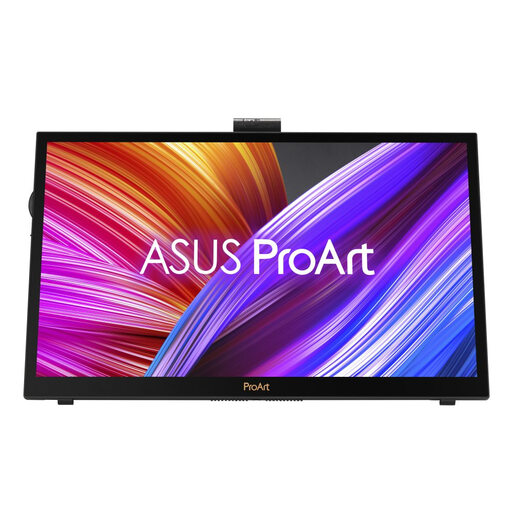
Trade-off: The ASUS ProArt PA148CTV has manufacturer-stated colour accuracy and validation, but its 14-inch screen is 1920 × 1080; its Creator Hub controls are specified for Windows.
Consider it when: Thumbnails, folder trees and metadata panels compete for room while you travel.
Trade-off: Lenovo specifies a 2240 × 1400, 16:10 screen for the ThinkVision M14d; its stated 100% sRGB coverage alone does not establish the accuracy needed for print-critical judgements.
Consider it when: Your laptop remains the editing screen and the portable display holds folders, ratings or a reference image.
Trade-off: The ASUS ZenScreen MB16ACE offers a USB-A connection route, but that route requires a driver; do not assume it has the ProArt model’s colour specifications.
| Concern | What to check | Who this matters to |
|---|---|---|
| Colour confidence | Check the exact model’s colour-space coverage and any stated accuracy or validation. For printing, use the relevant printer-and-paper ICC profile when soft-proofing. | If I use the second screen to judge edits, I need more than a coverage figure before trusting its colour. Around 45% of consumers put colour confidence first. |
| Laptop compatibility | Confirm the laptop’s video-output method and the monitor’s power requirement; check whether an alternative connection requires a driver. | I want the screen to work with my existing laptop without discovering that its USB-C port cannot send video. For roughly 33% of consumers, a workable connection is the primary concern. |
| Portable workspace | Compare resolution, aspect ratio and screen size at your usual display scaling, then consider weight and stand adjustment. | When I travel with an archive, I need room for previews and metadata without making the setup awkward to carry. Usable mobile workspace comes first for about 22% of consumers. |
USB-C describes the connector, not necessarily its video capability. ASUS and Philips specify DisplayPort Alt Mode for the USB-C video routes described for their relevant portable monitors; other connection methods can require a driver.
Check your laptop’s exact port specification against the monitor’s input and power requirements before relying on a single cable.
Depending on the laptop and monitor, the setup may need an adapter or separate power supply.
A 100% sRGB or wide-gamut claim does not, by itself, establish the accuracy of every screen or predict a printed result. Adobe advises using the same printer-and-paper ICC profile selected during soft-proofing for print preparation.
Check accuracy or validation claims for the exact monitor model, and use the appropriate soft-proofing workflow when prints matter.
Folders, contact sheets and metadata panels compete for screen area. A higher pixel count can help, but operating-system scaling affects how much fits comfortably on a portable panel.
Compare panel size, resolution and aspect ratio at the scaling you expect to use; check stand adjustment if you want a different viewing position.
Some extras depend on the operating system: ASUS specifies Windows for PA148CTV Creator Hub controls and for the ZenScreen MB16ACE’s auto-rotation feature.
Check touch, rotation and control-software requirements separately from basic display connection, particularly on macOS or a managed work laptop.
ASUS offers colour-oriented ProArt portable displays and ZenScreen models intended as general mobile second screens. The distinction matters if your archive work includes judging edits rather than just arranging files.
The ThinkVision M14d is a compact, higher-resolution option to consider when archive panels and metadata need space on a travel screen.
ViewSonic’s ColorPro range includes the portable VP16-OLED for buyers considering a creator-oriented screen alongside archive organisation.
These portable displays offer different ways to extend a laptop workspace for photo-archive tasks. Compare the exact model’s colour claims, usable screen area and connection requirements against whether you mainly organise files or also assess edits.
 No image available
Consider this model if archive work also involves reviewing edits on a portable touchscreen.
The listing describes a 15.6-inch 3840 × 2160 IPS display with USB-C and HDMI, and makes model-specific Calman Verified and factory-calibration claims. Check its colour-space coverage and accuracy requirements against your work rather than treating those claims as independent test results.
Confirm the USB-C video and power requirements for your laptop before planning a one-cable setup.
 No image available
This is a compact second-screen option for sorting files while keeping the laptop as your main editing display.
The listing specifies a 14-inch Full HD IPS touchscreen, 100% sRGB coverage and a stand adjustable through 180°. That coverage claim does not establish colour accuracy or print matching.
Check that your device provides the required video output for your intended connection; the listing calls for a power supply if its one-cable route is unavailable.
 No image available
Consider the 16:10 workspace when you want previews, folders and metadata panels visible during archive organisation.
The listing specifies a 16-inch 2560 × 1600 QLED display with USB-C and Mini HDMI. Check the exact connection and power requirements for your laptop.
If you will judge colour-sensitive edits, check the colour coverage and accuracy required for that task separately from resolution.
 No image available
This model suits a portable second-screen role for folders and metadata when the laptop remains your main image-review display.
The listing specifies a 15.6-inch Full HD IPS panel, a weight of 780 g and USB-C video through DisplayPort Alternate Mode.
Confirm that your laptop’s USB-C port supports that video mode. Check colour specifications separately if you intend to assess edits on this screen.
 No image available
Consider this larger screen if you want more physical room for archive previews and panels and can accommodate its size in your intended setup.
The listing specifies an 18.4-inch 3840 × 2160 QLED display, an integrated mount, VESA mounting compatibility, USB-C and Mini HDMI.
Check its carrying weight and your laptop’s connection and power requirements. Resolution alone does not establish suitability for judging colour-critical edits.
No: a USB-C connector does not necessarily provide video output. For a monitor using DisplayPort Alt Mode, check that the laptop port supports that mode; a different connection route may require a driver.
Yes, if the exact laptop and monitor meet each other’s video and power requirements. For example, ASUS specifies DisplayPort Alt Mode and at least 10 W of host output for one-cable use with the ProArt PA148CTV; check other models against their own requirements.
It is a useful colour-coverage specification for an sRGB-oriented workflow, but it does not by itself establish a monitor’s accuracy or guarantee matching prints. Check any accuracy or validation claim for the exact model; for print preparation, Adobe advises using the relevant printer-and-paper ICC profile during soft-proofing.
Possibly: the connection you choose may call for a compatible video cable, an adapter, a separate power source or a driver. Check the monitor’s supported inputs and power requirements against your laptop, and confirm which accessories are included with the particular product.