For reviewing photo previews on a train, choose a portable monitor that fits the available table space and can receive video from your laptop. If the previews will influence colour decisions, favour model-specific colour documentation and calibrate the display; if you mainly sort images or inspect detail, weigh resolution and screen size against the space needed for the stand. Check USB-C video and power requirements before relying on a single cable.
Who needs which kind of screen?
Travelling photographers making colour-sensitive choices
If previews will guide edits, image selection or a client discussion, look beyond an IPS label for stated colour coverage and model-specific accuracy documentation. ASUS publishes those specifications for the ProArt PA148CTV, while Adobe advises calibrating a monitor for Lightroom Classic colour management. Changing train lighting still makes final colour approval difficult.
Mobile editors inspecting detail
If checking focus and working alongside editing panels matter more than colour sign-off, resolution within a manageable footprint is worth examining. Lenovo lists a 14-inch, 2240 × 1400 display for the ThinkVision M14d; confirm that its connections suit your laptop.
Occasional previewers seeking a simple setup
For culling and side-by-side previews, concentrate on a stand that fits the available space, a carry weight you can manage and a working video connection. Manufacturer specifications for the ViewSonic VA1655, Dell P1424H and ASUS ZenScreen MB166C illustrate different ways to meet those practical needs without treating general previewing as colour-critical approval.
What matters when choosing?
Decide how much colour judgement you will make on the train, then check that the monitor fits your seat and works with the laptop and power arrangement you intend to use.
| Concern |
What to check |
Who this matters to |
| Colour confidence |
Look for model-specific colour coverage and accuracy documentation; plan to calibrate the display for colour-managed work. |
If my train-time selections could affect later edits or a client discussion, I want more than an IPS label, while leaving final colour approval for controlled lighting. Around 33% of consumers put colour confidence first. |
| Compatible travel setup |
Confirm the laptop’s USB-C video mode and the monitor’s power requirement; check alternative inputs if needed. |
I want to open the laptop and get a picture without managing an unexpected adapter or power connection. Compatible, low-friction setup is the first concern for roughly 27% of consumers. |
| Viewing in a train seat |
Compare the anti-glare specification, physical footprint and stand opening with the space you can use. |
With changing light and a restricted table, I need a screen I can position and see comfortably. About 27% of consumers place viewing practicality first. |
| Basic preview value |
Choose enough screen area and resolution for culling without assuming that a general-purpose display is calibrated. |
If I will make final colour decisions later at my desk, extra space for thumbnails matters more to me than specialist colour claims. Basic previewing leads the choice for around 13% of consumers. |
Train-use buying pitfalls
-
Assuming every USB-C port carries video
A matching connector does not establish that the laptop can send an image. The cited USB-C display setups require DisplayPort Alt Mode, and ASUS specifies at least 10 W of host output for one-cable use with the PA148CTV.
Check the exact laptop port and monitor input specifications before choosing a cable.
If the intended port cannot provide the required video or power, an alternative input may mean carrying an adapter, another cable or a separate power source.
-
Treating IPS or colour coverage as proof of calibration
A panel type or gamut figure alone cannot establish the accuracy needed for colour-sensitive decisions. ASUS states a Delta E below 2 and Calman Verified status for the PA148CTV; Adobe also advises monitor calibration for Lightroom Classic colour management.
Check the exact model’s colour documentation and calibrate your display for the intended workflow. Keep final colour approval for a controlled viewing environment.
-
Choosing screen size without checking the stand
A larger preview area also needs room on the train table. The way a stand opens and the angle it permits can determine whether the screen is usable beside a laptop.
Compare physical dimensions and stand positions before choosing a 15.6- or 16-inch display for restricted seating.
-
Assuming a specification page means a model is available
Dell UK marked the P1424H unavailable when its product information was checked. A useful specification reference is not a stock confirmation.
Check availability for the exact model and review the seller’s warranty and return terms before purchasing; recheck specifications if you consider a similarly named alternative.
Brands and models for reference
These particular portable-monitor lines illustrate different selection priorities; the specifications of one model should not be assumed to apply across its brand.
ASUS
The ProArt PA148CTV is a colour-documentation reference, while the ZenScreen MB166C offers a larger, general-preview screen.
- ASUS specifies 100% sRGB and Rec.709 coverage, Delta E below 2, anti-glare treatment and 300 cd/m² brightness for the PA148CTV.
- The PA148CTV’s one-cable setup requires USB-C DisplayPort Alt Mode and at least 10 W from the host. Do not transfer its colour claims to the MB166C.
Lenovo
The ThinkVision M14d combines a 14-inch format with additional pixels for inspecting photo detail and working alongside editing panels.
- Lenovo lists 2240 × 1400 resolution, 100% sRGB coverage, a 600 g weight and two USB-C DisplayPort 1.2 Alt Mode ports for the M14d.
- Those specifications do not establish calibrated colour accuracy. Confirm laptop compatibility and calibrate the display before colour-critical work.
Dell
The P1424H is a lightweight, 14-inch general-preview reference with anti-glare treatment.
- Dell specifies a 590 g weight, 300 cd/m² brightness and two USB-C/DisplayPort 1.2 Alt Mode ports for the P1424H.
- Dell UK marked this exact model unavailable when checked. Confirm current availability rather than planning around the specification page alone.
ViewSonic
The VA1655 and touch-enabled TD1655 illustrate 16-inch screens for consumers who place more value on workspace.
- ViewSonic lists a foldable stand, USB-C and mini-HDMI inputs for the VA1655; the TD1655 adds touch input.
- ViewSonic lists 64% sRGB coverage for these models. Check whether that suits the intended preview decisions, and allow for the larger screen’s table footprint.
Joybuy monitors for photo previews
These portable monitors offer different approaches to train-time previews: a 4K ProArt display for inspecting detail, a compact 14-inch touchscreen and two larger screens for extra viewing space. Choose between them by checking laptop connections, physical fit and how much colour judgement you need to make away from your desk.
 No image available
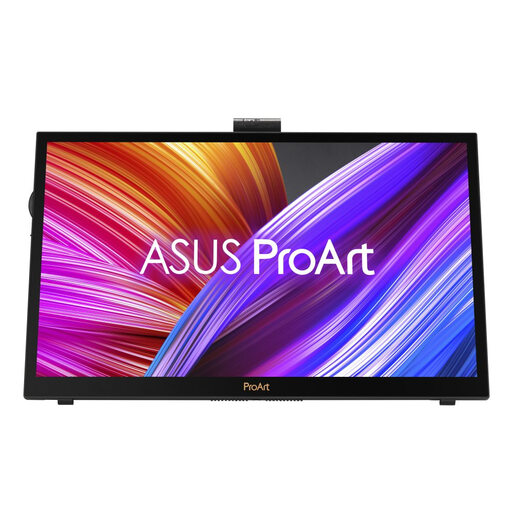
ASUS ProArt PA169CDV 4K UHD IPS
Consider this model if 4K detail matters when inspecting photo previews. Check its physical footprint, laptop connection requirements and model-specific colour documentation before relying on it for train-time editing decisions.
Joybuy
 No image available
UPERFECT 14-inch 60 Hz Touchscreen Portable Monitor
The 14-inch format and stated 180° adjustable stand are worth considering where table space is limited. UPERFECT states 100% sRGB coverage, which does not by itself establish calibration accuracy; confirm USB-C video compatibility with your laptop.
Joybuy
 No image available
UPERFECT 16-inch 2K 144 Hz Portable Monitor
Choose this larger format if preview area and image detail matter more than a compact footprint. The product name specifies 2560 × 1600 resolution, a 16:10 screen, 450 nits and Mini HDMI and Type-C connections; check table fit and the video mode required from your laptop.
Joybuy
 No image available
ASUS ZenScreen MB166C 15.6-inch Full HD IPS
This is a larger screen to consider for culling and side-by-side previews rather than assuming colour-critical accuracy. ASUS specifies an anti-glare surface and USB-C DisplayPort Alt Mode for the MB166C; check that your laptop provides video through its USB-C port and that the screen fits your table space.
Joybuy
Common questions
Will a USB-C portable monitor work with any USB-C laptop port?
No: the cited one-cable display setups need a laptop port that supports DisplayPort Alt Mode for video. ASUS also specifies at least 10 W of host output for one-cable use with the PA148CTV. Check the exact laptop and monitor requirements rather than relying on the connector shape; an alternative video input may require another cable or adapter.
Does 100% sRGB make train-time previews colour-accurate?
No: stated sRGB coverage does not, on its own, establish calibrated accuracy or overcome changing carriage light. Adobe advises calibrating the monitor for Lightroom Classic colour management. Use train-time previews for review and selection, and make final colour-sensitive decisions in a calibrated, controlled setup.
How can I plan for monitor power on a longer journey?
Check the exact monitor’s power requirement and how you will power both it and the laptop. ASUS specifies at least 10 W of host output for the PA148CTV’s one-cable arrangement; Lenovo lists up to 65 W power pass-through for the M14d, while ViewSonic says the VA1655 needs an external adaptor for its charging function. Those specifications do not establish how long your laptop battery will last.


